
On this page...
Ever clicked Next and instantly wished you could go back and change your answer? Your respondents have, too. Until now, the back button stopped working once a respondent moved past a branch in your survey flow. Not anymore! You can now allow respondents to go back after a branch, so a simple misclick no longer locks in their answer.
Back to topWhat Are the Benefits of This Enhancement?
- Improved Respondent Experience: Respondents can return to a previous page and correct an answer instead of being locked out of it after moving past a branch.
- More Accurate Data: Letting respondents fix honest mistakes helps ensure the responses you collect reflect what they intended to say.
- Control Over Your Survey Design: You decide, branch by branch, whether respondents can go back. Surveys that shouldn’t allow changed answers can keep the back button disabled.
When Was This Rolled Out?
This enhancement was officially rolled out in November 2026. It is now available in the survey flow for any survey that uses branch logic.
Back to topHow Do I Turn On the Back Button for a Branch?
This setting is off by default. Your existing surveys will behave just as they always have until you turn it on.
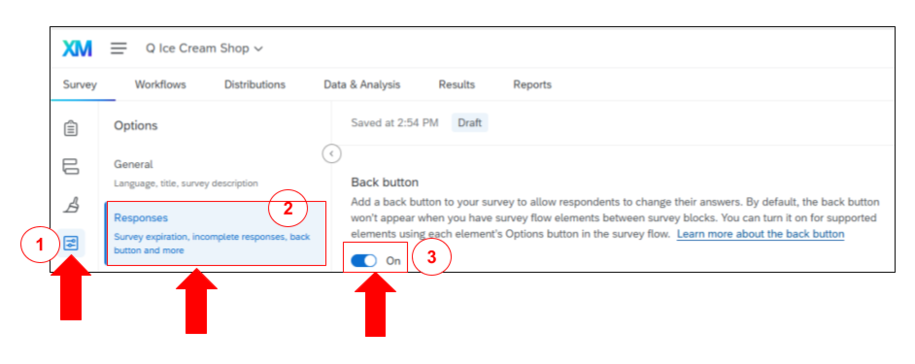
- Go to Survey options > Responses and turn Back button on. This is the survey-wide setting that lets respondents return to pages they’ve already visited. Surveys don’t include a back button by default.
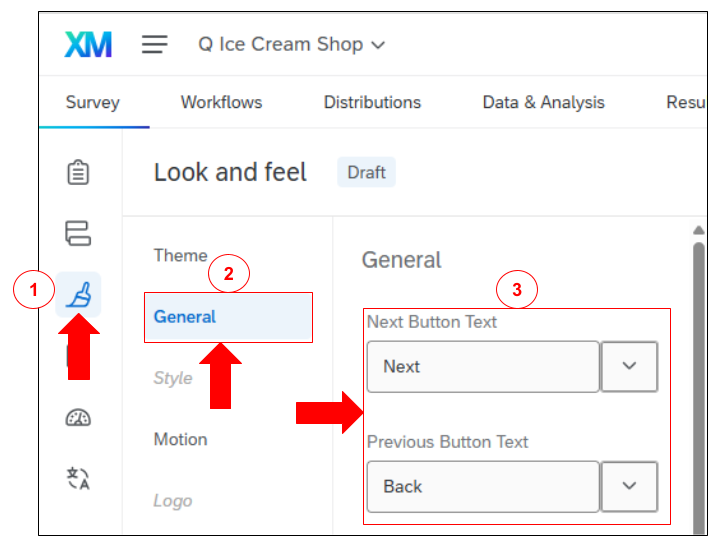
Go to Look and feel > General and set the button text to match the DX Steering Committee guidance: enter Next in Next Button Text and Back in Previous Button Text. Click Apply.
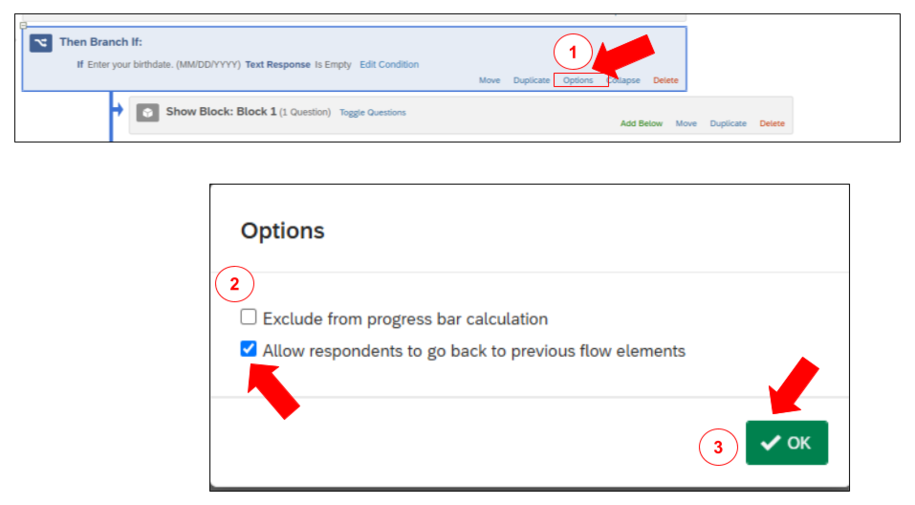
- Open the Survey flow.
- On your branch, click Options.
- Choose Allow respondents to go back to previous flow elements.
- Click OK.
- Apply your changes to the survey flow.
Here’s what each branch setting does:
- Disabled: The back button is turned off on the first page of the block that follows the branch.
- Enabled: A back button appears on the first page of the block that follows the branch. Respondents can go back and change answers from before they entered the branch.
Note: Adjust this setting separately for every branch in your survey flow. If you have several connected branches, update each one, or respondents may not be able to go back as expected.
Back to topHow Can I Learn How to Use It?
To learn more about how back buttons work with branches, check out the official documentation:
- Check out the Qualtrics Support Article on Branch Logic: Letting Respondents Use Back Buttons on Branches for step-by-step instructions and best practices.
- Check out the Qualtrics Support Article on the Back Button in Survey Options for details on the survey-wide setting.
- Review the How Do I Brand and Theme a Survey? guide for the Next and Back button wording and other survey settings.
- Coming soon (after December 8): Watch the training video from our Qualtrics Technical Success Manager on our Qualtrics YouTube channel.