
On this page...
Background
YouTube Chapters:
The Accessibility Assistance Request option was launched in the website Feedback tabs in January 2026. The DX Team processed 235 requests via email.
In mid-April 2026, the Accessibility Assistance Request option was launched on website footers, and the DX Team processed 102 additional requests via email.
On January 28, 2026, we enabled the Qualtrics accessibility ticket workflow, which is why you may already see Closed tickets in your dashboards.
Back to topHow tickets are created and assigned
YouTube Chapters:
- Presentation - How Tickets are Created and Assigned - 04:15
- Demonstration - 16:29
When a user submits an accessibility concern - Footer or Feedback Tab, Qualtrics automatically creates a ticket.
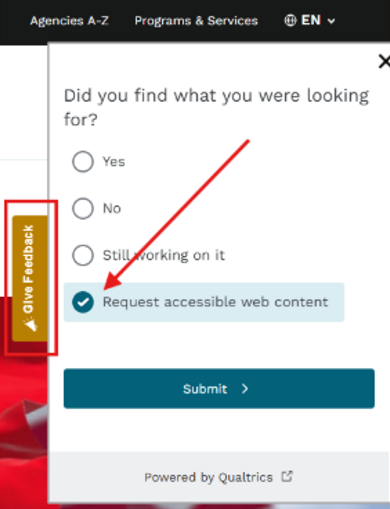
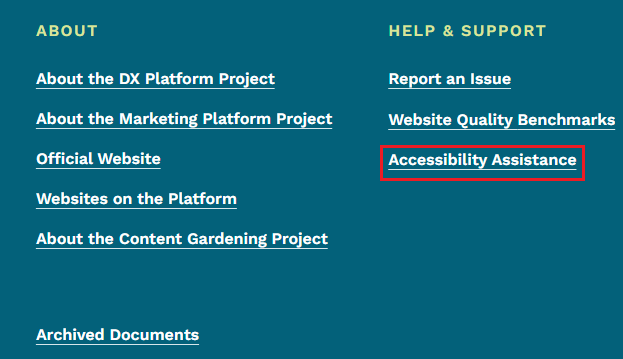
Each submission identifies the specific Iowa agency or website involved, then routes the ticket to the proper agency’s ticketing group.
An email notification is sent to the designated Accessibility Contact with the subject line: State of Iowa - Accessibility Request or Report Form Received – Ticket #
The email includes a direct link to the ticket’s detail page in Qualtrics.
What a Qualtrics accessibility ticket looks like
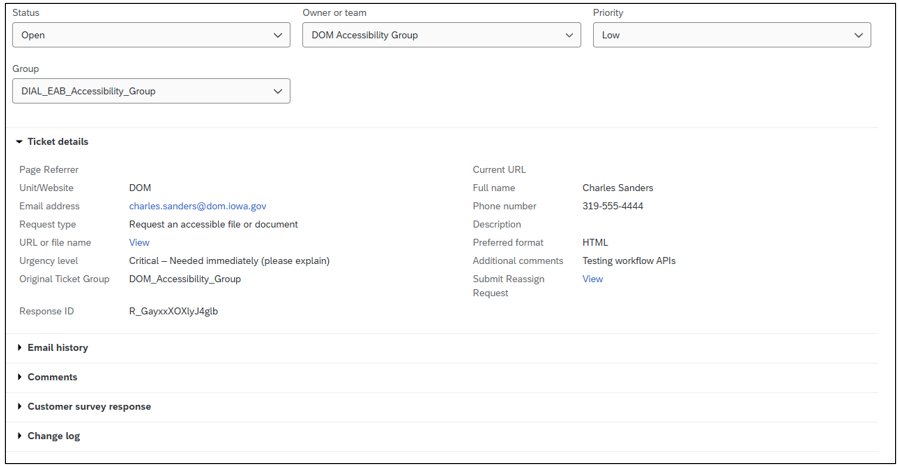
How to process a ticket
YouTube Chapters:
The designated accessibility contact uses the contact information provided in the ticket to reach out. The constituent can be contacted by either the phone number or email they have provided.
- Email
Clicking the Send Email button in the top‑right corner of the ticket will open a window where you can reply. Your response will be automatically tracked within the ticketing system.
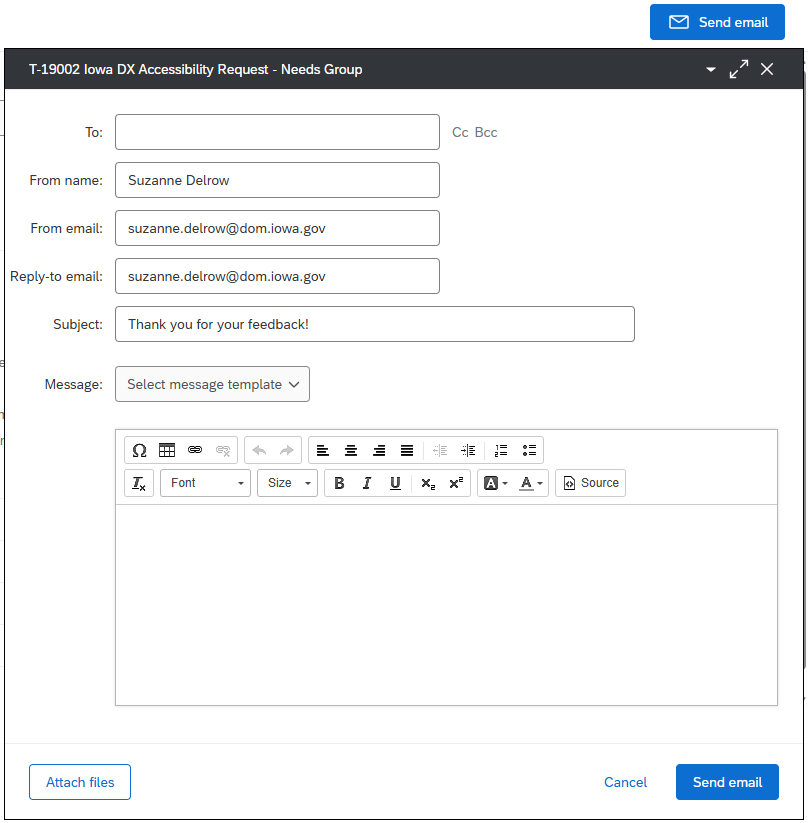
You can copy and paste the recipients email in the To field. The From name, From email, and Reply-to email are up to you and your agency to determine. They can be the personal email of your agency accessibility contact, an agency general email box, or another email.
Document Your Work
Add comments, attach files, include emails from Qualtrics, and review all details in the ticket so everything is tracked in one place.
Update the Status
When you begin working on the ticket, change the status to In‑Progress. When you’re finished, change the status to Closed.
Reassign (Only if needed)
Reassigning should be rare because the backend setup usually routes tickets correctly. However, if a constituent selected the wrong agency, follow the reassignment instructions.
How to reassign a ticket
YouTube Chapters:
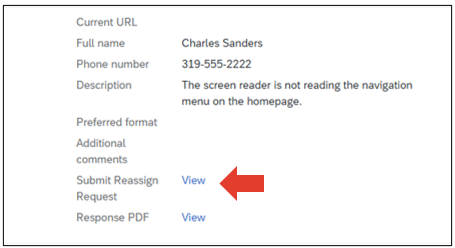
Ticket reassignment can be requested directly from the Ticket Details page.
Open the ticket and select Submit Reassign Request.
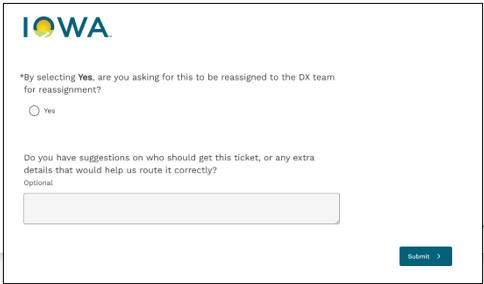
You will be taken to a short survey form.
The survey includes two fields:
By selecting Yes, are you asking for this to be reassigned to the DX team for reassignment?
Do you have suggestions on who should get this ticket, or any extra details that would help us route it correctly?
Submit the form when completed and will be triaged by the DOM DX Team.
An email is automatically triggered to the DOM DX Team.
The DX Team reviews the request, determines the correct receiving agency or group, and performs the reassignment on your behalf.
What happens once a ticket is reassigned
An email will be sent to the reassigned agency to notify them of the change.
The DOM DX team will include additional notes explaining the decision that was made. Below is a sample of the notification you will receive when a ticket is reassigned.
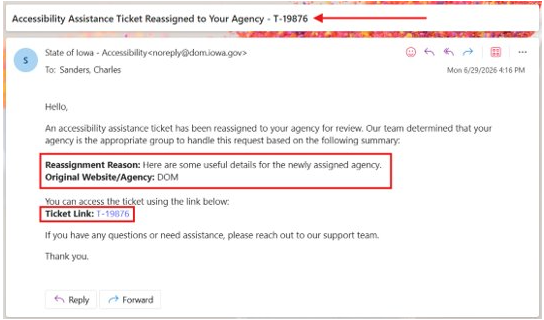
Tip: Please review the comments and email communications that have been logged in the ticketing system to better support the constituent’s request.
What if the ticket is not accessibility related?
If you need to pass the ticket to another person within your department or agency, you can create a Response PDF to be emailed or printed.

Once you've selected View next to Response PDF within a ticket, you'll be taken to a summary page for that ticket. You could print this page, or you can select Download as PDF at the top of the summary screen.

If you've selected Download as PDF, a new window will open with the PDF. You can download the PDF using the Download/Save icon in your browser's toolbar. You can email this PDF or print and deliver to the appropriate person able to help the constituent with the question.
Back to topAccess the Accessibility Assistance Dashboard
YouTube Chapters:
This dashboard gives you a centralized view of all accessibility tickets for your agency.
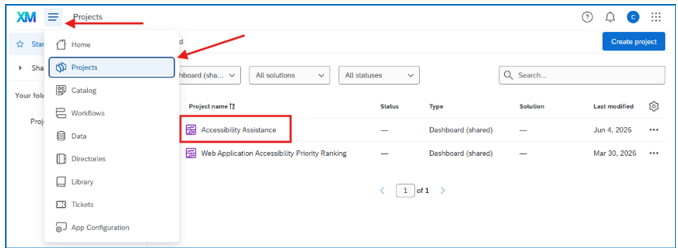
Log in to Qualtrics
Option 1:
Go to Projects
Select Accessibility Assistance
or
Option 2:
Go to Tickets
Click View Dashboards
Select Accessibility Assistance
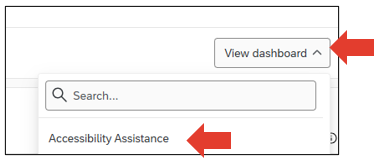
Using the Dashboard
See all tickets assigned to your agency
Filter by status, Open, In Progress, Closed or date.
Sort by submission date, ticket ID, request type, or priority.
Open any ticket directly from the dashboard
Monitor progress across your agency and identify trends
The dashboard should serve as your ongoing monitoring tool to ensure timely follow‑up.

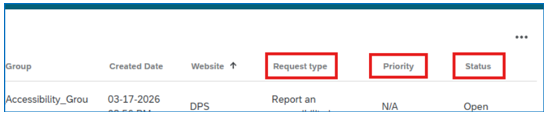
DX Accessibility Assistance Workflow video
This tutorial will help you understand the purpose of the DX Accessibility Workflow and how to process requests.
- 00:00 - Welcome
- 01:02 - Presentation - Timeline of the Assistance Workflow
- 03:26 - Presentation - Accessibility Point of Contact
- 04:15 - Presentation - How Tickets are Created and Assigned
- 06:50 - Presentation - How to Process a Ticket
- 09:28 - Presentation - How to Process a Ticket - Contact the Constituent
- 10:11 - Presentation - How to Process a Ticket - Document Your Work
- 10:36 - Presentation - How to Process a Ticket - Update Status
- 11:01 - Presentation - How to Process a Ticket - Reassign - Only if Needed
- 13:03 - Presentation - DX Accessibility Assistance Dashboard
- 16:29 - Demonstration