Purpose
The FAQ List allows you to create and manage a dedicated page for Frequently Asked Questions or FAQs. It uses an Accordion style layout. This lets users expand or collapse questions easily to find the information they need.
When to use an FAQ List
This works well when you have many FAQs to sort and show clearly for users. You cannot add microcontent to FAQ pages.
- Title: Title of the FAQ List page, limited to 70 characters.
- Short title: This is optional. It’s a shorter version for menus and breadcrumbs. Keep it under 35 characters.
- Summary: Used on search engines and social media shares. Limited to 160 characters.
- Featured image: A single image that captures or relates to the page topic. Used in teasers and social media shares. Limited to one.
- Description: Brief description of the list, it displays at the top the section. Limited to 255 characters.
- Topic: Categorize content for filtering and search - optional.
- Division/Section: Choose the area of the agency where the content belongs - optional.
An FAQ content type is its own full Accordion page. It doesn’t work like an Accordion Microcontent added to a Basic page. Instead, the FAQ page has a built-in Accordion section.
FAQ pages should be used sparingly. The questions from most FAQ lists should be answered and incorporated in the appropriate content area within your website.
Step 1: Create a new FAQ List content type
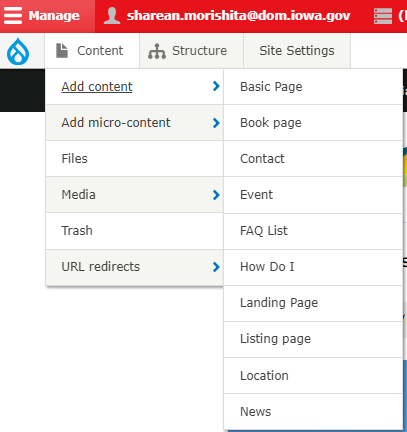
Create a new page by navigating to the Content tab. From that dropdown menu, select Add content. Select FAQ List to fill out a list of questions and answers that are relevant to this page.
- Individual Q&As may be rearranged.
- At least one Q&A must be in the FAQ List.
- Every question must have an answer.
- Every answer must have a question.
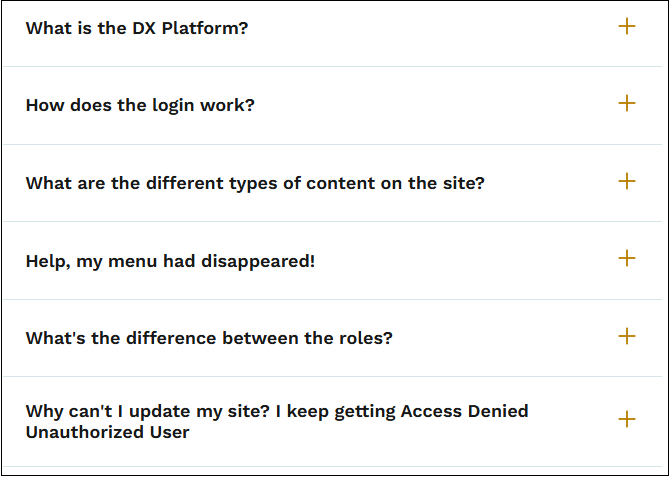
Example of an FAQ List:
Step 2: FAQ List Section Headings
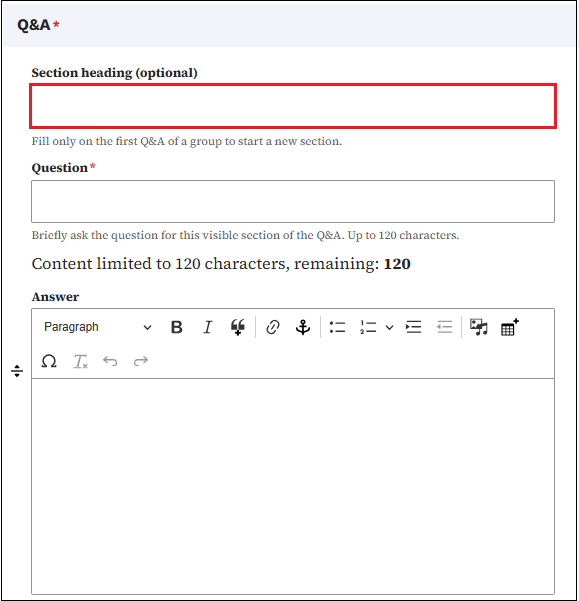
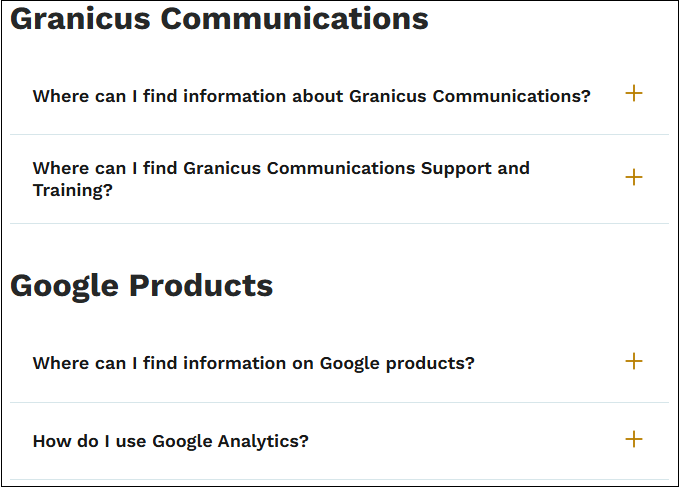
FAQ List pages now support sections with headings so you can group Q&As inside a single page. There are no character limits and no limit on how many Q&As you can add. Existing FAQ Lists are not affected.
To use section headings:
- On the first Q&A of each group, fill in the new Section heading field.
- Leave Section heading empty on the other Q&As of that same group.
- To start a new group, fill in Section heading again on the next Q&A.
- Save. Each heading shows as an H2 above its group of questions.
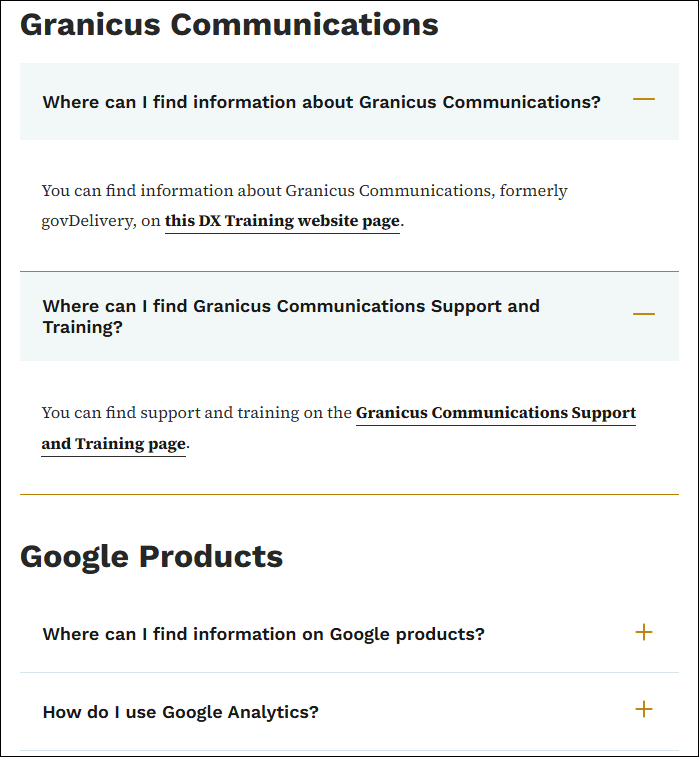
Example of a closed FAQ List with headings:
Example of an open FAQ List with headings: