
Understanding Taxonomy and Vocabulary Terms
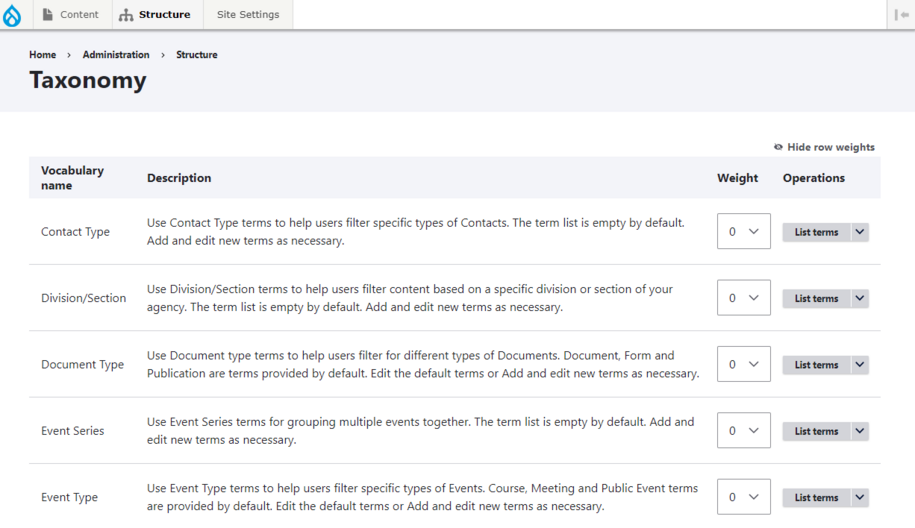
All sites benefit from structured vocabularies, which allow different terms to be used site wide. For example, a vocabulary might be Fruit Types, with terms such as Citrus, Berries, and Stone Fruit.
Think of it like the aisles of a grocery store:
- Bread is the vocabulary (aisle).
- Within that aisle, there are terms: Buns, Loaves, Baguettes.
Learn more about taxonomy and how they work.
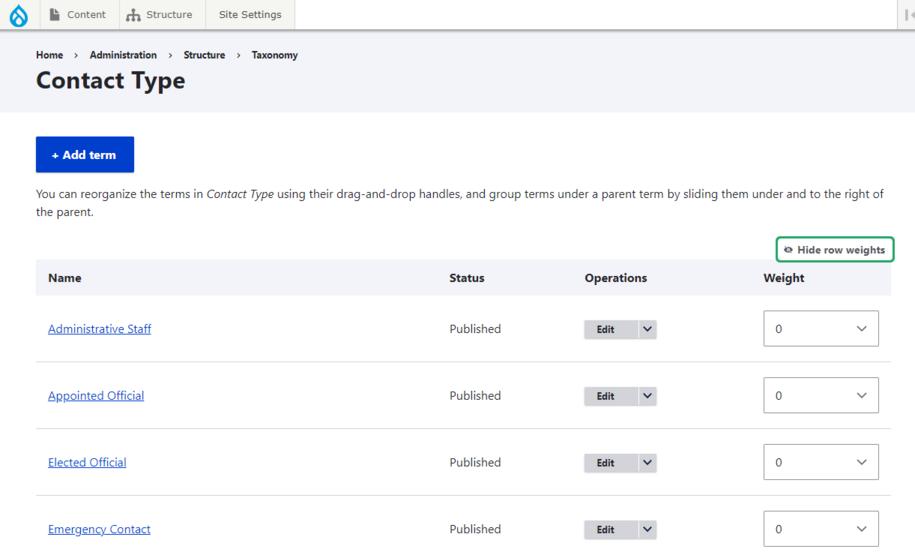
For example, the Contact Type vocabulary might include the following terms:
- Administrative Staff
- Appointed Official
- Elected Official
- Emergency Contact
- Support and Maintenance Staff
Example of Taxonomy Vocabulary:
Example of Taxonomy Contact Type Terms:
Step 1: Login to your site
Make sure you are logged on to the VPN first.
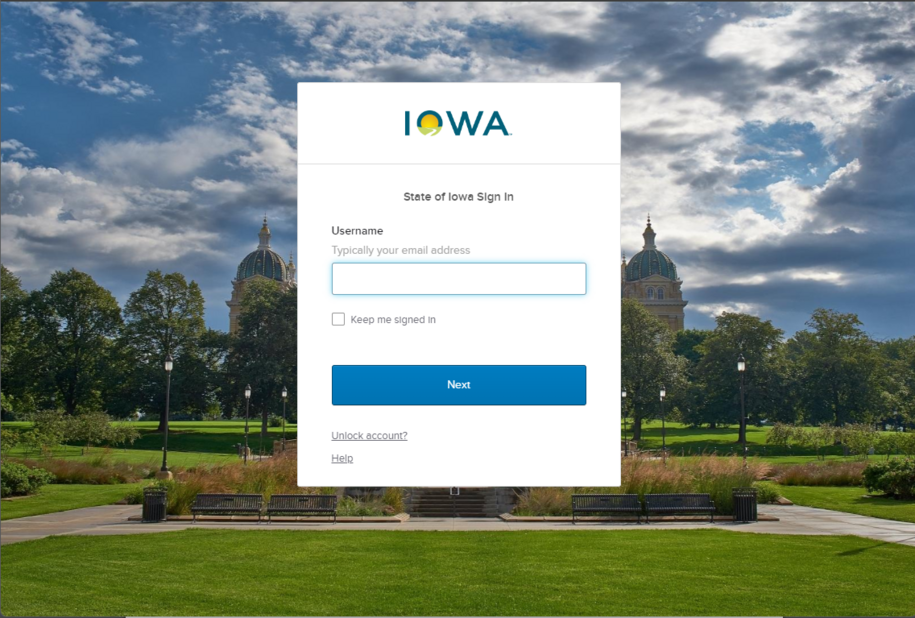
You can login to your site from your Okta tile or login.iowa.gov.
Each person on your agency team has a specific user role for the website. These roles set permissions. They control who can write, edit, review, or publish content. You can ask for a role change or remove a role.
Submit a ServiceDesk Plus support ticket if you need help.
Step 2: How to add taxonomy terms
Note: Only users with the Agency Manager role can adjust or edit taxonomy terms.
There are two ways to add taxonomy terms:
Method 1: Using the structure button
- Navigate to the Structure button.
- Hover over Taxonomy to reveal a dropdown with available vocabulary types.
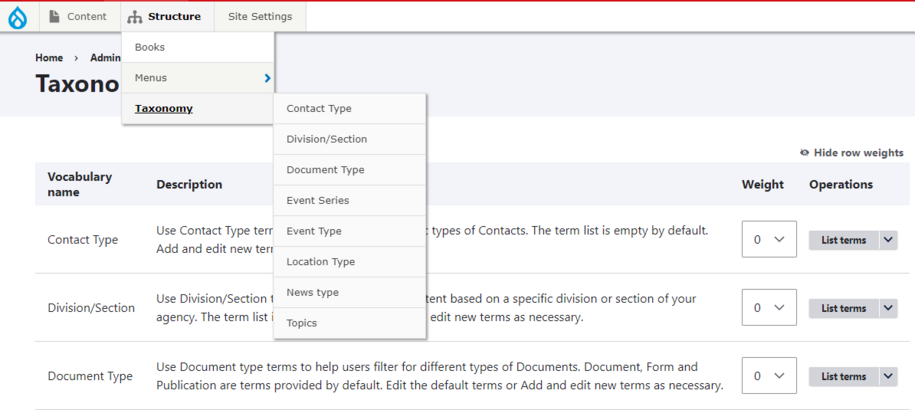
- Select on the vocabulary type you want to add a term to, like Contact Type.
- Select the blue Add Term button.
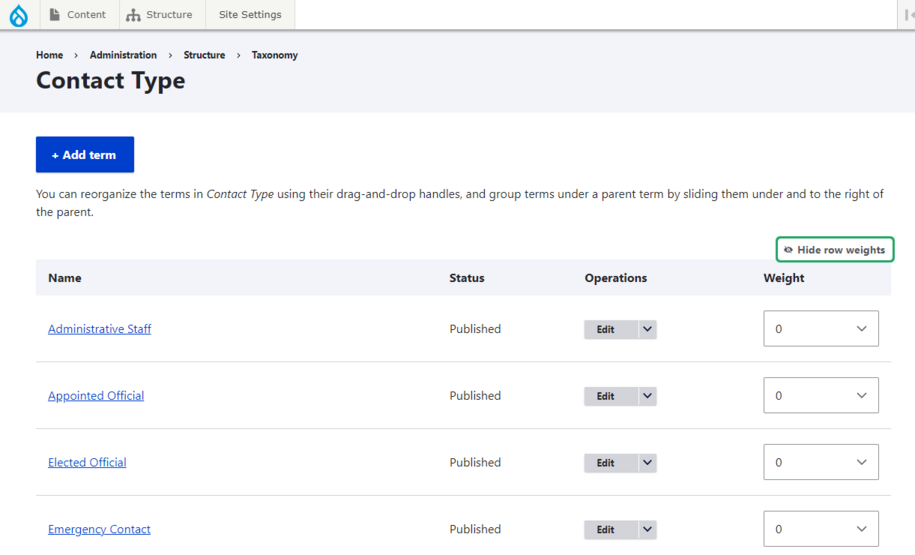
Method 2: Using the Taxonomy button
- Select the Taxonomy button.
- A list of vocabulary names will appear.
- To add a term, select the arrow beside the List Terms button and select Add Term.
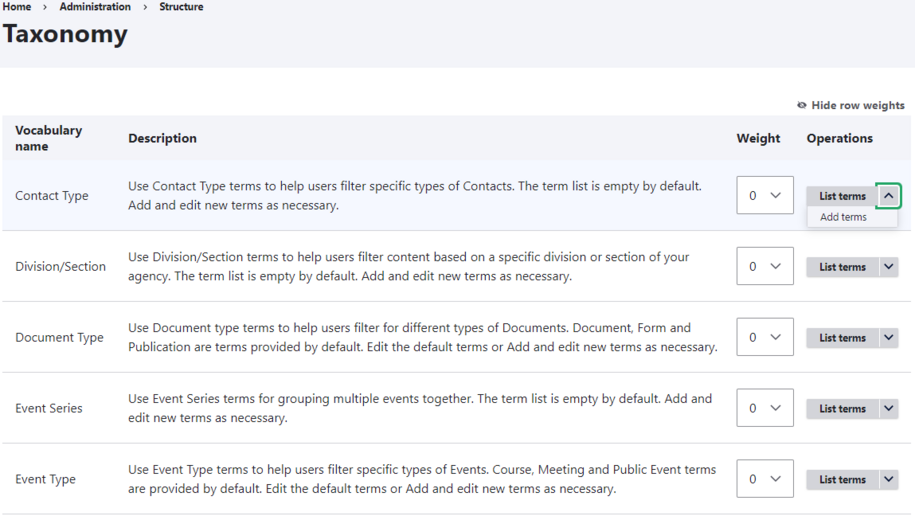
Editing Taxonomy/Division
To add, delete, or edit terms:
- Navigate to List Terms for a full list of available options.
- Select Edit in the Operations row to change the term’s name.
- The Edit Page will appear, allowing you to make changes.
- Once saved, all content tagged with that taxonomy will automatically update across the site.
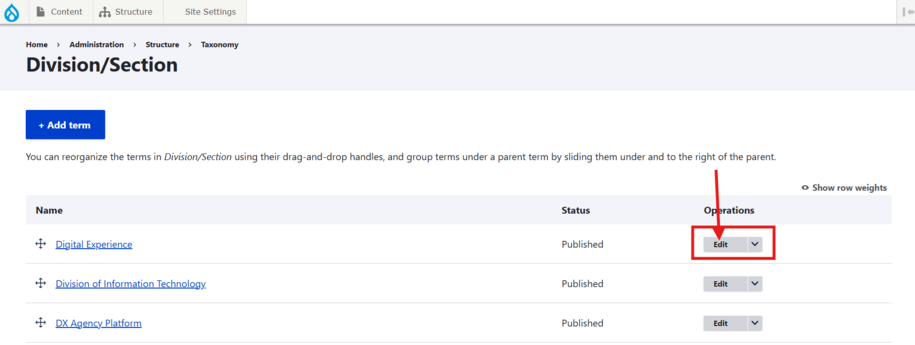
Step 3: How to use row weights
You can manually adjust the order of terms by selecting a number in the Weight row:
- Example: If Appointed Official has a weight of -5, it will appear below Administrative Staff, which has a weight of -6.
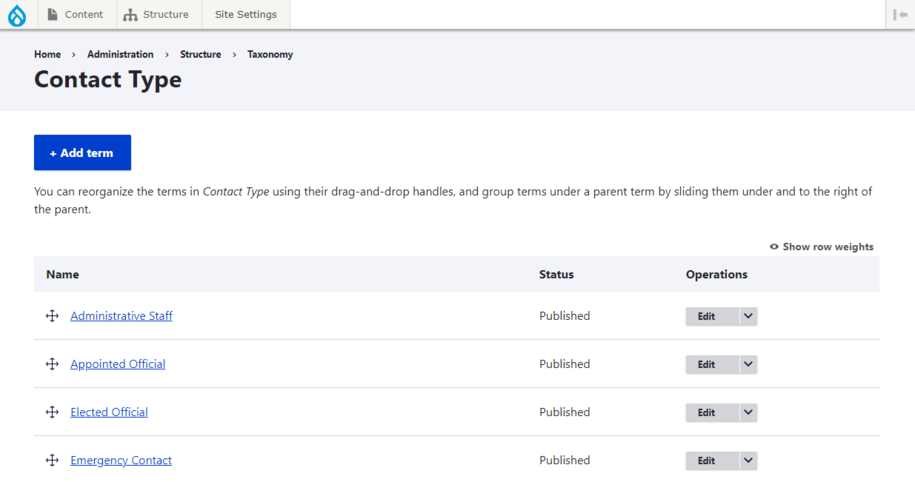
- Alternatively, you can hide the Row Weight column by selecting the eye icon, revealing the drag-and-drop crossbars to reorder terms manually.
Example:
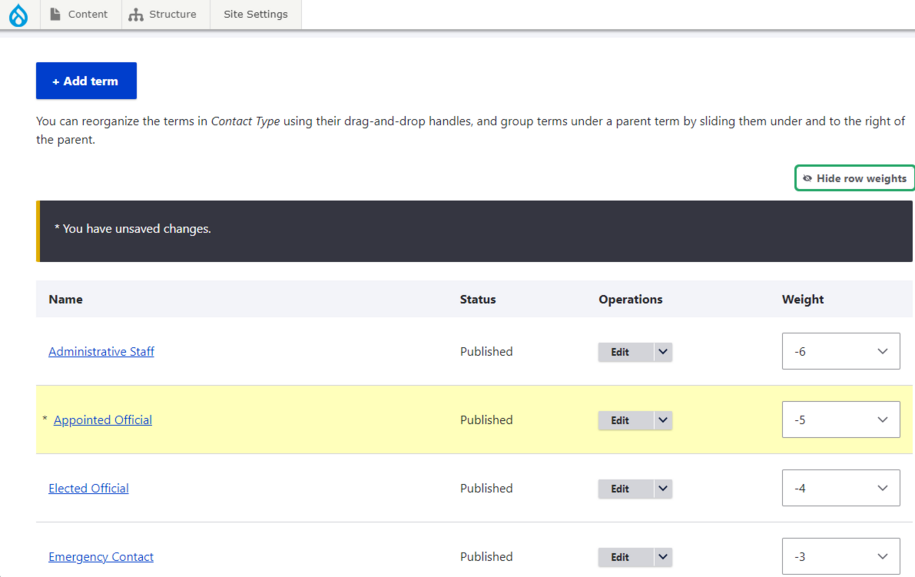
Example: Appointed Official term with the weight of -b is above Administrative Staff term with the weight of -5
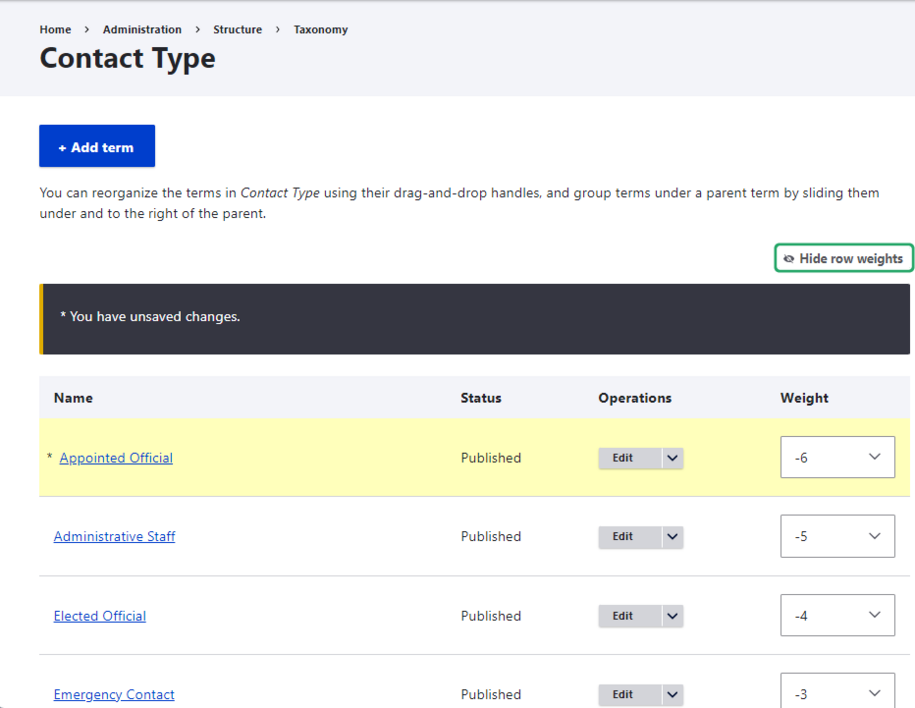
Example: Row Weight Unhidden
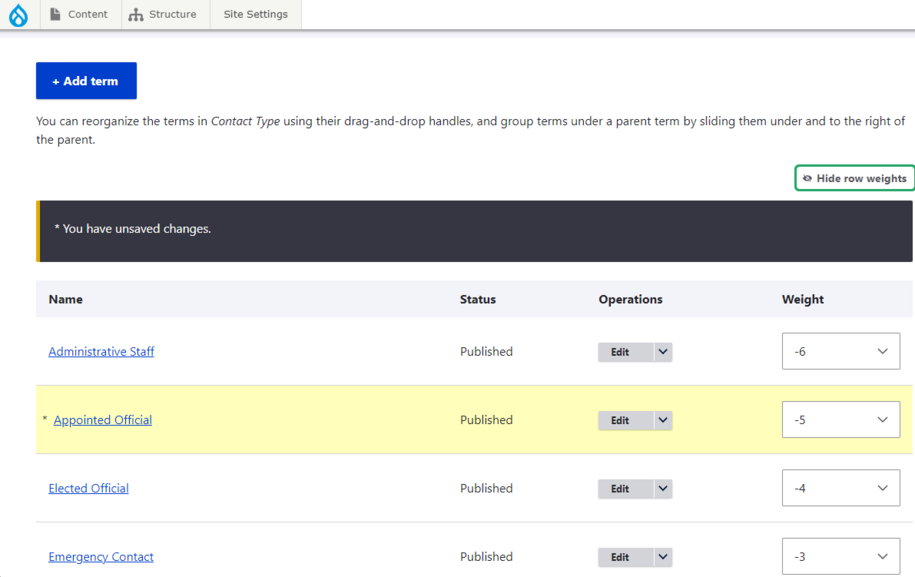
Example: Row Weight Hidden so that the crossbar can be used to reorganize taxonomy terms
Step 4: How to add taxonomy child terms
There are two ways to add child terms:
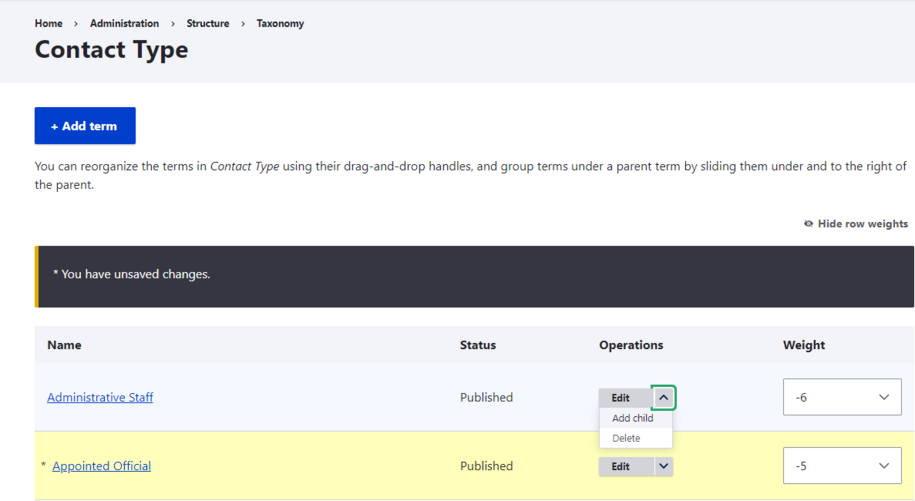
Method 1: From the Taxonomy Type page
- Select the arrow next to the Edit button.
- Select Add Child from the dropdown.
Example:
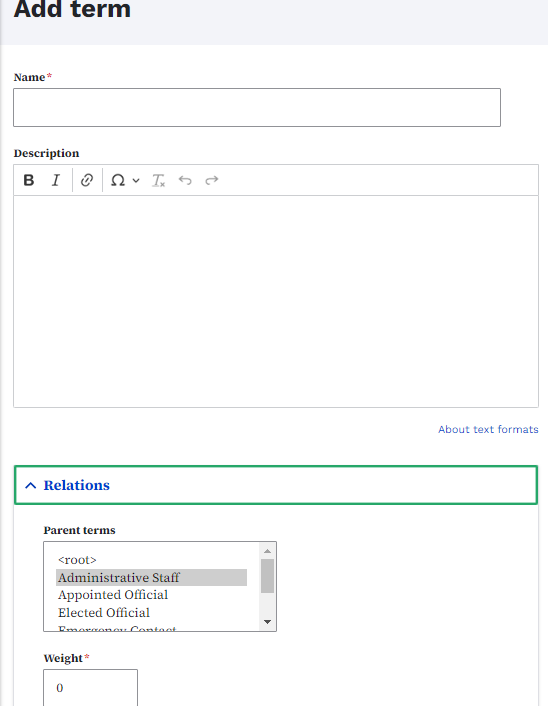
Method 2: From the Term page under Relations
- Select the blue + Add Term button.
- Navigate to the Relations tab.
- Select the Parent Term you want to associate the child term with.
Example: Add a child term from the term page under relations dropdown.
Step 5: Next steps
Now that you understand how to create taxonomy vocabulary and terms, it's time to put them into action. You can now categorize your content correctly using the relevant taxonomy type.