On this page...
Purpose
Think of Google Analytics 4 (GA4) as a tool that helps you see how people use your website. It tracks the bookmarks or backlinks they used to reach your site. It also analyzes user behavior once they’re there.
To be able to access the agency's Google Analytics account that Iowa manages you will need to have your iowa.gov email address connected to your work Google account. This will allow the property to be under the Iowa organization account and help to avoid the issue of the account being lost if any individual person who created the account leaves state government.
Back to topWhen to use Google Analytics reports
By understanding how people use your website, you can:
- Identify broken links: Identify and fix outdated URL links leading users to 404 errors.
- Improve website navigation: Update your navigation to help users find information more easily.
- Monitor external link traffic: See which external links are driving traffic to your website.
- Understand user behavior: Identify what users search for and track the links they click.
There are some limitations when it comes to use reports for documents. You can track link clicks on your site to access the document, but you cannot track if a user opens a PDF directly from an external source like a PDF viewer.
Back to topKey elements of Google Analytics
Page Title/Landing Page + Query String
- Page Title: This combination shows the specific page title and the URL path of the page the user visited.
- Landing Page + Query String: This shows the exact URL a user used to reach a page, helping identify outdated or incorrect links they try to access.
Views and Active Users
- Views: This shows the total page views. Knowing this is useful for identifying popular pages and content gaps.
- Active Users: This is the number of unique users who visited the page. This can help identify user engagement and interest in specific topics.
Keywords and phrases
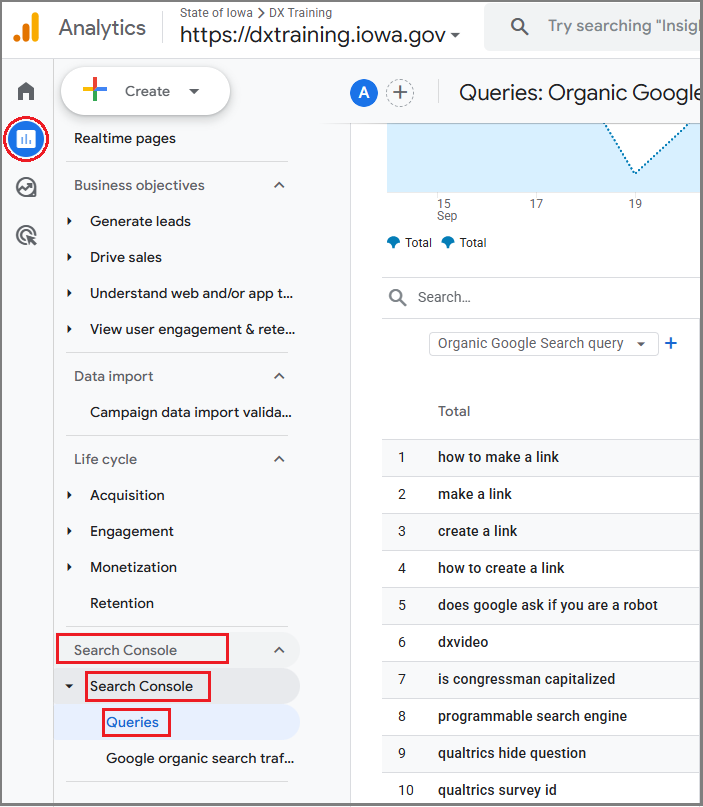
To find a list of words or phrases that people typed into Google Search then clicked to go to your website, go to Google Analytics: Reports > Search Console > Search Console > Queries.
Most popular pages
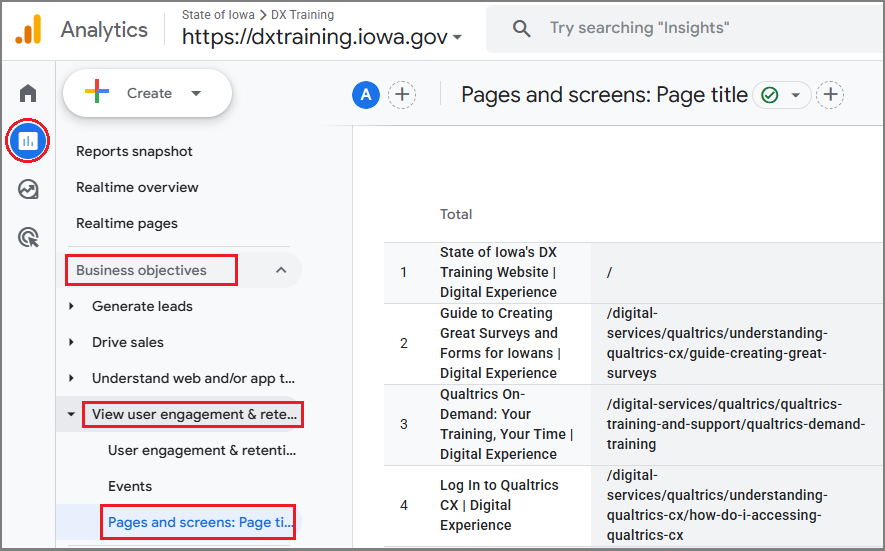
To find the most popular pages on your website, go to Google Analytics: Reports > Business objectives > View user engagement and retention > Pages and screens - Most accessed pages.
Google organic search traffic
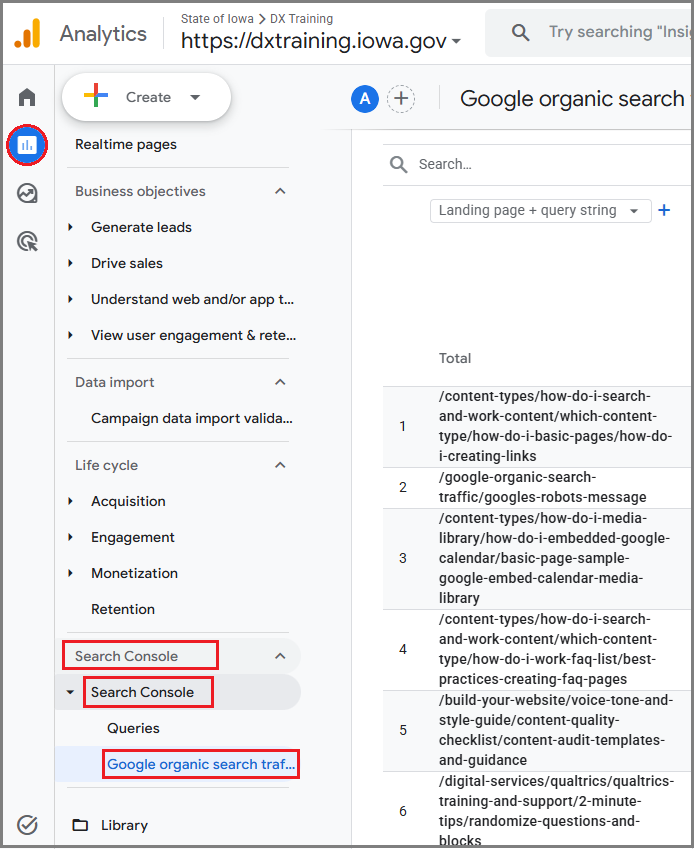
Organic search traffic is the number of visits or sessions to your website’s top pages that come from unpaid search results. To find this, go to Google Analytics: Reports > Search Console > Search Console > Google organic search traffic.
Finding your traffic sources
You want to find your traffic sources in Google Analytics because it tells you exactly where your visitors are coming from. This lets you know which sources are bringing the most traffic to your website - organic search, paid ads, social media, referrals, or direct. This helps you attribute results to specific campaigns or platforms, so you know where your time and effort are paying off.
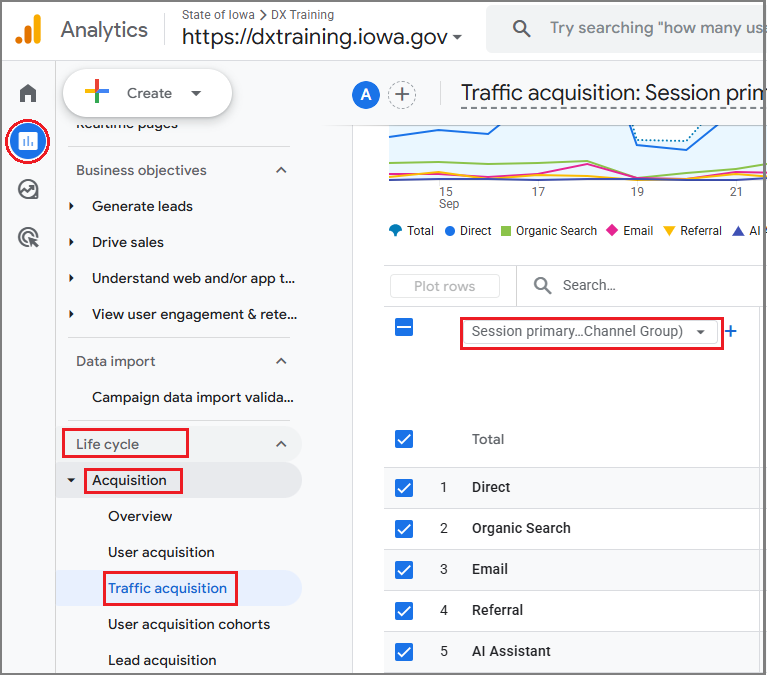
Find where your website traffic is coming from by going to Google Analytics: Reports > Life cycle > Acquisition > Traffic acquisition. If you click the Session Primary Channel Group dropdown, and click Session source/medium, you can see exactly where it’s coming from. Did you send out an email newsletter, make a social media post, or get mentioned on another website? You can see what brought the most traffic to your site.
Understanding the GA4 views and active users report
- High Views, Low Active Users: This might indicate that a page is being accessed through multiple links or is being shared frequently.
- Low Views, High Active Users: This might indicate that the page is being accessed directly through bookmarks or specific URLs.
- High Views and High Active Users: This indicates a popular page with high user engagement.
These reports and statistics help to find areas for improvement, such as creating missing content, updating URL redirects, or improving your website's navigation.
Back to topHow to find User Traffic Reports
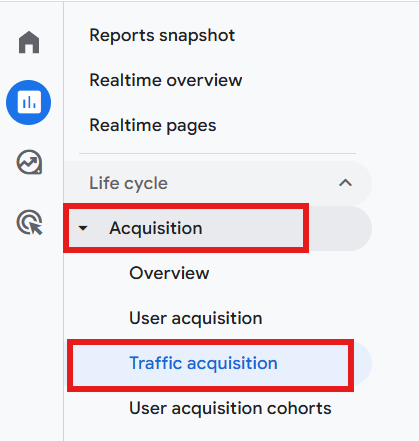
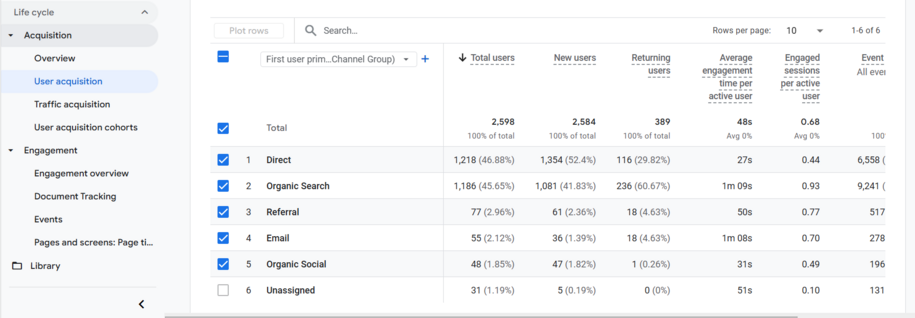
The Traffic Acquisition section will show you the pageview and sessions reports, while the User Acquisition section will show you the Total Users, New Users, and Returning Users reports.
Each report will show which channel this user or session comes from, which will be Organic Search traffic, Direct traffic, Email traffic, Referral traffic, or Unassigned.
How to find Document User Traffic reports
Google Analytics 4 uses the Enhanced Measurement feature to track file downloads and link clicks as an Event. These two events can be used to see how many views a document on your site received.
You can view it in your reports by navigating to the Reports icon. Select the dropdown arrow to the right of the Engagement link. You will see the Events report where you can look at the number of views to a document from the file_download event.
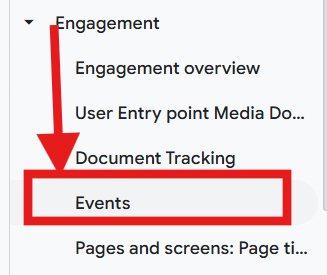
To make it easier to view, add the event name file_download to the search bar so it will sort only that event within the table results.
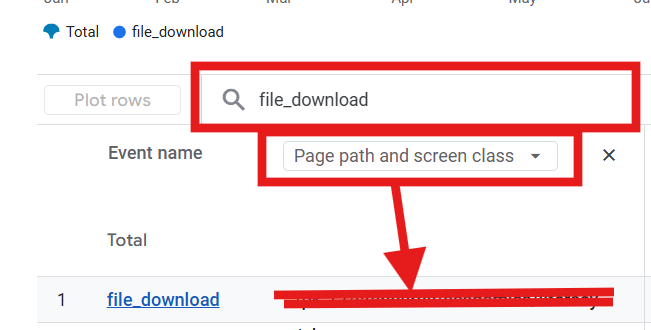
To see which specific files were downloaded or file links were clicked, you can create a custom report in the Explore section directly from the event page by selecting the circle arrow icon that says Open this report as an exploration.

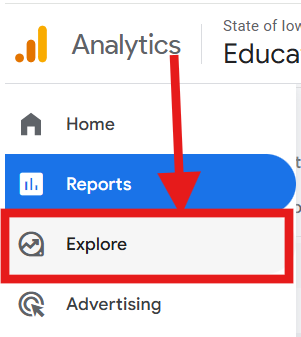
Alternately you can select the Explore link and build one from scratch using dimensions like File name or Link URL.
How to find URLs leading users to 404 pages
Making sure you have URL redirects created for high traffic broken backlinks or old bookmarked URLs leading to 404 pages can improve your site's search ranking. Be sure to attempt to fix any broken links within your site first before creating a redirect. If you've deleted content permanently, leave it as a 404 or use a 410 Gone status code. This tells Google the page is gone for good so it stops wasting time trying to find it. You can find broken link reports in your Acquia Optimize website reports as well.
Here's how to use Google Analytics to identify these URLs:
- Navigate to the Pages and Screens Report
- Go to your Google Analytics account.
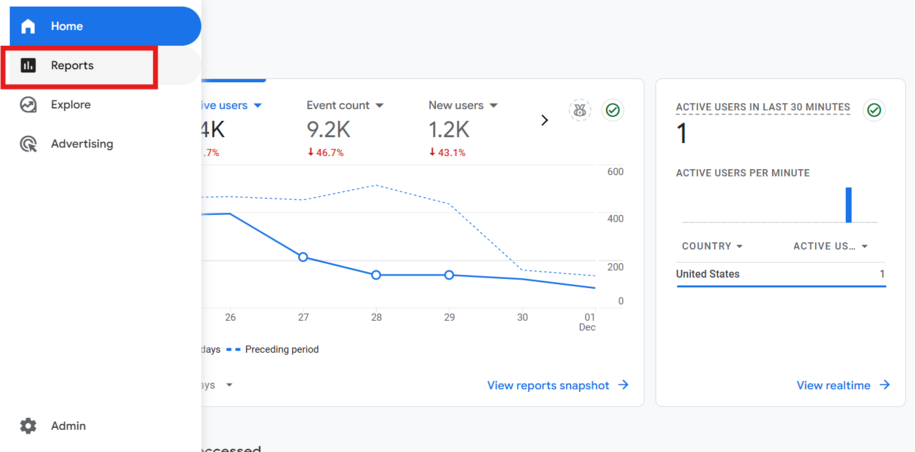
- In the left sidebar menu, click on Reports.
-
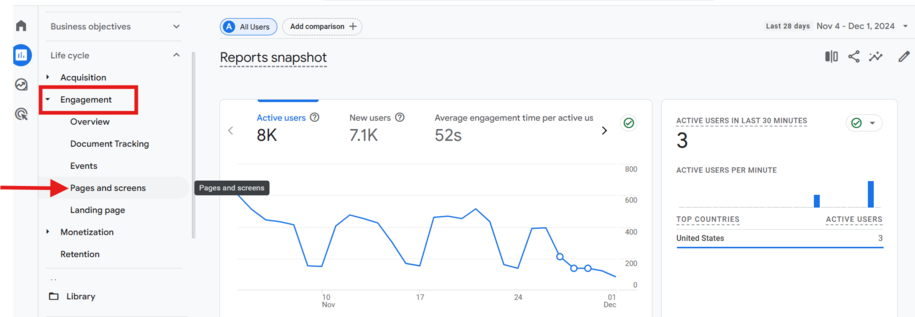
- Select Pages and screens from the Engagement section.
-
- Identify 404 Pages
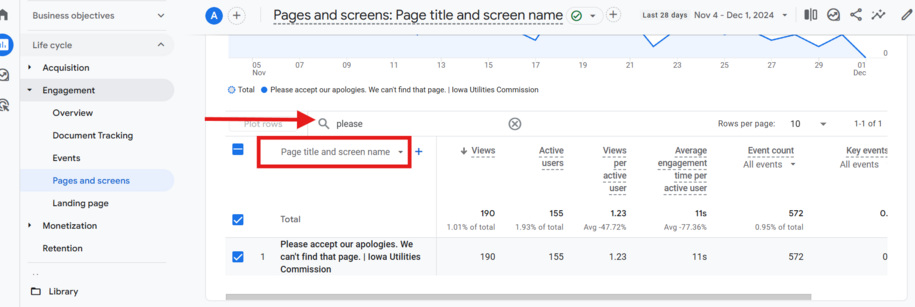
- In the Page title and screen name row, search for your 404 page title Please accept our apologies. This will show you the monthly traffic to this page.
-
- Find Broken Link URLs
- Click the plus icon next to the Page title and screen name field.
-
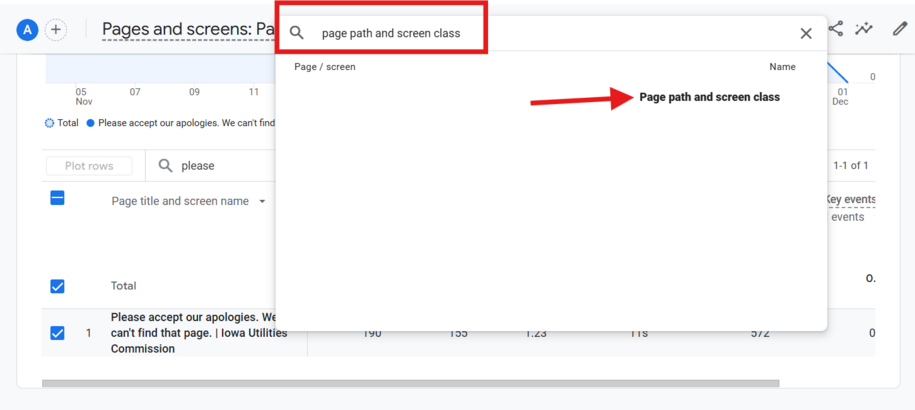
- Select Page path and screen class to see the specific URLs that led to the 404 page.
-
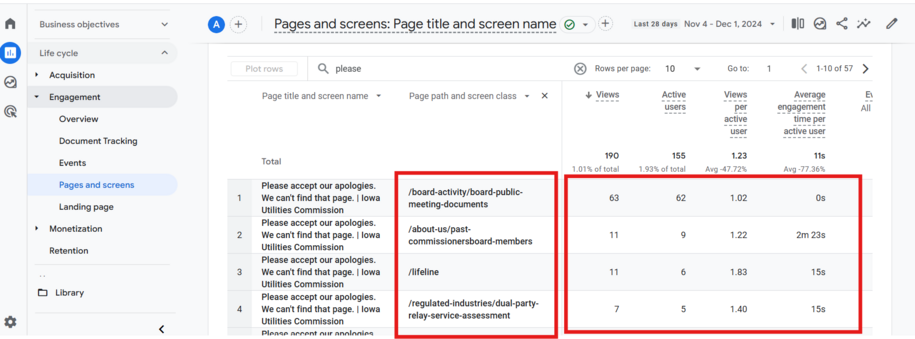
Use this information to do the following:
- Create redirects: Set up redirects from the broken URLs to the correct pages.
- Create new content: Use these URLs to identify content gaps and create new pages.
How to filter page reports by languages
If your site has the translation option available and active, you can also filter your reports by languages. To do this use the filter option that Google Analytics has available in their Engagement Pages and Screens section.
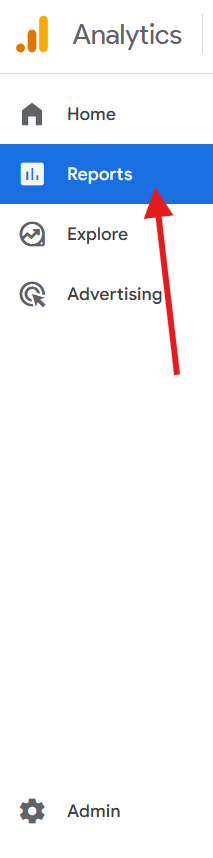
When you go to your Report tab and select Engagement, within that dropdown select Pages and Screens. This will show you the page title and the URL string that users are viewing.
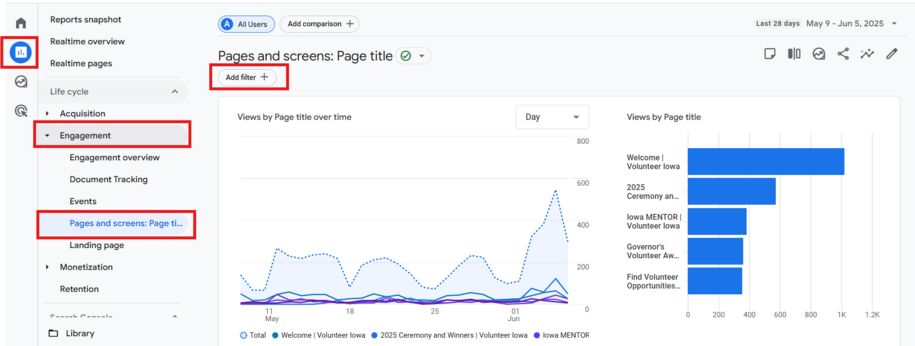
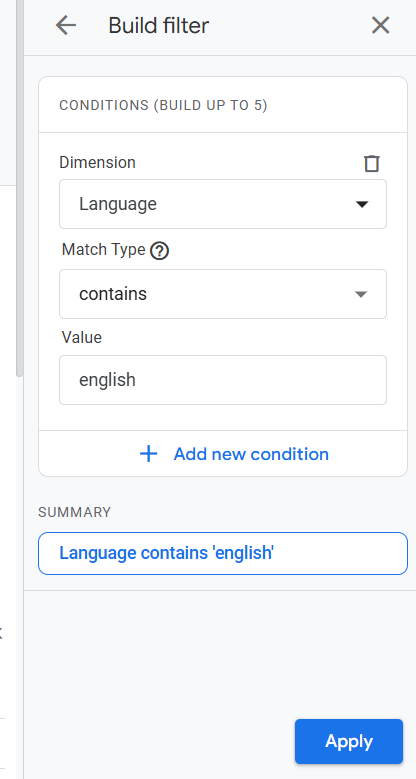
- To filter this report to exclude all pages that contain English language, you can select the Add filter + button that is under the Pages and Screens title at the top of the page.
- Once you select Add Filter, a sidebar window will appear. Within the Dimensions field you can select or type Language.
- After you've selected Language as your Dimension you will now have to select the Match Type option. This is where you can have the report show all English language pages by selecting contains in the Match Type field.
- Within the Value field that will appear next, you can enter English.
- Once that is added you will select the blue Apply button in the bottom right side of the screen for that filter to be applied to this report.