
Workflow Notifications and Workflow History are two Qualtrics features that work as a pair. Notifications tell you the moment a workflow fails, and Run History and Revision History tell you what went wrong and who changed what.
Example: A scheduled export stops arriving. Instead of hearing about it from a frustrated colleague a week later, a notification lands in your inbox naming the workflow and the task that failed. You follow the link to Run History, expand the run, and Revision History shows a teammate edited that task last Tuesday. You have your answer in a few clicks instead of guessing.
Benefits of Using Notifications and History
Workflows run quietly in the background, so the first sign of trouble is usually someone noticing that an email never arrived or a ticket never opened. Together, these two features close that gap.
Using notifications and history offers several key advantages:
- Find out first: Alerts arrive by email and in the product feed, naming the workflow and the failed task
- See what actually ran: Every trigger is logged with its date, owner, and status
- Pinpoint the failure: Expand a run to see which specific task failed and why
- Know who changed what: Revision History records the user, the edit, and the date
- Faster support: Each run carries an ID you can hand to Qualtrics Support
Why Use Them?
A workflow that fails does not announce itself. Notifications make sure you hear about it, and history gives you the evidence to tell the difference between a workflow that never triggered, one that triggered but did not meet its conditions, and one that ran and failed partway through.
When Should You Use It?
Set up notifications on any workflow your agency depends on, and check history any time something downstream did not happen, after anyone edits a workflow that matters, or before you contact Qualtrics Support. Both are also worth using when you are testing a new build and want to confirm it fired the way you expected.
These features are particularly effective in these scenarios:
- Silent failures: An email, ticket, or export that never reached anyone
- Unexpected changes: A workflow that worked last week and does not now
- Condition troubleshooting: Confirming whether a run was skipped because logic was not met
- Testing new builds: Verifying a new workflow triggered and every task succeeded
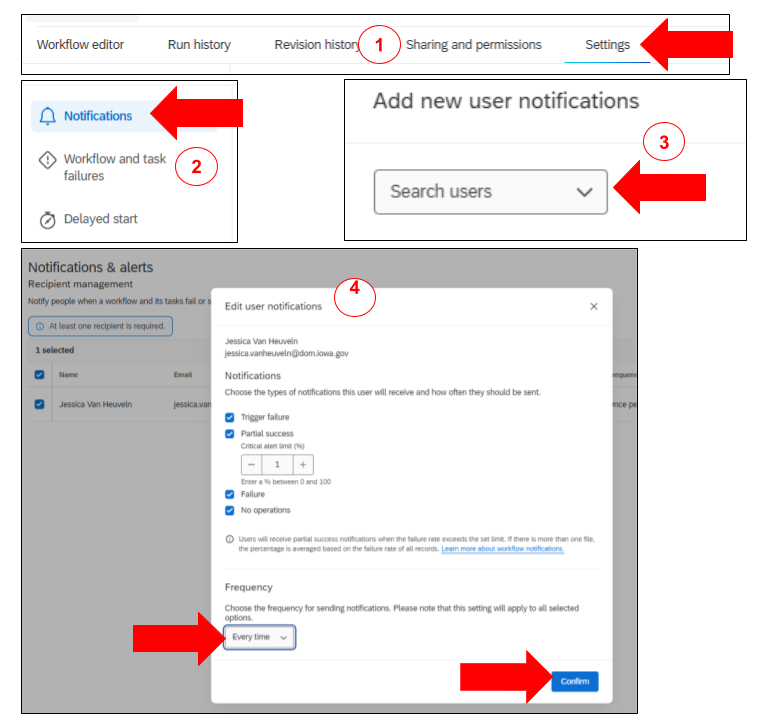
Setting Up Notifications in Four Steps.
- Open your workflows: Go to the Workflows tab in your project, or the stand-alone Workflows page.
- Open the settings: Click the three dot menu next to the workflow, select Settings, then go to Notifications.
- Add your recipients: Type a name, part of a name, or a user group in the search bar, select the result, and click Add.
- Choose your alerts and save: Pick Trigger failure, Task failure, or Task success, then click Save.
- Note: Task success notifications are only available for scheduled workflows.
Checking Run History in Three Steps.
- Open the Workflows tab: Go to Workflows in your project, then click into the workflow you want to review.
- Note: To see every workflow in the project at once, go straight to Run history from the Workflows tab instead.
- Choose your view: Use the dropdown at the top of the page to switch between workflows that started successfully and workflows that failed to start after being triggered.
- Expand the run: Click a run to see its trigger and each task, then click a task for its status, timing, settings, and Workflow execution ID.
Guidelines and Limits
This is the part to know before you need it:
- 30-day retention: Run and revision history data is kept for only 30 days after a workflow is triggered, and the reporting is deleted once that window closes
- Troubleshoot promptly: If a workflow failed six weeks ago, there is nothing left to look at
- Capture what you need: If a run matters for audit or reporting, save it while it is still there
- Repeat alerts are deduplicated: If the same workflow fails for the same reason more than once in 26 hours, you get one notification, not a flood
Notifications and Our Review Process
04:28 - R/A Process - Status: Quality & Security
1:16:00 - R/A Process - Service Account and Workflow Notification Email
We confirm that notifications are turned on so failures do not go unnoticed. What happens after that is up to you. Qualtrics sends the alert to the recipients on the workflow, not to our team, so we only learn about a failed workflow when you report it.
If a workflow fails and you are not sure what to do next, bring it to Qualtrics Office Hours and Training Classes or use ServiceDesk Plus to request help, and we will work through it with you. Remember the 30-day window, so reach out while the run history is still there.