
Purpose of URL redirects
The URL redirect feature lets you make a new link to moved content. You can also create short, easy links to your website content for printed materials to replace long URLs with shorter, more memorable ones for brochures, flyers, and social media posts. They can be used to direct users away from 404 pages when they've clicked on an outdated backlink URL they saved or that was incorrect from another website.
Use caution with redirects
While redirects are essential for site maintenance and URL changes, overusing them or misconfiguring them can harm SEO, slow your site, confuse users, and waste search engine crawl resources. Proper planning and careful implementation are key to avoiding these issues. Official guidance from Google Search Advocates states that a 404 Not Found status code safely signals to Google that a page no longer exists so they can naturally drop it from their search index.
- Don't redirect everything to your homepage
When a lot of pages are redirecting to your homepage, it’s a red flag for search crawlers. - Test every redirect
Be careful not to create redirect loops that never end. These loops occur when you redirect pages like this - Page 1 > Page 2 > Page 3 > Page 1. In this case, the redirect will continue bringing the person back to page 1 and will likely be halted by your browser, which recognizes the loop. From a search crawler perspective, you’ll likely have the pages deindexed because the crawler has no idea what’s going on. - Deleting or removing a page
If you delete or remove a page from your website, Google doesn't know it's gone right away. The old link remains in Google's database. The next time Googlebot visits that URL, your server will tell it the page no longer exists by showing a 404 error code. Over time, Google will see these errors and automatically remove the broken pages from its search index. - Avoid having multiple redirects take place in a chain
For example:- /about is redirected to /aboutus
- /aboutus is redirected to /ourcompany
- /ourcompany is redirected to /aboutourcompany
You want to create a single redirect from /about to /aboutourcompany to avoid a redirect chain that can:
- Increase bounce rate
- Using 301 redirects is better than 302 redirects. 301 redirects help maintain link equity and internal links. This preserves page rank and optimizes for keywords.
- Redirects can slow page speed. Each redirect adds latency, slowing down page load times which can negatively impact SEO. If you have a lot of redirects on your site, crawlers get stuck in long chains or loops just trying to index all the redirected pages. They may leave before indexing your important content.
- If you find random or bogus URLS in your 404 report, leave it as a 404. This is often caused by bots or malicious scrapers probing your site. Google expects these and will ignore them.
- If you've deleted content permanently, leave it as a 404 or use a 410 Gone status code. This tells Google the page is gone for good so it stops wasting time trying to find it.
Create URL redirects
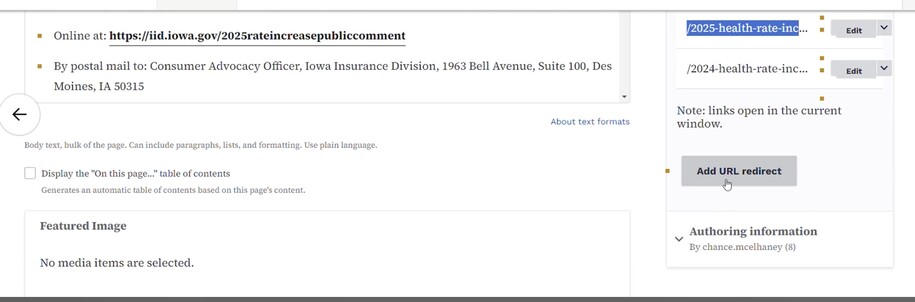
On the page or node where you want to add a redirect, go to the redirect tool on the right-hand menu to start a redirect.
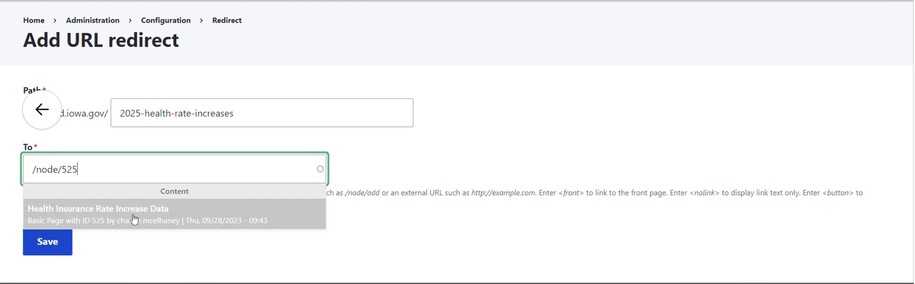
When specifying the actual link text you want, make sure to use Linkit to select the actual page or node.
Use Go.Iowa.Gov to create short URLs
All state employees are able to use the State Link Shortener to change a long URL to a shorter URL.
If you don't have access to this service and would like access, please submit a ServiceDesk Plus Support ticket.
When using the link shortener, there isn't an option to customize words of the new shorter URL link.
Example of long link URL:

Example of state employee link shortener link URL:

Elements of short URL redirects
- Long URL - Source: The original, full URL of the webpage you want to redirect users to.
- Short URL - Destination: The shorter, user-friendly link you create that will redirect to the long URL.
Create a redirect the same way using the long URL as the source and a short URL as the destination.
Did you know Google Analytics can help you locate new URL redirects to create?
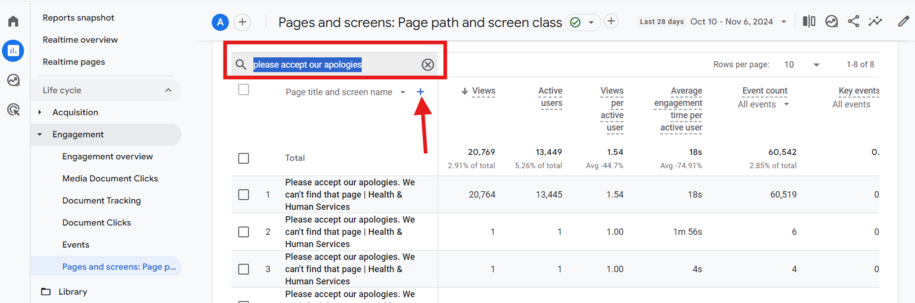
Google Analytics Pages and Screens report tracks user paths on your website. You can use this feature to track how many users are being directed to your site's 404 page. To find your 404 page title, use the report search bar. Then, click on the Page title and Screen name dimension. Look for the small arrow next to the plus symbol.
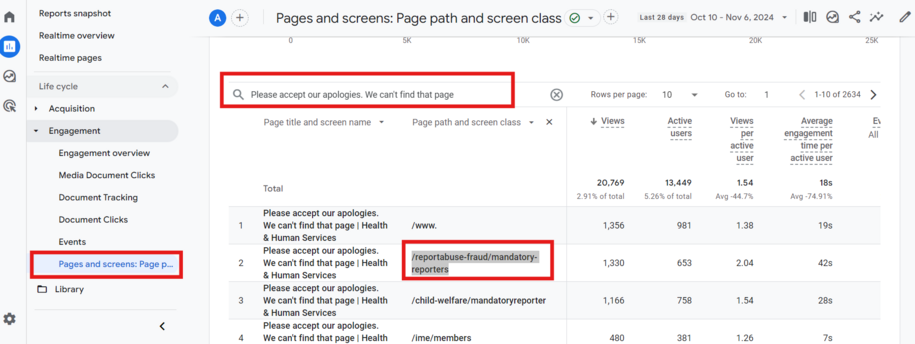
To find the URL redirects you need, click the plus symbol. Then, choose the Page path and screen class dimension. This will show you the URL string that users are using that brought them to the 404 page.
You can use this information to create a URL redirect on your site. This will guide your users to the right page.
URL redirect not working?
If you are getting an error when creating your URL redirect for a page that was previously deleted, this means that the original page is still in the trash can section of the site. In order for the URL redirect to work, you will have to empty your Trash. Redirects for new pages do not work if the original page remains in trash.
To empty your trash and permanently delete the original page from your site, navigate to the Trash tab in the Content tab section.
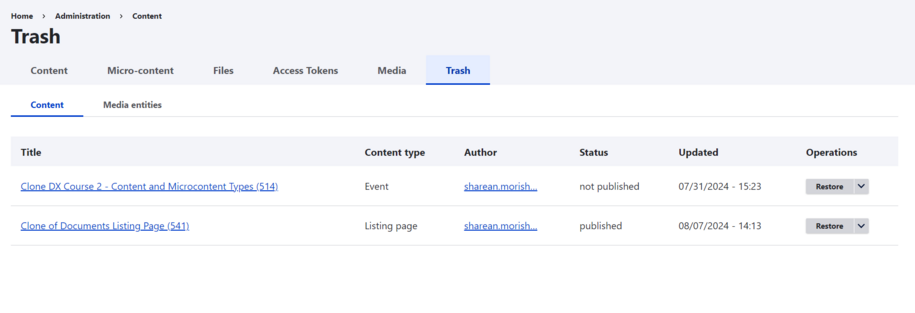
Click the dropdown arrow next to the page you want to delete, then select purge.
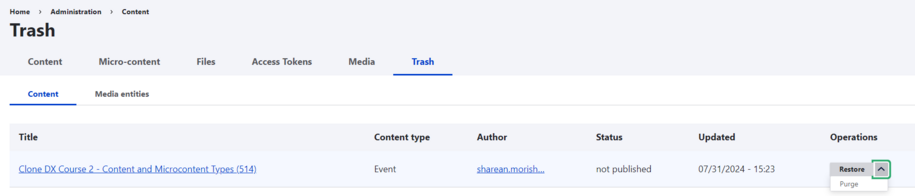
The original page is now deleted from your trash. It's fully removed from your site. You can create a URL redirect for it now.
Fixing extra "0" in page URL
Problem: You have a link that looks like this:
https://dxtraining.iowa.gov/testpage-0
but you want it to look like this:
https://dxtraining.iowa.gov/testpage
If you create multiple pages there will be a -0, -1, -2 at the end of the URL but there is a way to fix that.
- Navigate to Content and select URL redirects.
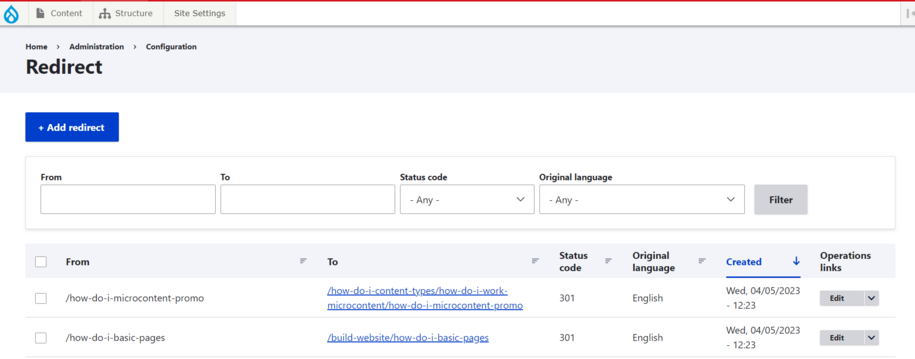
- Search for the original page URL without the -0. Select the Edit button to create a redirect to the URL with the -0 at the end.
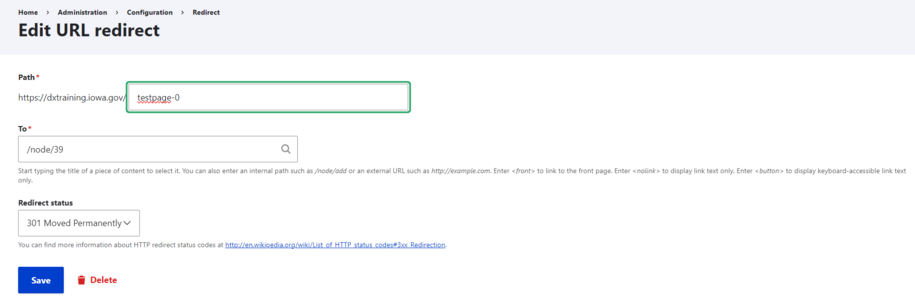
- Once the new redirect is created, you can delete the duplicated page that has the -0 or -1, -2, etc. and resave your original page for the issue to be fixed.
This new redirect is created so anyone who may have already bookmarked a link with the version -0 in it can still be directed to the correct page.
Do not redirect to Microcontent
Individual links will not work if linked directly to a video, Google Calendar Embed, or Tableau Embed from the Media Library. Please create a Basic page (or other major content type) and then place that Microcontent inside. Use the Basic page for generating the redirect link.
Do not redirect to Media Library items
An individual link could be created to go directly to a Document, but it's recommended to instead create a page or Microcontent that links to that document.