
Purpose
Accordions help organize content into sections that can be expanded or collapsed. Users simply click on the title to show or hide the content. This works well where you want to present additional details without overwhelming visitors.
When to use
This Microcontent type can only be added to Basic pages. Accordions work well for long lists of content that authors would like to place in different parts of the site.
The Nielsen Norman Group has the additional following advice about accordions:
An accordion menu is a list of headers stacked vertically. You can click on these headers to show or hide the content linked to them.
Keep in mind these usability issues when deciding whether or not to use an Accordion:
- Ensure headings are descriptive and clear so users know what’s inside
- Clicks can feel cumbersome.
- Accordions increase interaction cost - how much mental and physical effort it takes to interact with your website.
- If you can't see it, you don't know about it.
- Screen readers and keyboard navigation can be less effective if content is hidden behind accordions, potentially disadvantaging users with disabilities.
There are other advantages to applying accordions to long, content-rich pages:
- Collapsing the page minimizes scrolling.
- The headings form a mental model of the information available.
- Hiding (some of) the content can make the web page appear less daunting.
- Accordions can be a better alternative to within-page links. People expect clicking a link will load a new page.
When you're considering how long your webpage should be, keep these myths in mind:
- Users avoid long pages. They do scroll when content is relevant, well-organized, and easy to scan.
- Users ignore information at the bottom of the page. Eye tracking studies show they give 20% of their attention to content below the fold.
- People shy away from content-heavy pages. People can manage a lot of information if it's presented well.
Avoid using accordions if your audience needs most or all of the page content to find answers.
Accordions work best when you need just a few key pieces of content on one page. They are also great for very small spaces, such as on mobile devices.
Elements
- Title: Limited to 70 characters and can be hidden
- Description: Optional and can be up to 200 characters
- List items: Title limited to 120 characters and details unlimited with basic text formatting
- Total of 20 items max within a single accordion
First you will create an accordion, then place or embed the accordion on a Basic page.
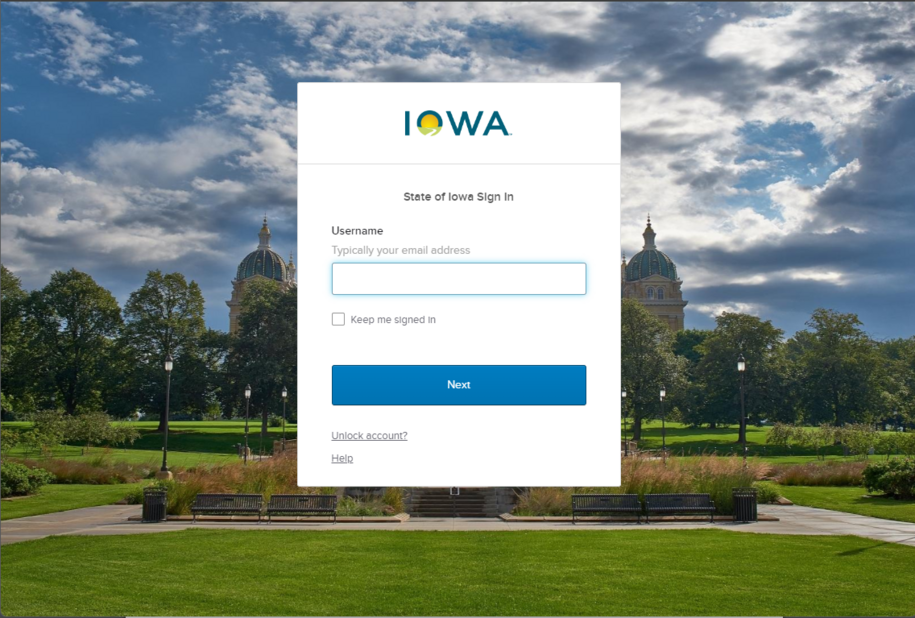
Login to your site
Make sure you are logged on to the VPN first.
You can login to your site from your Okta tile or login.iowa.gov.
Each person on your agency team has a specific user role for the website. These roles set permissions. They control who can write, edit, review, or publish content. You can ask for a role change or remove a role.
Submit a ServiceDesk Plus support ticket if you need help.
Create a new Accordion
Select Add microcontent and select Accordion. This will open up a blank accordion form for you to complete. Once you've created your Accordion content, be sure to save.
Shortcuts to add Accordion content:
- Navigate to /node/add/accordion
- Hover over Content - Add microcontent and select Accordion
Place the Accordion content on a Basic age
Once your Accordion is created, you can place it on a Basic page.
- Edit the Basic page where you would like to add the Accordion.
- In the Body field, select the Insert from Component Library tool and choose Accordion.
-
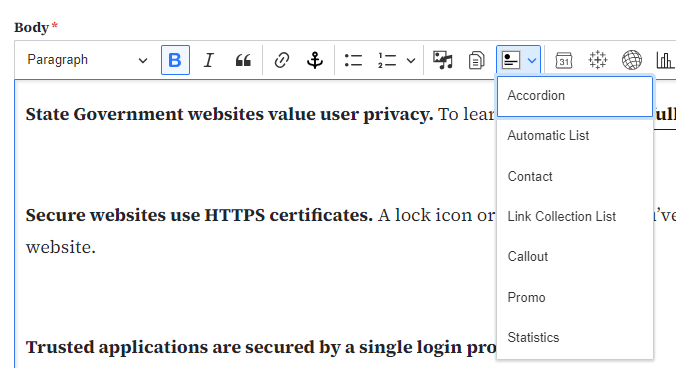
- Select the Accordion Library tab and choose the microcontent you created.
- Set alignment if applicable and click Embed.
How to edit a Microcontent
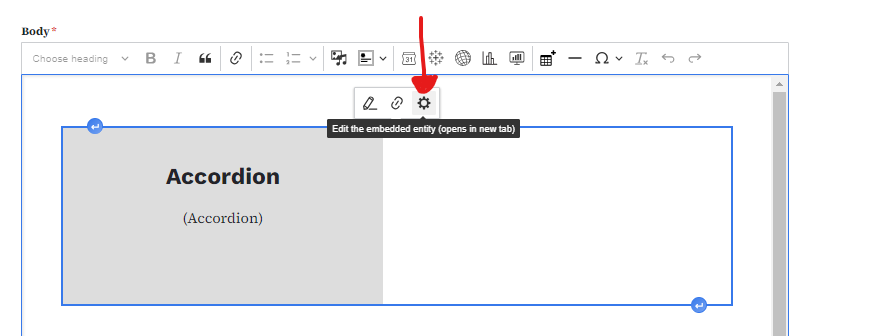
You can quickly edit Microcontent like Accordions within your Basic page by selecting the microcontent within the Body field and then selecting on the gear icon.
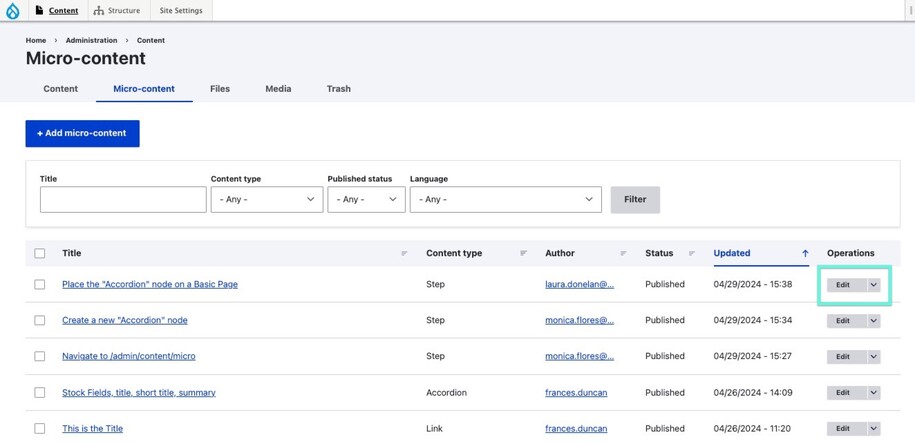
Another method to edit Microcontent would be to navigate to /admin/content/micro and click on the Edit button beside the Microcontent you'd like to edit.
Confirm your knowledge
Check out our YouTube video training page for step-by-step visual help with your website.