
Purpose of Power BI
Power BI helps government agencies share data visuals with ease. The Publish to web embed code, along with the Media library and WYSIWYG toolbar on the DX platform, makes this simple. You can post interactive reports directly on your website.
This helps to:
- Increase transparency and public engagement: Share data and insights with the public in an engaging and accessible format.
- Improve communication: Effectively communicate key information and performance metrics to citizens.
- Enhance data-driven decision making: Empower citizens to explore data and gain a deeper understanding of government operations.
When to use Power BI
- Sharing data with the public: Publish reports on agency websites to make data more accessible and transparent.
- Creating interactive dashboards: Embed interactive dashboards on agency websites to allow citizens to explore data on their own.
- Communicating key performance indicators (KPIs): Share key agency performance metrics with the public in a visually appealing way.
- Supporting public participation: Engage citizens in the decision-making process by sharing data related to community projects or initiatives.
Key elements of Power BI publishing to your website
- Data Security: Prioritize data security and ensure that sensitive information is not publicly shared.
- Accessibility: Design reports with accessibility in mind, ensuring they are easy to understand and navigate for all users.
- User experience: Create visually appealing and interactive reports that are easy to understand and engage users.
- Data integrity: Ensure data accuracy and maintain data integrity throughout the publishing process.
Government agencies can boost transparency and engage the public by using Power BI along with the Media library. They can do this with the Publish to web feature or the Power BI embed icon in the WYSIWYG toolbar.
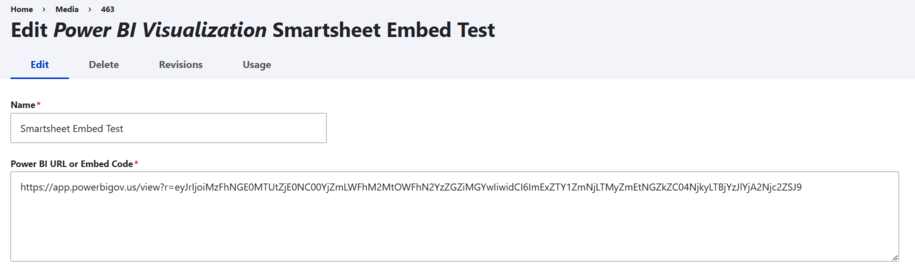
Step 1: How to add media to the Media library
You can find the Media library by hovering over Content in the top left corner. Then hover over Media and select Add media.
From here you can pick from the list of media that you would like to have uploaded to the library section of your site.
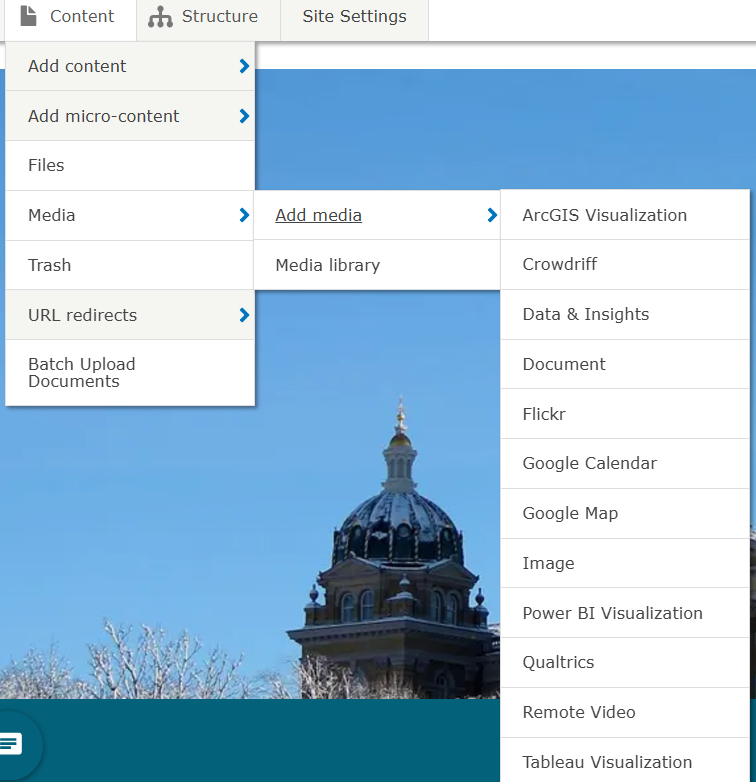
Step 2: Add media to the Media library
Note: You can upload and add media items while creating or editing content.
Step 3: How to add Power BI visualization
Since embed url/codes are treated the same as image or media uploads, you will always be able to add and find your embeds from the Media button.
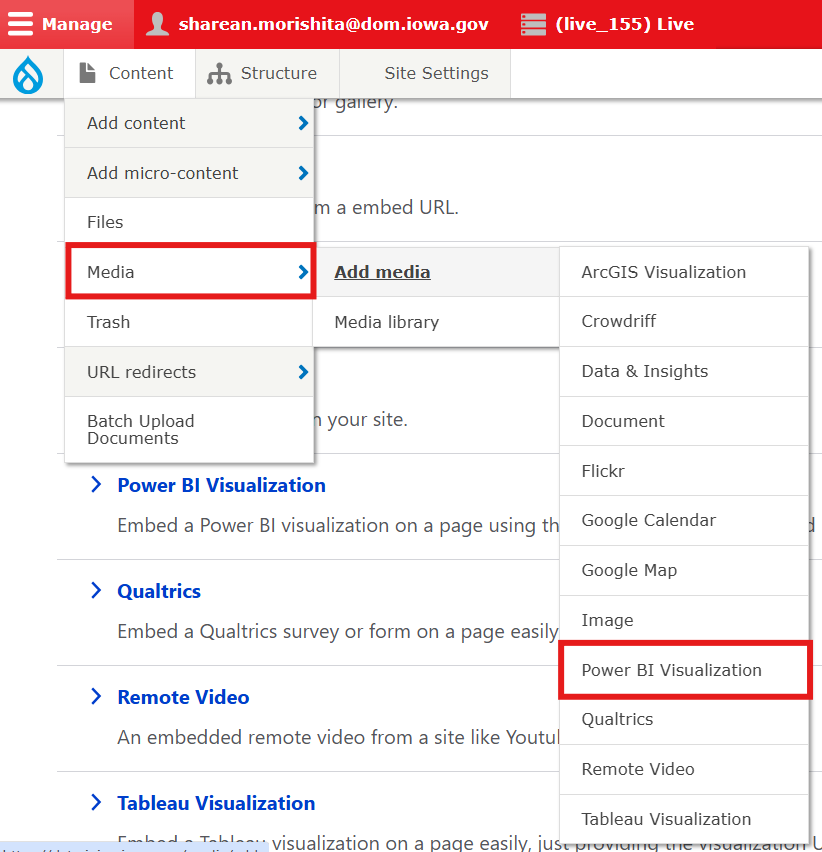
Additionally, you can add your Power BI embed by selecting the Power BI Chart icon that is located on the far-right side in the WYISWIG toolbar within Basic Pages.

When adding your Power BI embed to your site, remember to use a relevant name in the name field for that embed.
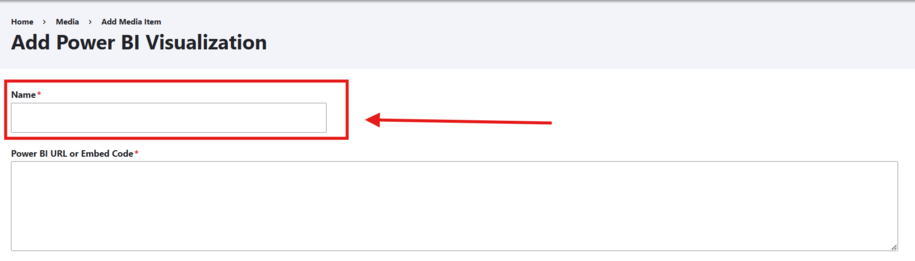
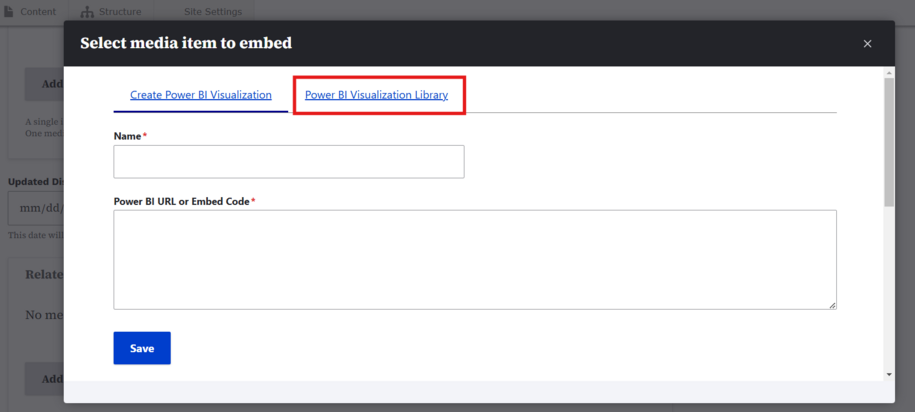
This will help you easily find it again in the Media library or the Power BI library. You can access the Power BI library by selecting the embed icon on a Basic page.
Step 4: Making your Power BI embed accessibility compliant
Adding Alt Text to table headers in Power BI improves accessibility for users relying on screen readers. This ensures that the purpose and content of your tables are clearly communicated, even if the user cannot visually see them.
For Standard Power BI Reports (Power BI Desktop / Service)
Step 1: Select the Table Visual
- Click on your table visual in the report canvas.
Step 2: Open the Format Pane
- In the Visualizations pane, go to the Format section.
- Expand General and scroll down to find the Alt Text field.
Step 3: Add Descriptive Alt Text
- Enter a concise description (max 250 characters) that explains what the table shows.
- Example: Sales by region and product category for Q1 2025, sorted by revenue
Step 4: Use Dynamic Alt Text (Optional)
- Click the fx button next to Alt Text to use a DAX measure for dynamic descriptions based on filters or slicers.
- Example DAX:
AltText_Table =
"Sales data for " & SELECTEDVALUE(Regions[Region]) &
", showing total revenue of $" & FORMAT(SUM(Sales[Amount]), "#,##0")
For Paginated Reports (Power BI Report Builder)
Step 1: Right-click the Table Header Row
- Choose Row Properties > Accessibility tab.
Step 2: Provide Alt Text for Headers
- In the Tooltip property, enter a descriptive summary of what each header represents.
Step 3: Ensure Proper Tagging for Screen Readers
- Verify that header cells are tagged as Table Header (TH) in exported Accessible PDFs. Adjust tags in Adobe Acrobat Pro if needed.
Validation
- Test with a screen reader like NVDA or JAWS to ensure headers and descriptions are read correctly.
- Export to Accessible PDF and check with a PDF Accessibility Checker.
Best Practices
- Keep alt text short but descriptive.
- Avoid jargon; use plain language.
- Update alt text if table content changes dynamically.
- For decorative elements, leave alt text blank to avoid unnecessary announcements.
By following these steps, your Power BI tables will be more inclusive and compliant with WCAG accessibility guidelines.