
To show your Primary location and Primary contact/social media content in the footer, go to Site Settings. Then select Agency Settings. There you can find the fields to add your Primary Location and Primary Contact page titles.
Where to update social media links
Use the contact type to add your agency's social media links. Then go to Site Settings. Select that contact type for the Primary Contact page. This will make the social media accounts show up in the footer.
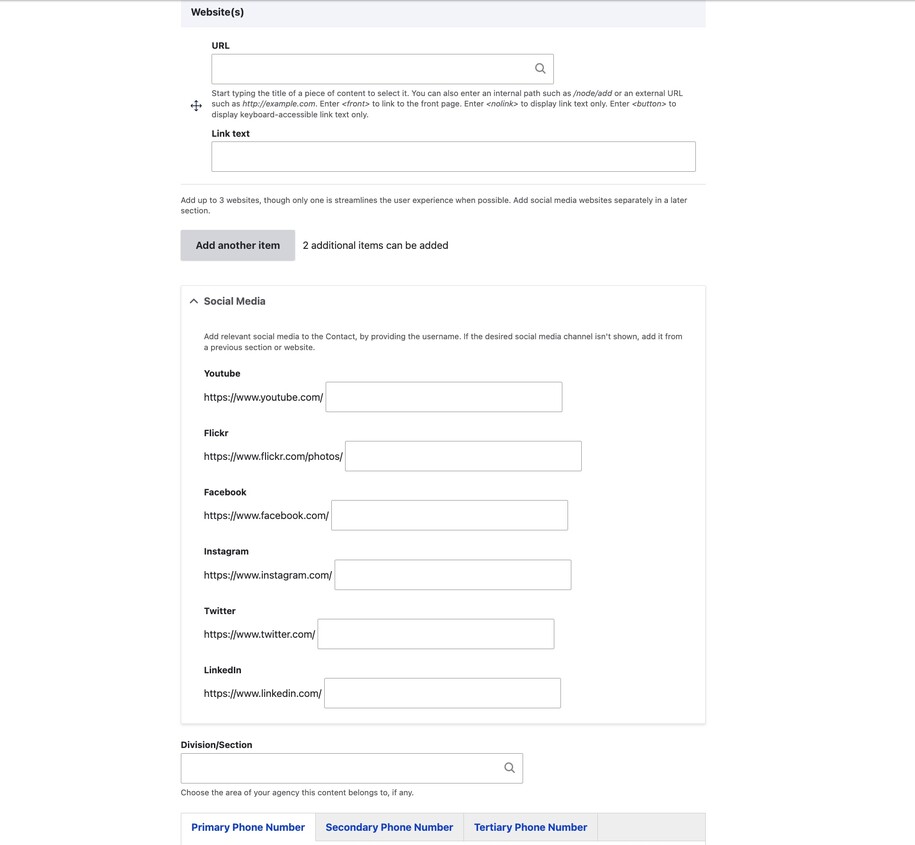
Additionally, The DX platform can also pull the agency social media links from the Iowa Directory Services site. This is where you are able to access your social media links to add new ones or update old URLs.
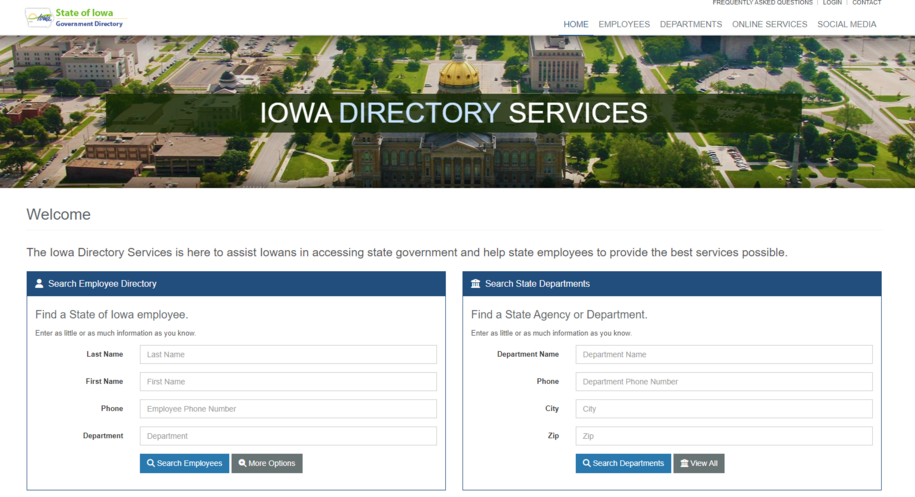
First, log into the directory site. Then, update your site's social URLs there. They will automatically update on the DX platform.
Note: If you need more in-depth information on working with your agency primary location and primary contact please refer to the Agency Checklist.
Step 1: How to configure agency settings
You can locate and configure your Agency Settings by going to Site Settings link and selecting the Agency Settings tab.
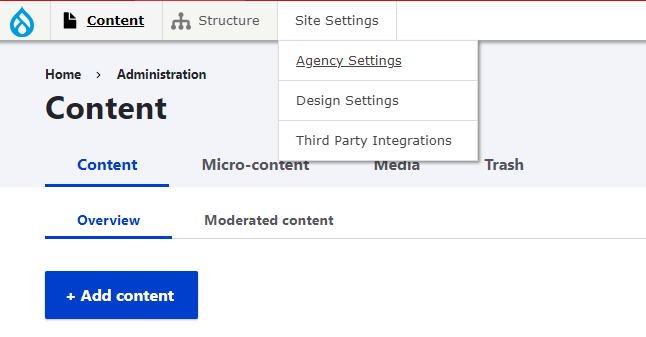
Step 2: How to add location and social media to your website footer
Within the Primary Location Field and Primary Contact Field you will type in the title of the Primary Location page and Primary Contact page you've created.
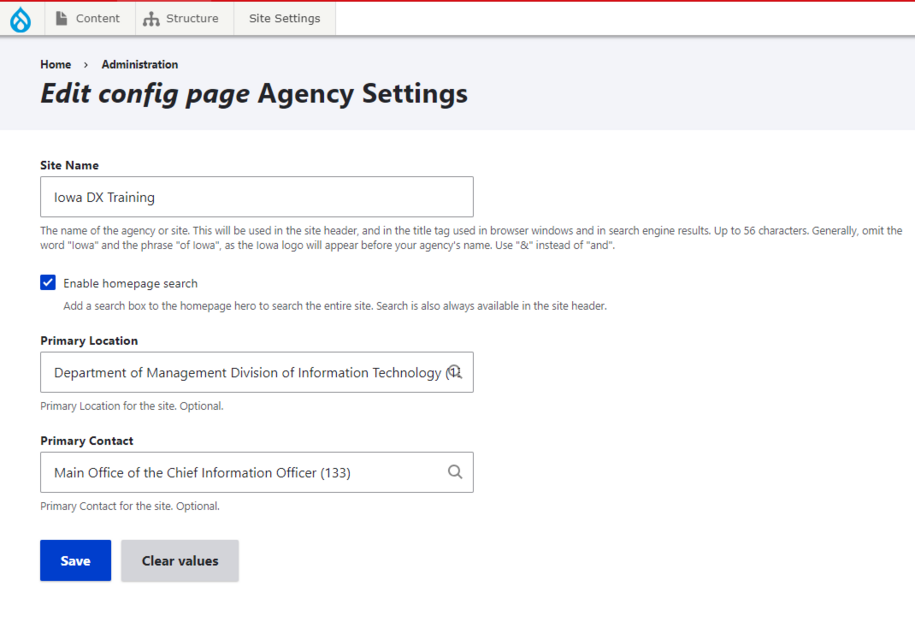
After you save both pieces of content, they will appear in your website footer.
Note: You will need to have these content pages created in order for them to appear when you search within each field. If you haven’t created your Location or Contact content refer to the instructions on How do I work with Locations? and How to Add Contacts.