Purpose
A menu helps visitors navigate the website. It makes it easy to find and access different sections or pages.
When to use Menus
Menus help users find information fast. They organize content into clear categories or sections. They make browsing more efficient and improve the overall user experience. Menus also show how your website's content is organized. They help users and search engines see the layout and navigate the site easily.
Elements of a Menu
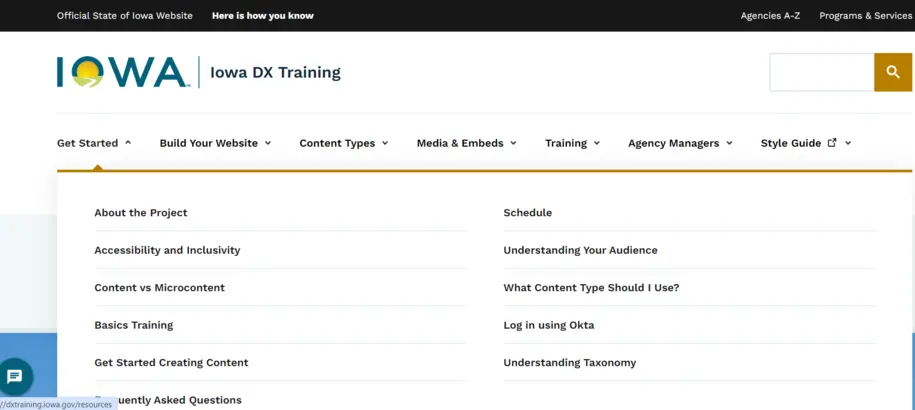
The Main Navigation is the menu that appears at the top of the website.
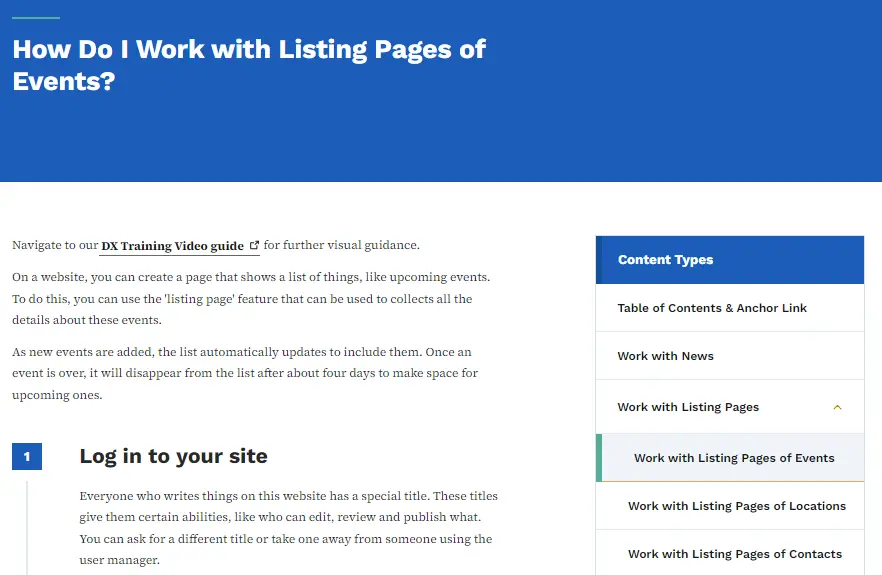
The side bar menu is also the main navigation menu, but the dropdown is condensed allowing for the menu to be easier to navigate.
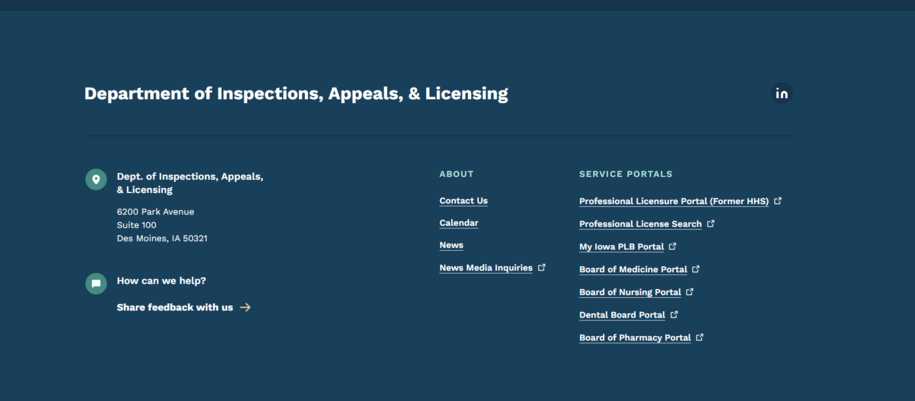
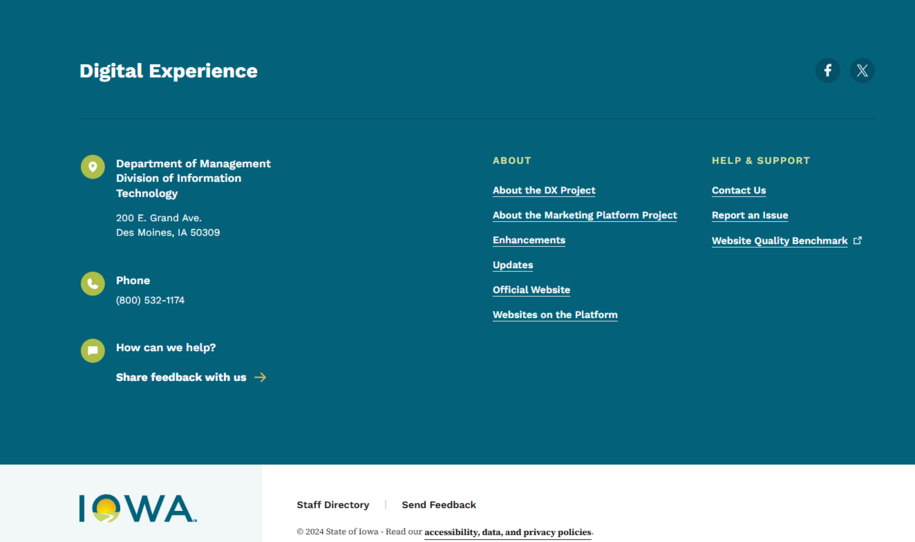
The Footer Menu navigation is located at the bottom of the page.
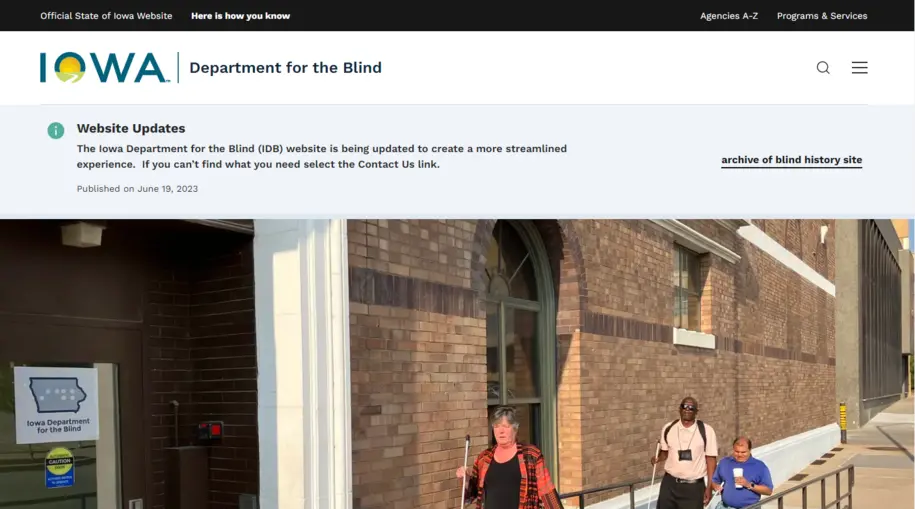
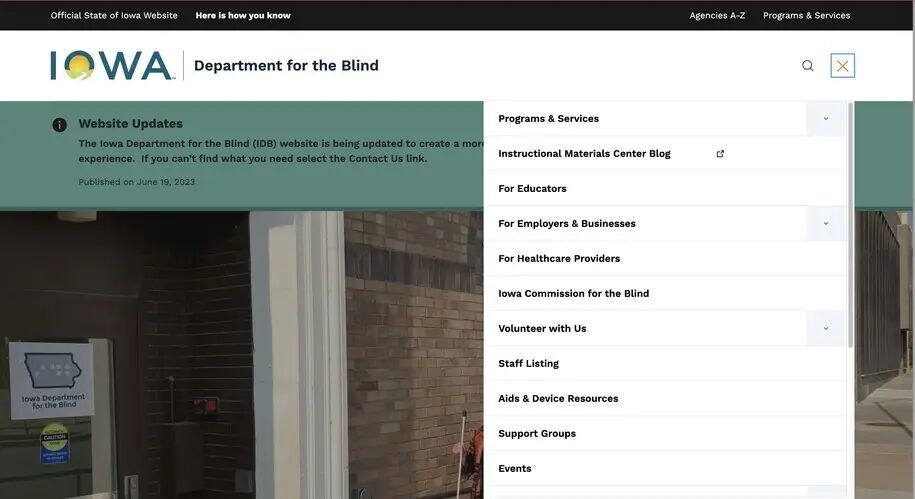
The Navigation menu allows for limited menu items before shifting to a hamburger style menu on the top right. A hamburger menu is three horizontal lines that can be selected to access your website menu. When possible use shorter navigation menu labels, and make the number of menu items six or seven. Check your peer websites to view their menus and the links they use.
Example of menu navigation disappearing and going to a hamburger:
Step 1: Login to your site
Make sure you are logged on to the VPN first.
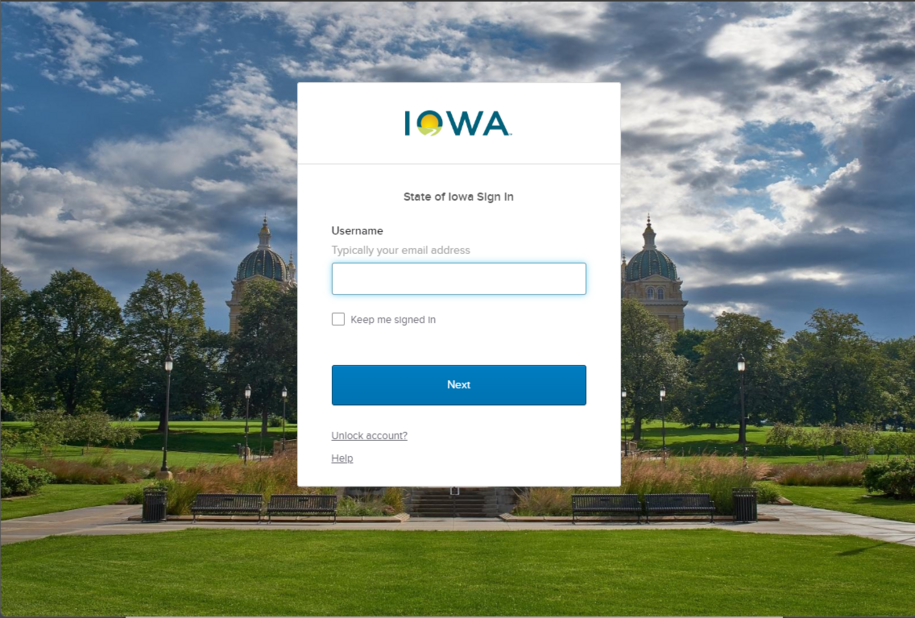
You can login to your site from your Okta tile or login.iowa.gov.
Each person on your agency team has a specific user role for the website. These roles set permissions. They control who can write, edit, review, or publish content. You can ask for a role change or remove a role.
Submit a ServiceDesk Plus support ticket if you need help.
Step 2: Add a specific page to the Menu Navigation from the menu settings
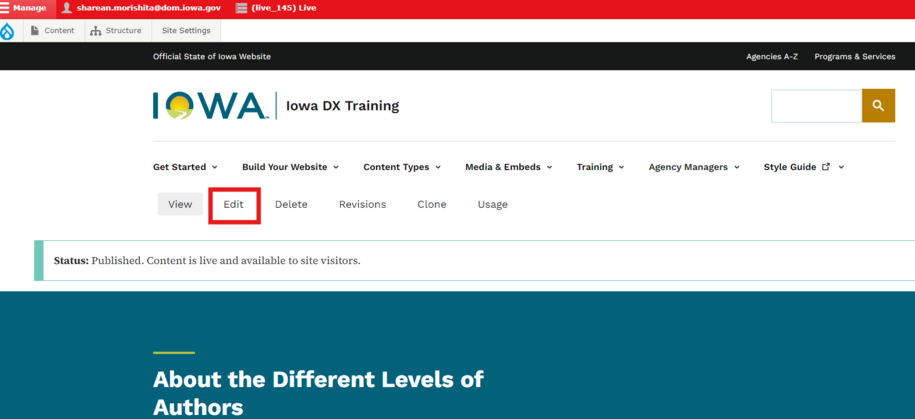
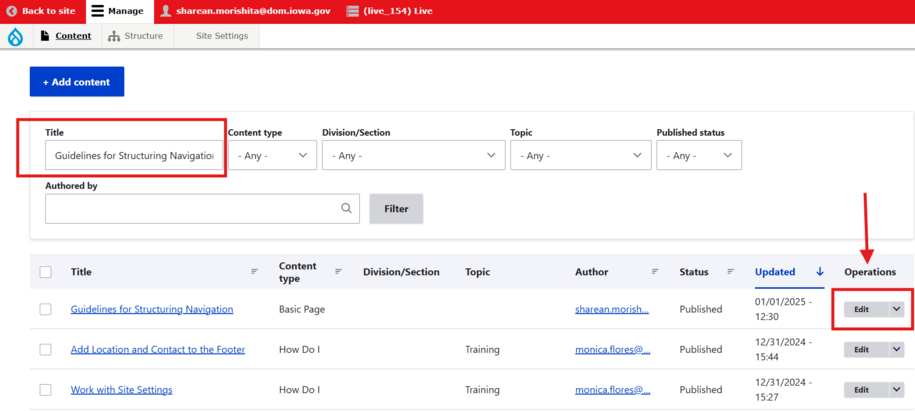
To add a page to the menu navigation using the menu setting, go directly to that page and select the edit button that is directly above the page title.
Another way is to select the Content button in the upper left corner of the page. This will bring up the Content library where you can search for the page by its title within the content library filter. After you've found the page, you can select the edit button within the far right of the filter results under the operations row.
Once you are in the edit section of the page you want to have added to the menu, go to the right of the page and you will see the sidebar. You can select the Menu settings and select the Provide a menu link check box.
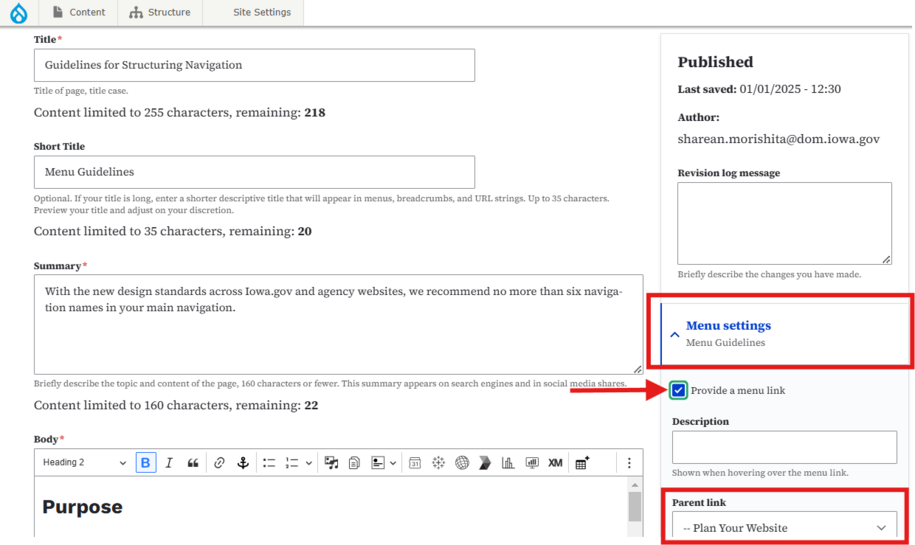
You can pick the placement of this page in the menu by selecting the Parent link dropdown.
Note that more than six main navigation menu items may cause the menu to become a hamburger on the topmost right-hand side.
Once you are done you can now select the Save button at the bottom of that page.
Step 3: Be aware of Navigation Menu limits
The Navigation menu allows for limited items before shifting to a hamburger style menu on the top right.
When possible use shorter navigation menu labels and limit the number of menu items six or seven. Visit your peer websites to get a sense of what the menus show and the different menu links that peer agencies are choosing.
For example, this is a longer menu that has shifted to hamburger style:
Step 4: How to organize Footer and Main Navigation Menu links
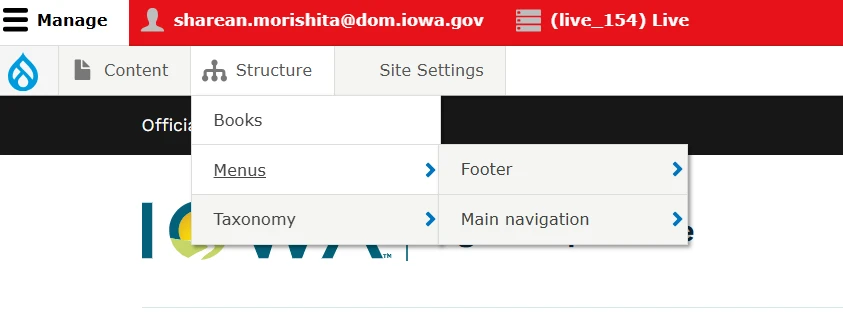
An easier way for Agency Managers to reorganize a menu is by selecting the Structure button that is at the top of the page. Within the dropdown hover over Menu which is where another dropdown appears to select either the Footer or Main Navigation.
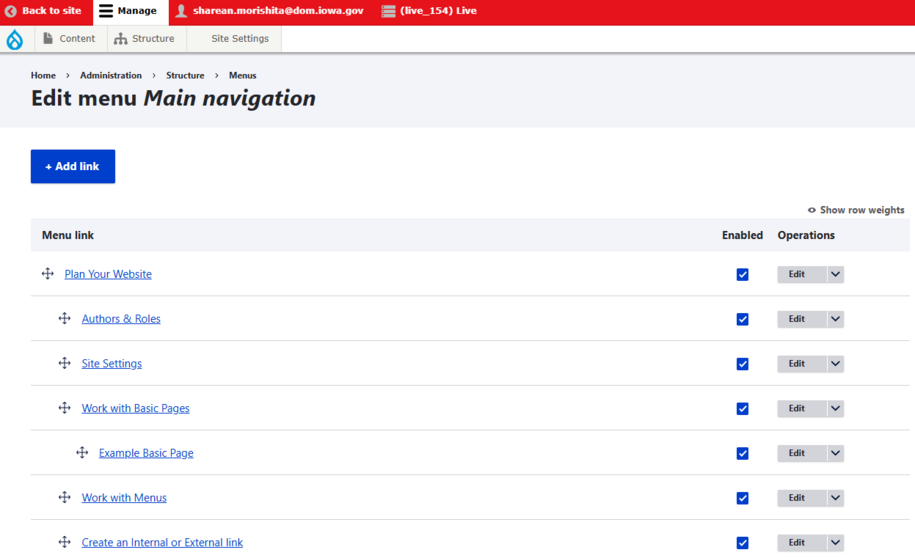
You can use the crosshairs to drag and reorganize the Menu links to appear wherever you would like them. When you are done make sure to scroll down and select the blue Save button at the bottom to make sure your changes are saved.
Step 5: How to edit and delete navigation links
You can find the list of your current navigation links under Structure > Menus.
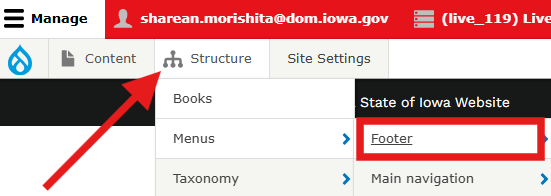
Those with the Publisher and Agency Manger roles can make changes to your website navigation. From the Structure tab you will want to navigate to menu and then select the menu you want to edit. For this example, we will remove links that are appearing in the footer.
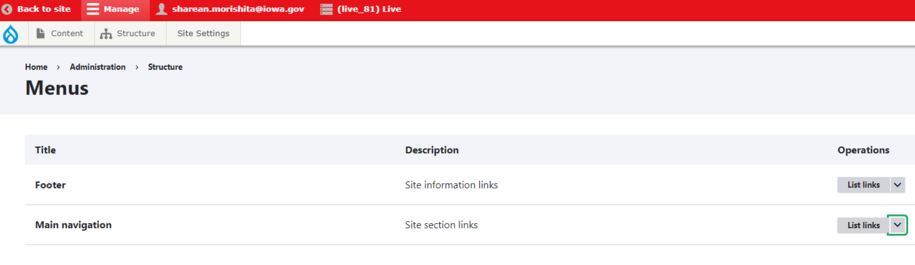
Selecting the list of links and the Edit button will allow you to edit or delete links that are in the menu sidebar, top main navigation, or footer.
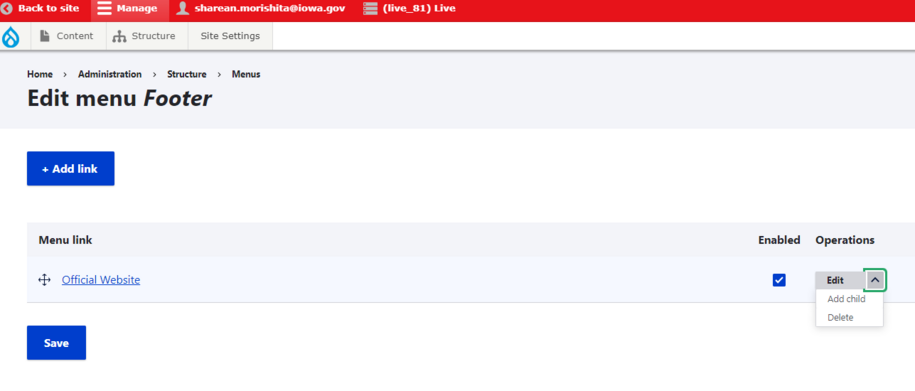
If you don't want to delete the link but instead want to hide it so that the link doesn't appear within the footer or menu you can easily do this by unchecking the box within the enabled row. This will make it so the link is now hidden from appearing.
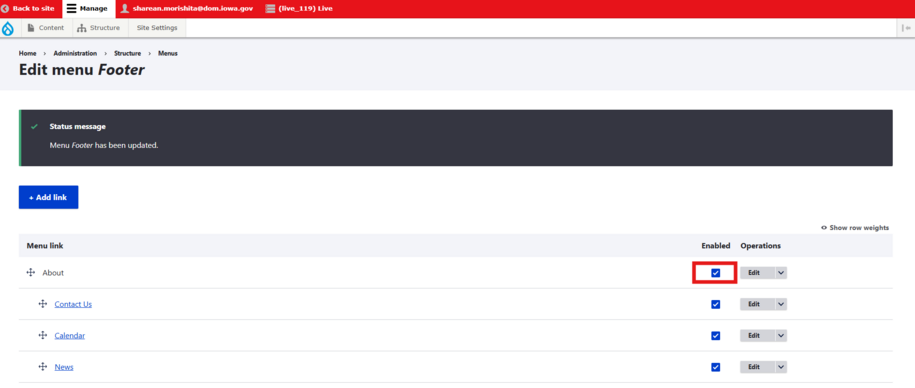
Example: Footer navigation with a list of links with the enabled box checked.
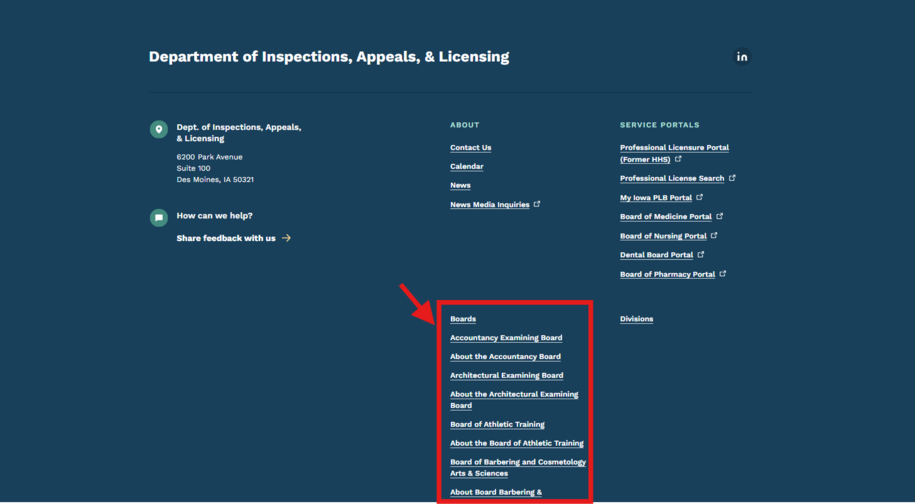
Example: Footer navigation with a list of links with the enabled box unchecked and now are hidden