
On this page...
Note: Not every DX website has the option for language translation.
Back to topAbout alternate language translation
Whenever the content of an English page is changed, replaced, or edited, a new translation should be submitted for that page. If any Microcontent is changed, replaced, or edited, a new translation should be submitted for that piece of content. If the content of an English page contains a piece of Microcontent or other embedded content, the translation page may ask if you want to include those pieces of content in your translation job. If it doesn’t, you’ll need to translate that Microcontent or embedded content separately.
Back to topLanguage translation process
- Navigate to any piece of content
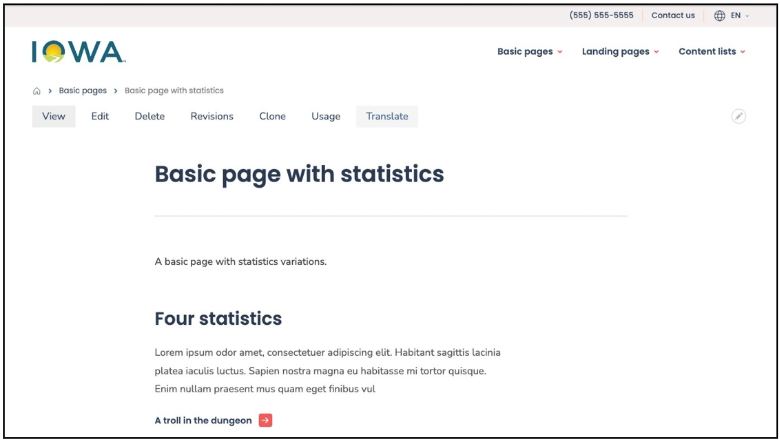
- Select Translate
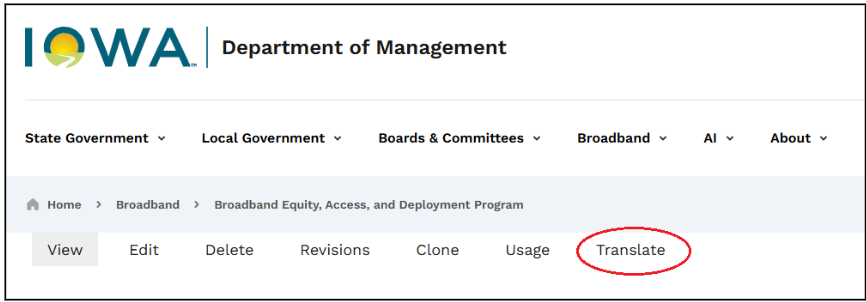
- Select the desired language(s)
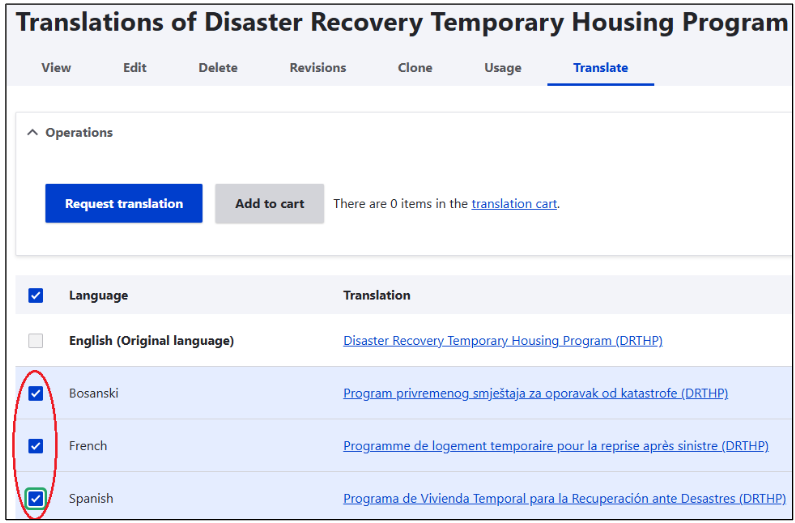
- Select Request translation
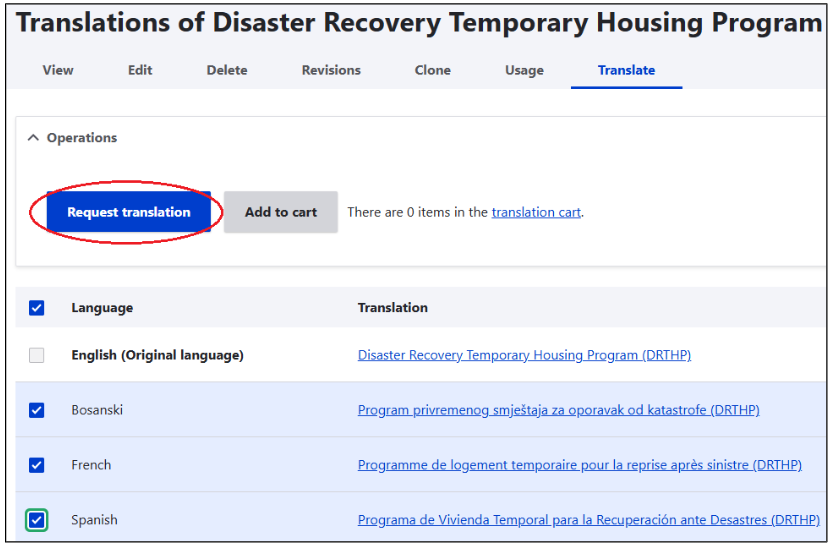
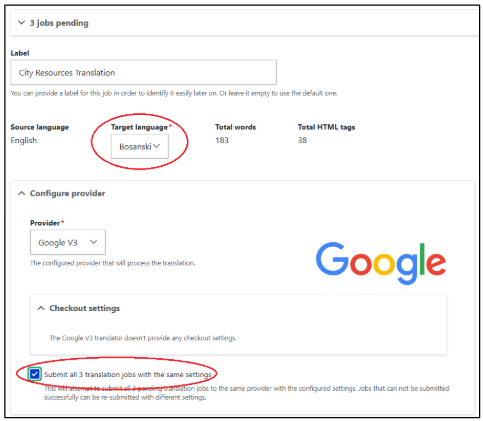
- Enter an optional name for your translation job in the Label field.
- Ensure the Target language is correct.
It will only allow one selection in the Target language dropdown. If you chose more than one language on the previous page to translate, check the box near the bottom to Submit all (3) translation jobs with the same settings.
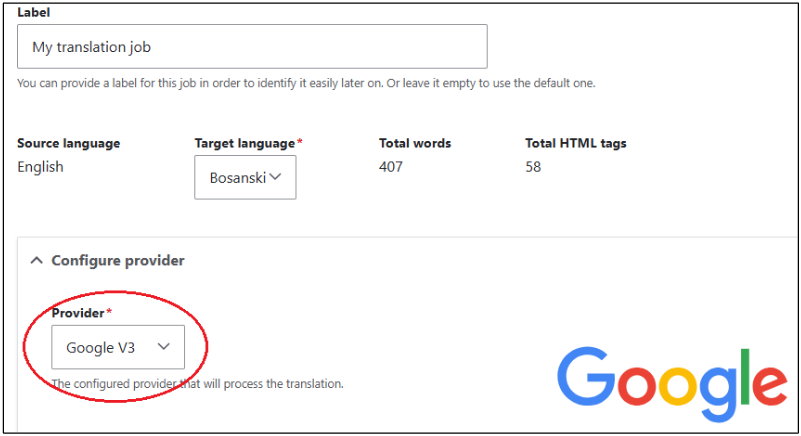
- Ensure your provider is Google V3
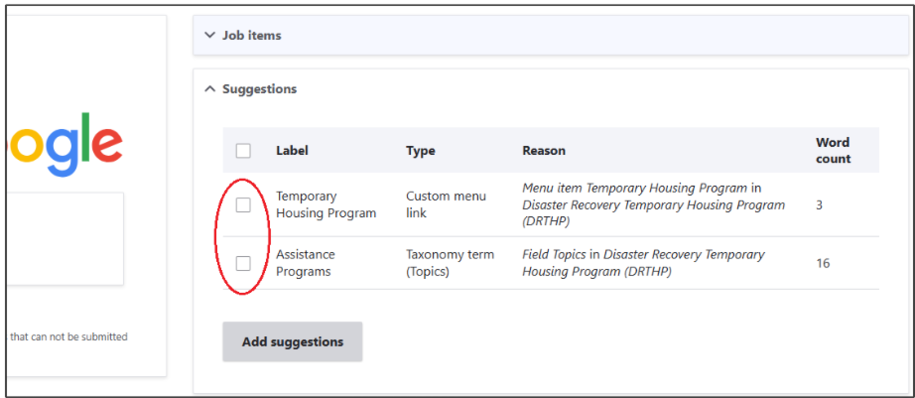
- Add any suggested items to your translation job
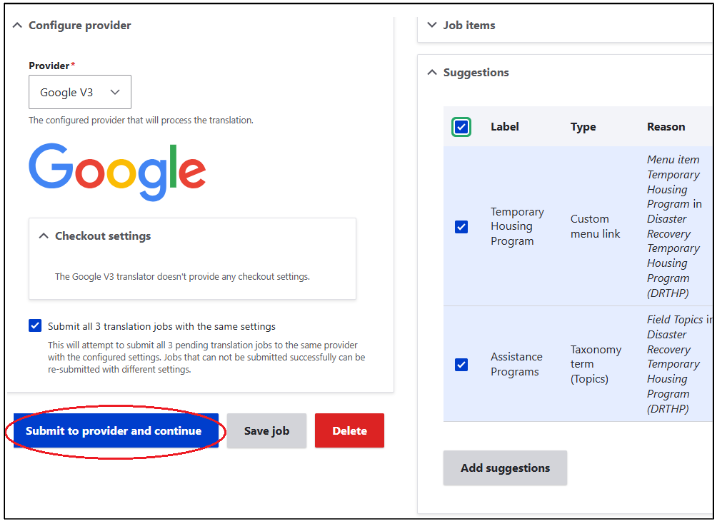
- Submit your translation job
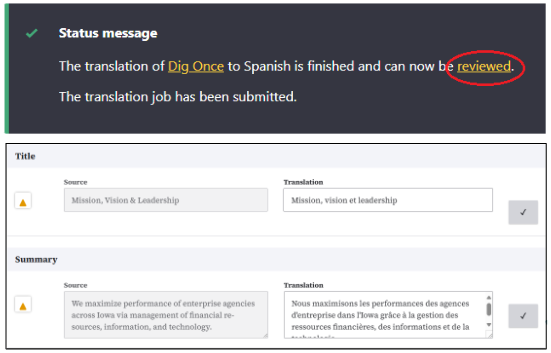
- Review the translations
After selecting Reviewed, you’ll see the English version and translated versions side by side. You could make edits to the translations here.
Note: Any edits made to alternate languages will be lost if the English page is re-translated at any time.
This side-by-side translation usually occurs the first time you translate a page.
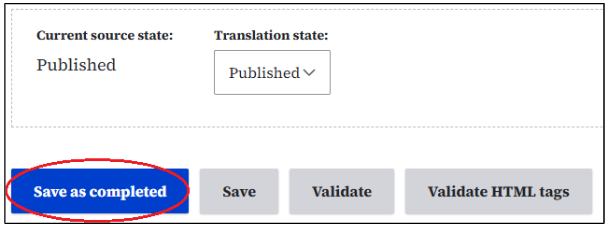
If you’re happy with the translations, check the boxes with check marks to the right of the translations. Scroll to the bottom of the page, make sure Published is checked if you’re ready to Publish the translation.
Note: You do not need to review and check each box, you can just scroll to the bottom of the page and select Save as completed.
- Complete the job by selecting Save as completed
Save job
After selecting Save as completed, you’ll get another screen and need to scroll down to the bottom and select Save job.
Back to topTranslating different page types
Landing pages
Landing pages can be translated using the standard translation process. Any field directly within the landing page will be translated as a result. However, any blocks or Microcontent placed into the layout builder page will not be translated and will need to be translated manually. This can be done by editing the page layout, selecting the correct content block, and using the Edit icon on the content block. Or you can search for that Microcontent within the content or Microcontent library. After that, the standard translation process can be used.
Basic Pages
When a Basic page is submitted for translation, any embedded entities within the body field are not included in the translation job. These embedded entities will need to be translated separately. This can be done by using the Edit icon on the embedded entity, or by searching for that entity in the content or Microcontent library and following the standard translation process. All other fields attached to the Basic page will be translated as part of the translation job generated from that page.
Listing pages
The translation process for Listing pages is the same, however, these pages contain minimal content. Any field attached to the Listing page will be translated within that page's translation job. Most other content on that page, such as result filters and the node results themselves, must be translated separately.
Enhanced content pages (Locations, News, Contacts, etc.)
Content-rich pages such as Location, News, and Contact pages have many more fields than other pages. Submitting one of these pages for translation will also translate any attached fields. Any field labels that aren't translated should be sent to the development team to be included in the base level string translations. These non-content translations are described below.
Non-content translation
Strings/buttons/text that are displayed on the screen but are not part of any content, such as the Back to top link or the word Filter can be translated. However, since they are standard elements of the platform, they are managed through code deployment. If one of these strings is not translated when browsing the site in a non-English language, editors can request that the development team add it to the translation dictionary.
Embedded PDFs or other embedded documents from the Media Library
Titles of linked PDFs or other embedded documents, and titles of Related Files or Related Links will not translate. These titles are not supposed to translate and PDFs are not translatable. If titles were translated, the expectation would be that the file/PDF was translated.
Other embeddable file types
Videos, Google Calendars, Tableau, ArcGIS, Crowdriff, Data & Insights, Power BI, Qualtrics, and Looker Studio embeds will not be translated. These embeds are made available for use by adding a link to the content through the Media Library and not available for translation.
Translation jobs are used to send content to Google Translate where it is translated and then returned to the platform. A new translation job is created whenever a page translation is requested. This job searches for related fields within the content, which you can choose to include in the translation.
Once the translation job is submitted, the translations are carried out by Google and sent back to the platform for your review. You'll find links to the job and its components in the return message or by searching job items in the Translation admin menu.
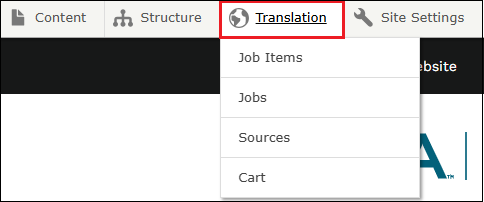
When reviewing each job item, you can see the original English text and the translated text side-by-side. You can either approve the entire translation item or edit the translated text if you find an error. Once approved and saved, the content has a translated version that can be edited later if needed and should be rendered when a visitor selects that language.
Whenever the content of an English page and/or any Microcontent is changed, a new translation should be submitted for that page and/or Microcontent. This creates a new translation job, and you follow the same review and approval process.
NOTE: Making a change to an already translated alternate language page in Drupal will only apply until that page is re-translated. If you make an edit to the English version, then submit for translation in all alternate languages, any edits in that individual alternate language page will be overwritten.
Back to topMenu translation
If you haven’t translated a new menu item yet, and you request translation on a page under that new menu, it will offer a suggestion to translate that main menu item.
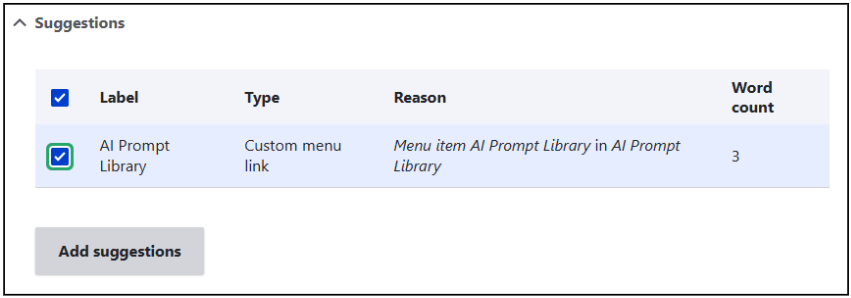
To translate a new Main Menu item (and subsequent drop-down items under its menu), you’ll need to go to Structure > Menus > Main navigation.
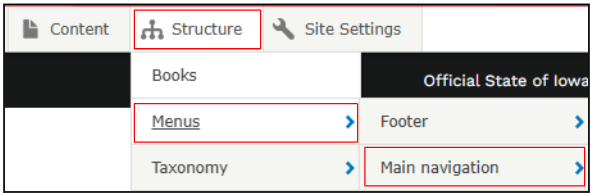
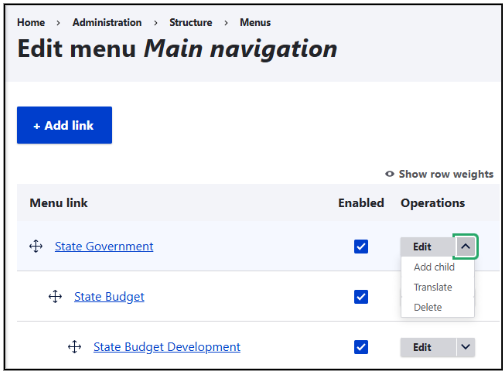
And find the navigation item you’re looking for.
Select the drop-down arrow next to the Edit button and choose Translate. Now the process will be the same as translating other content. Choose the languages, request translations, submit, review, and accept. If you’ve added a new child menu link under an already translated menu, you can translate that individual child menu item.
Deleting or archiving a page
When you safely delete or archive a page (after making sure there are no links to the page), you must delete or archive the alternate language pages as well. If you delete, remove or unpublish any type of content that was embedded in an English-version page, you must translate that page again, or the alternate language pages will still be looking for that embedded content and will produce an error.
Back to topNotes and support
General Note: If a page doesn’t have a translation, and you’ve selected a link to that untranslated page, the default will be the English version of that page. The user will NOT receive a 404 error.
Please submit a ServiceDesk Plus ticket if you encounter any problems or have questions.
Back to top