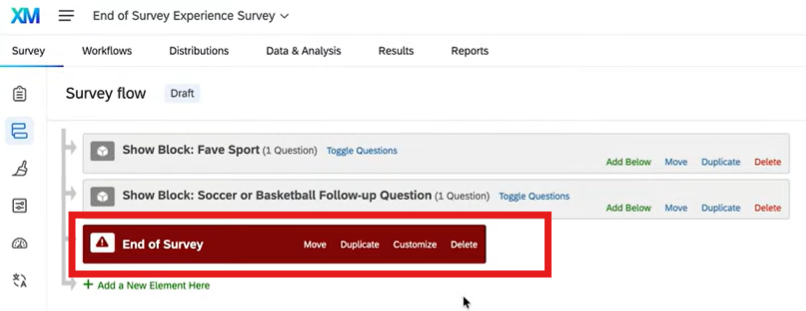
The End of Survey feature lets you choose what people see right after they finish your survey. Instead of just a generic thank you, you can show a custom message, share a summary of their answers, or automatically send them to a different website. This is a great way to wrap things up clearly and point people toward their next steps.
Example: If you run a customer feedback survey, you can automatically send people to your homepage after they click submit. You can also tailor the ending based on how they answered, such as giving a discount code to happy customers or sharing a helpful support link if someone had a bad experience. For an intake or application form, you can use this feature to let people know they should expect a response within 3 to 5 business days.
What is the End of Survey Experience?
The End of Survey page is the final screen people see after they click submit. Qualtrics has a standard message ready to go, but you can completely change it. This lets you give clearer next steps, screen out people who do not qualify, or automatically send users to other helpful resources.
Benefits of Customizing the End of Survey Experience
Giving respondents a meaningful end of survey experience can improve their understanding of what will happen next. It also helps agencies maintain a professional and consistent tone across surveys.
Benefits include:
- Clearer communication at the end of the survey: Let respondents know exactly what to expect, such as telling them to look for a response within 3 to 5 business days after submitting an intake form.
- Ability to thank residents in your agency’s voice: Move away from generic messages and close the survey with a personalized, professional thank you.
- Opportunity to redirect respondents to helpful resources: Automatically send people to your homepage or a specific support page based on how they answered.
- A smoother and more polished user experience: Guide participants seamlessly to their next steps so they never feel left hanging after clicking submit.
- Ability to screen out respondents with a targeted message: Show a polite, immediate explanation to participants who do not meet the criteria for your study or program.
- Option to remove personal data for privacy reasons: Ensure sensitive information is scrubbed or handled securely immediately after the survey is completed.
When Should You Customize the End of Survey Experience?
Always. You should customize your end of survey message to match the state's branding guidelines, but more importantly, to give residents clear direction after they click submit.
Use the End of Survey feature when you need to control what happens right after someone finishes your survey, whether you want to share next steps, protect privacy, or guide people to another website.
Common Scenarios
- Showing a Custom Thank‑You Message
- Example: A customer feedback form closes with a clear and personalized thank you.
- Redirecting Respondents to Another Website
- Example: A registration or sign‑up workflow automatically sends people to your homepage or a resource page.
- Screening Out Ineligible Respondents
- Example: A polite closure message shows only to users who do not meet specific criteria like age, location, or program eligibility.
- Removing Personal Information
- Example: Identifying data is deleted or scrubbed right after a respondent clicks submit to support privacy.
- Sending a Custom Thank‑You Email
- Example: An intake form automatically triggers a follow‑up notice letting the person know they will receive a response within 3 to 5 business days.
Resources
- How to Customize the End of Survey Experience
- Note: This video demonstrates how to edit your end of survey message, customize your end of survey element, and learn some use cases for the end of survey element.
- Qualtrics Support: Editing the End of the Survey
Instructions
Use the steps below to customize your End of Survey message and follow state style guidelines.
Match Font Style and Size
To keep your survey looking professional and consistent, use these quick settings for your End of Survey message:
- Font Size: Set the text to 14pt.
- Font Style: Choose Default.
Using these specific settings ensures your final screen matches the rest of your survey. It also helps your agency meet state branding and accessibility guidelines so the text is clean and easy for everyone to read.

- Note: In the Survey Builder, you do not need to manually change the font when adding question text. The system will automatically apply the correct style.
Edit Qualtrics Default End of Survey Message
- Open your survey in Qualtrics.
- Scroll to the End of Survey section at the bottom.
- Click the End of Survey block to open the options dropdown.
- In the Message dropdown, select Custom.
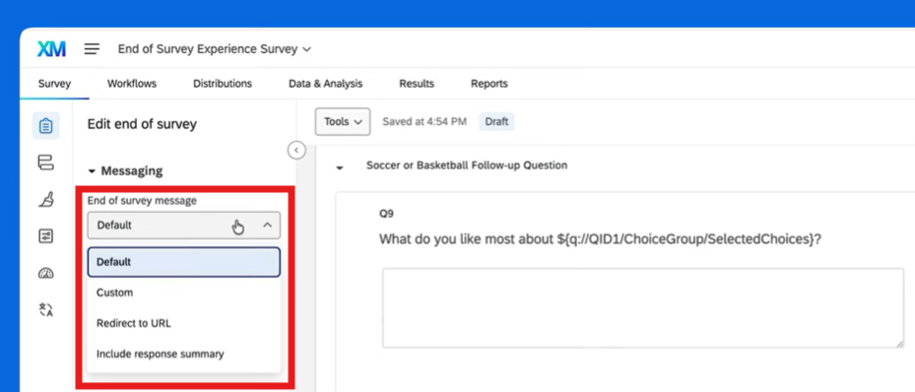
- Choose an existing message from your message library or click New Message to create one.
- Name your message so you can find it later.
- Add the text you want respondents to see.
- Click Save.
Redirect Respondents to a URL
- In the End of Survey message options, open the dropdown menu.
- Select Redirect to URL.
- Paste the webpage link you want respondents to go to.
- Save your changes.
This is helpful for directing users to agency resources or needed next steps.
Show a Response Summary
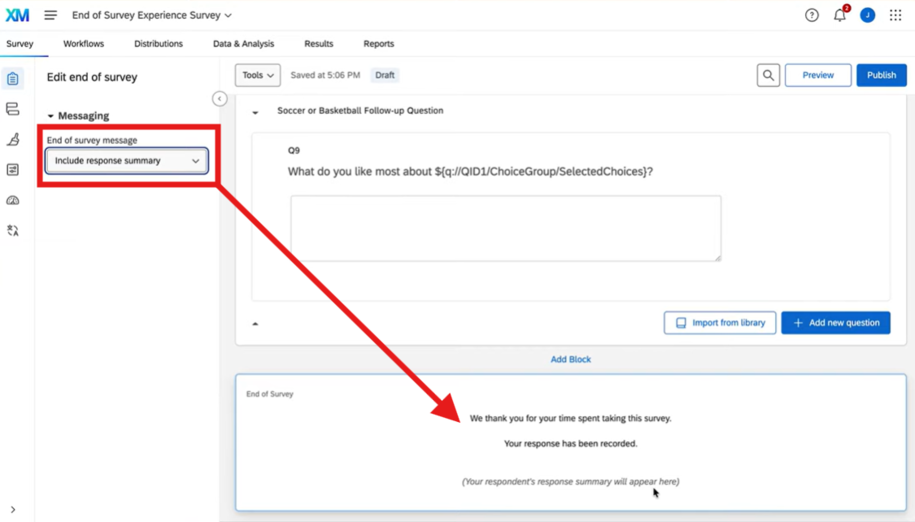
- Open the End of Survey section.
- Choose Response Summary from the dropdown.
- Qualtrics will show the default thank‑you message plus a summary of answers.
Customize the End of Survey in Survey Flow
Using Survey Flow gives you more control, especially for screening or advanced logic.
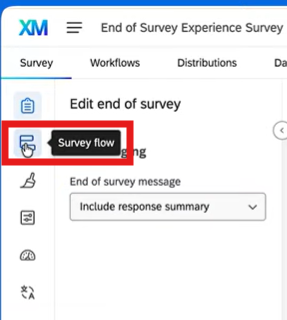
- Go to Survey Flow (top side navigation).
- Click Add a New Element.
- Choose End of Survey.
- Click Customize.