
On this page...
Making Great Surveys and Forms for Iowans
Our goal is to create the best surveys and forms possible for the State of Iowa. As we build them, we’re keeping important things in mind like security, accessibility, and making sure everything matches the State of Iowa’s brand.
Back to topForms vs. Surveys: What’s the Difference?
While we use the term survey interchangeably throughout this guide and training materials, it’s important to recognize that surveys and forms serve different purposes.
- Forms are designed to collect specific information for a transaction, registration, or request. They are typically short, structured, and focused on gathering necessary details (e.g., name, contact info, service needs).
- Surveys are used to gather feedback, opinions, or experiences from respondents. They often include rating scales or open-ended questions. They are designed to analyze trends or attitudes across a group.
- While not required, we strongly recommend referencing the Forms Design Best Practices, Survey Design Best Practices, and Survey Scales Best Practices developed by a Qualtrics XM Scientist to support the creation of high-quality, user-centered forms and surveys across the State of Iowa.
- Visit this Critical Guidance for Editing a Published Survey. Once your survey is live and responses are coming in, every edit carries risk. Even small changes can remove, overwrite, or corrupt your data if you are not careful.
With this tutorial and guide, you’ll be equipped to create surveys and forms that meet high standards of excellence and effectively serve all Iowans.
Back to topAccessibility
To learn about accessibility, go through the guide and watch the Accessibility chapter on YouTube.
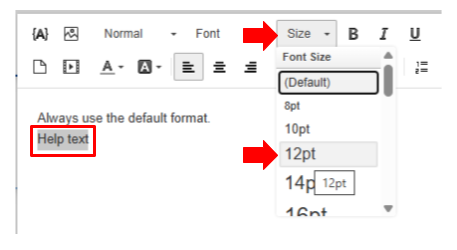
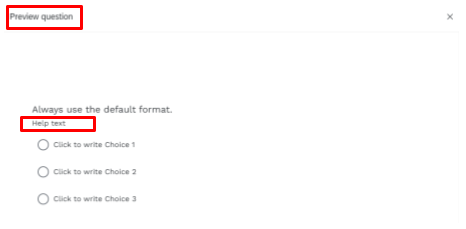
Help Text
- Use a font size of at least 12pt and avoid using italics for text.
Alt Text
- Every image must include alt text that describes what the image shows.
- To learn how to add alt text in the survey builder or when using a library image, visit this Qualtrics Support resource.
- Every image must include alt text that describes what the image shows.
Color Contrast and Emphasized Text
- Avoid using bold, underlined, italic, or colored text alone to show importance.
- Underlined and bold text often look like hyperlinks, especially with the CSS style applied to our themes.
- Italics and color can be hard to read or may not be accessible to everyone.
- Use clear headings, spacing, or other visual cues instead. Combine visual styling with clear language like adding labels such as Note: or Important: to make sure the message is understood by everyone, including users with visual impairments.
Spelling
- Use your web browser’s built-in spell check to catch spelling errors. Most modern browsers highlight misspelled words automatically, including in the survey builder. Make sure spell check is turned on in your browser settings.
ExpertReview Compliance Score
- Review your ExpertReview results to ensure your Compliance Assistant issue type status shows Pass.
- To learn how to find ExpertReview and check your compliance status, visit this Qualtrics Support resource.
- Review your ExpertReview results to ensure your Compliance Assistant issue type status shows Pass.
Device Review
- Preview your survey on a mobile device to make sure it displays correctly.
- To learn how to use mobile preview, visit this Qualtrics Support resource.
- Preview your survey on a mobile device to make sure it displays correctly.
Methodology
To learn about Methodology, go through the guide and watch the Methodology chapter on YouTube.
ExpertReview Methodology Score
- Review your ExpertReview results to ensure your Methodology issue type status shows Pass.
- To learn how to find ExpertReview and check your Methodology status, visit this Qualtrics Support resource.
- Review your ExpertReview results to ensure your Methodology issue type status shows Pass.
ExpertReview Survey Error Score
- Review your ExpertReview results to ensure your Survey Error issue type status shows Pass.
- To learn how to find ExpertReview and check your Survey Error status, visit this Qualtrics Support resource.
- Review your ExpertReview results to ensure your Survey Error issue type status shows Pass.
End of Survey Message
- Your end-of-survey message should be clear and customized, so constituents know exactly what to expect next.
- To learn how to edit the end of survey message, visit this Qualtrics Support resource.
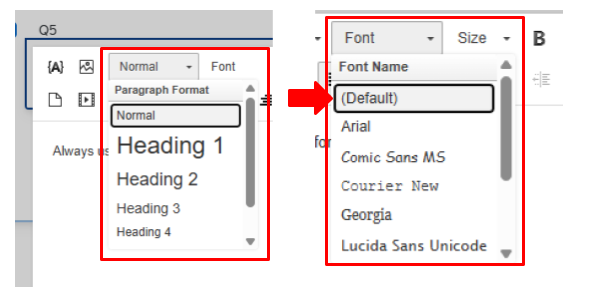
When creating surveys, always use the Default font style to keep everything consistent and accessible.
- When customizing the End of Survey message, set the font to 14pt and select the Default font style to match the rest of your survey’s look and feel. This helps maintain a clean, professional appearance that aligns with our branding and accessibility standards.
-
- Note: In the Survey Builder, you do not need to manually change the font when adding question text. The system will automatically apply the correct style.
- Your end-of-survey message should be clear and customized, so constituents know exactly what to expect next.
Hyperlinks URLs and Emails within Surveys
- To avoid issues in your survey, always set hyperlinks to open in a new window. This helps ensure a smooth experience for constituents and prevents them from accidentally leaving the survey before submitting their responses.
- To learn how to add hyperlinks in a survey, visit this Qualtrics Support resource.
-
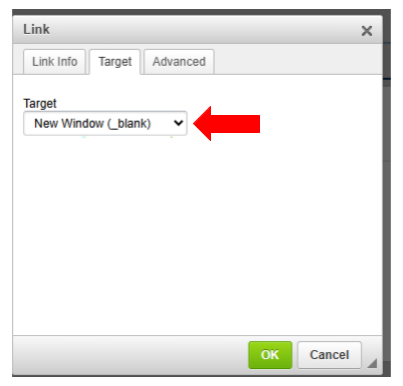
- When displaying an email address in a survey, make it easy for participants to take action. Add a clickable link to the email address so they can start an email directly if they choose to reach out.
- To learn how to link an email address in a survey, visit this Qualtrics Support resource.
- To avoid issues in your survey, always set hyperlinks to open in a new window. This helps ensure a smooth experience for constituents and prevents them from accidentally leaving the survey before submitting their responses.

Branding and Navigation
To learn about Branding and Navigation, go through the guide and watch the Branding and Navigation chapter on YouTube.
Display Name and Survey Description
- Enter a clear display name and description to improve navigation, accessibility, SEO, and user trust.
- To learn how to enter display name and survey description, visit the How Do I Brand and Theme a Survey? resource.
- Enter a clear display name and description to improve navigation, accessibility, SEO, and user trust.
Title of the Survey
- The survey title should be visible on every page and use the correct header tag. This helps participants stay oriented and confident as they move through the survey. It also supports accessibility by making the structure easier to understand for people using screen readers or other assistive tools.
- To display a title on every page of your survey, go to the General section under the Look & Feel menu in the Qualtrics Survey Builder.
- To learn how to access and add a header in the Look & Feel menu, visit the How Do I Brand and Theme a Survey? resource.
Next and Back Button
- To ensure a consistent navigation experience for our constituents, please use the Next and Back buttons with the correct wording.
- To learn how to change the button text in your survey in the Look & Feel menu, visit the How Do I Brand and Theme a Survey? resource.
- To ensure a consistent navigation experience for our constituents, please use the Next and Back buttons with the correct wording.
Paragraph Styling
- Using proper paragraph styling is essential for meeting accessibility standards. However, when building surveys, it’s equally important to always use the Default font style. Do not change the font.
- The design and CSS styling are already embedded within the survey themes to align with our Iowa branding standards. Applying custom styles can interfere with this consistency.
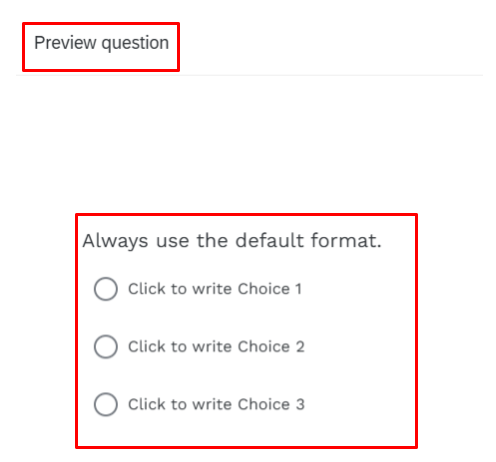
- You can view how the formatting appears by using the Preview option for your question or survey. This helps ensure everything displays as expected before publishing.
-
-
Security
To learn about security, go through the guide and watch the Security chapter on YouTube.
ExpertReview Sensitive Data Request
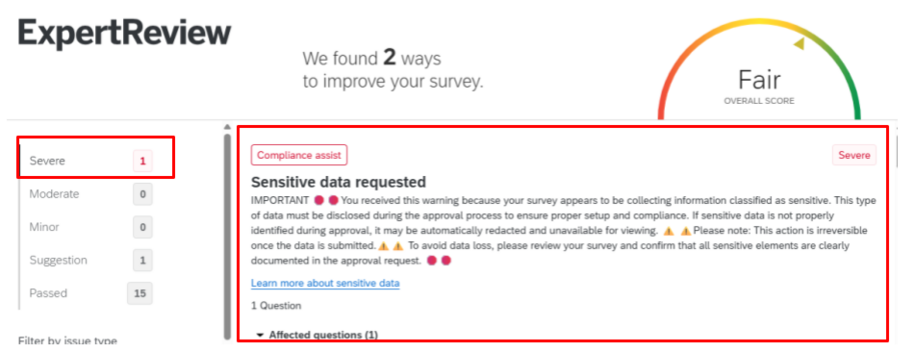
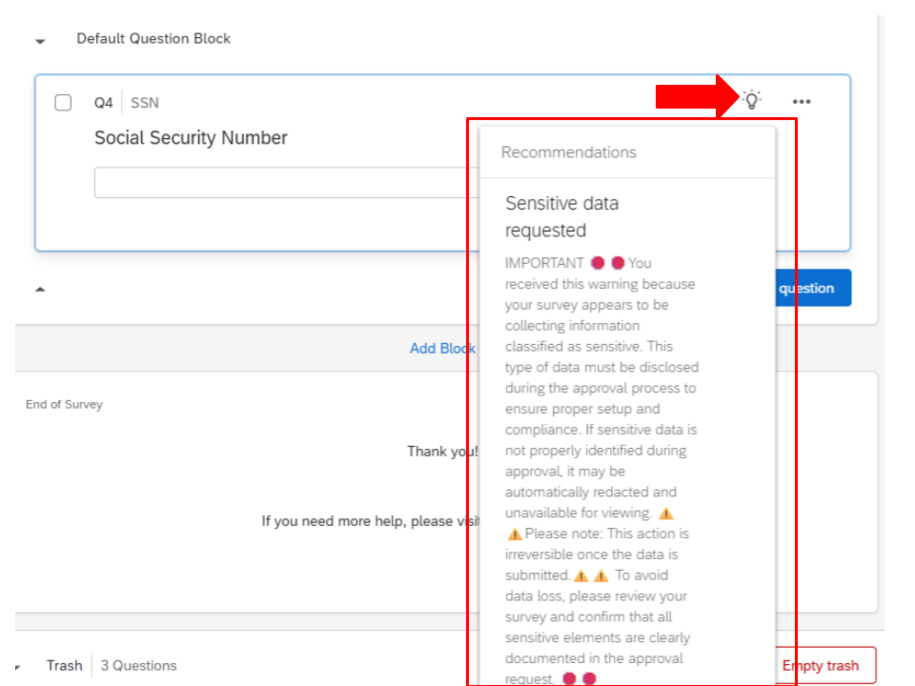
- If your survey collects sensitive data, a warning will appear in ExpertReview. This warning indicates that your data collection may be impacted if you do not notify us correctly through the Choose Your Survey Review Journey Intake Form.
- While collecting sensitive data may be necessary for your survey’s purpose, it is critical that you inform us via the intake form. This allows us to apply an exemption if needed, ensuring your survey meets compliance and governance standards.
- Below is an example of the error message you’ll see in ExpertReview. This warning will also appear directly in the Survey Builder.
Thoroughly Review Steps Before Releasing Your Survey
- Walk through your entire survey in the preview link again and again.
- Review it multiple times to catch anything you missed.
- Check flow and timing to be sure the order makes sense and the survey does not feel too long.
- Test all skip and display logic by trying different answer paths.
- Review spelling, grammar, and overall look and feel.
- Test the survey on mobile view.
- Verify embedded data, scoring, and recode values.
- Check the recode values for any Multiple Answer question types. By default, Qualtrics may export these responses as a single string. If the user needs the data in binary (0/1) columns instead, they should adjust the recode settings now to ensure the export is formatted correctly.
- Review formatting, and any branding or look‑and‑feel settings.
- Review the Guide to Creating Great Surveys and Forms for Iowans before finalizing your survey.
- Review the ExpertReview results to identify issues and recommended improvements.
- Confirm consent language and instructions are clear and easy to understand.
- Submit test responses to confirm data appears correctly in reports.
- Have a colleague perform a full peer review for anything you may have missed.
- Select a comprehensive review in your approval process path.
- Use Copilot or Gemini to fine‑tune your questions, simplify wording, confirm logic and forced responses, and clarify instructions.
- Review Required Questions and Data Checks
- Before releasing your survey, make sure required questions and data checks are set up correctly. Only mark essential questions as Force Response, since using it too much can cause people to pick random answers or leave the survey. For non‑essential items, use Request Response instead, which gives a gentle reminder without forcing an answer.
- Also, turn on Custom Validation for things like emails or dates so responses are entered in the correct format.
- Check Hidden Technical Settings and Post‑Survey Actions
- Always review all the settings under Survey > Options to make sure your general, response, security, and other important settings are configured the way you intend.
- Review end‑of‑survey actions and notifications to ensure the final message or redirects work correctly, and confirm that all workflows and email alerts trigger as expected.