
On this page...
Heads Up
- We held training on October 27, 2026. All session resources are now available on Qualtrics On-Demand: Your Training, Your Time, under the Qualtrics CX Review, Approval and Republishing Training section.
Before You Start
Before any survey can go live, it has to go through review and approval. This isn't about slowing you down. It's how we keep surveys secure, accessible, and visible to the people who actually own the data: your agency.
Before you start, make sure you:
- Know whether your survey is a good fit for Comprehensive (Full Service) or Streamlined (Express Lane) review
- Know your expected launch date, and get into the review and approval process sooner rather than later. The earlier you submit, the more time your review team has to work with you before launch.
- Know whether your survey collects any sensitive data, such as Social Security numbers, financial info, or health info
- Know whether your survey is long-term, public-facing, or used programmatically, since this affects whether it should move to a service account
Don't Skip Your Agency's Process
02:14 - How a Survey Gets Published
Every agency's process looks a little different, and that's okay. If your agency already has its own internal intake or IT approval process, go ahead and follow that too. This review and approval process doesn't replace it. Think of it as an additional check that helps make sure your survey is accessible, secure, and on brand before it reaches your agency's final sign-off.
Not sure what your agency's process looks like? Start with your Agency Approver. If you don't know who that is, ask your Agency CX Champion. And if you're not sure who that is either, visit CX Program Roles, Responsibilities, and Assigned Users to find the right person.
Back to topHow to Request Approval
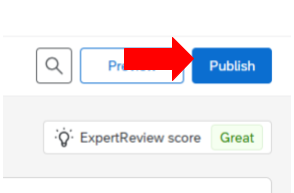
Step 1: Click Publish
04:28 - R/A Process - Status: Quality & Security
In the Survey Editor, click Publish in the top right corner. This kicks off the approval workflow. It doesn't publish your survey yet.
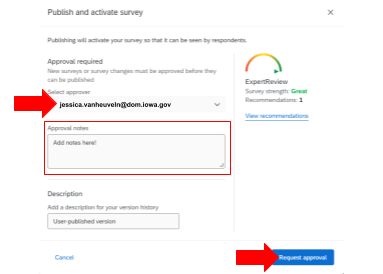
Step 2: Select Jessica and Add Notes
04:28 - R/A Process - Status: Quality & Security
Select Jessica from the approver dropdown. She's the only option you'll see there, and that's by design: selecting her doesn't mean she personally approves your survey. It simply kicks off the workflow. Your agency's actual designated approver reviews and signs off later, in Step 5. Add any notes that will help with the review, then click Request Approval.
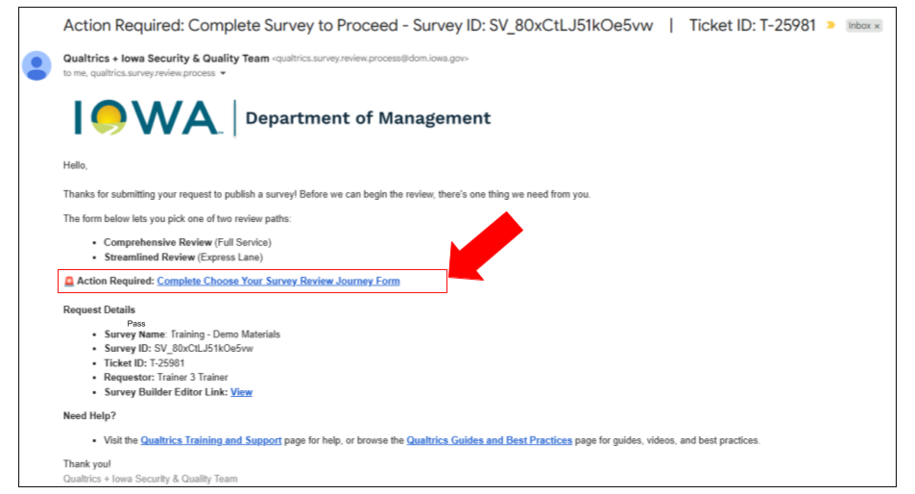
Step 3: Complete the Choose Your Path Form
04:28 - R/A Process - Status: Quality & Security
50:28 - R/A Process: Complete Survey to Proceed (Choose Your Path)
After you request approval, you'll get an email (hour later) asking you to complete the Choose Your Path form. This is where you pick your review lane:
- Comprehensive Review (Full Service): recommended for public facing or constituent surveys. Includes a fuller feedback review (accessibility, theming, methodology) and one extra section at the end, Listen Understand Act (LUA).
- Streamlined Review (Express Lane): a good fit for internal or low-risk surveys, or agencies with their own strong review process.
Both paths ask the same core questions:
- Security Overview: could any of your responses include an 8-digit number, or a number between 12 and 26 digits long? Think Social Security numbers, Medicaid IDs, bank account numbers, driver's license numbers.
- Protected Data Categories: which apply, CJIS, FERPA, FTI, HIPAA, PII, or None.
- Issues and Tips Panel: did your Issues and Tip Panel show a Sensitive Data Request warning?
- Launch Date: your expected launch date.
- Primary Audience: constituents, internal staff, partner organizations, or other.
- Distribution: how the survey will be distributed, and whether it will be posted on a State of Iowa website.
- Long-Term Ownership Check: is this survey long-term, public-facing, used with a QR code, used programmatically, or handling sensitive data? Your answer here determines whether it should move to a dedicated service account.
- Platform Features: which platform features your project uses.
- Comprehensive only: one extra section before submitting, Listen Understand Act (LUA), what you're capturing (Listen), the why behind it (Understand), and what you'll do with it (Act). Streamlined skips this and goes straight to submission.
Step 4: Your Survey Is Reviewed
04:28 - R/A Process - Status: Quality & Security
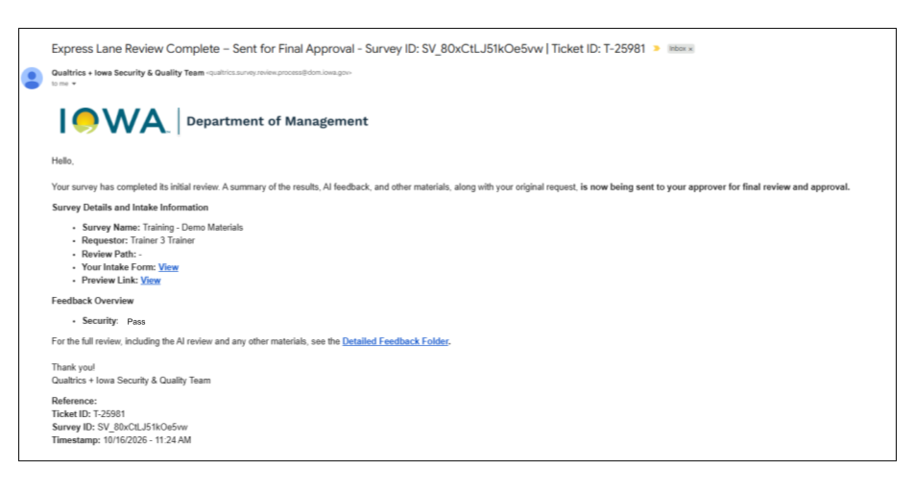
Your survey goes to the Qualtrics and Iowa Security and Quality Team, with the help of our AI review tool, used on both review paths.
You'll get an email with your AI review results and reviewer comments. If this is your first time through the process, you'll also get a short video walking through your specific survey's feedback.
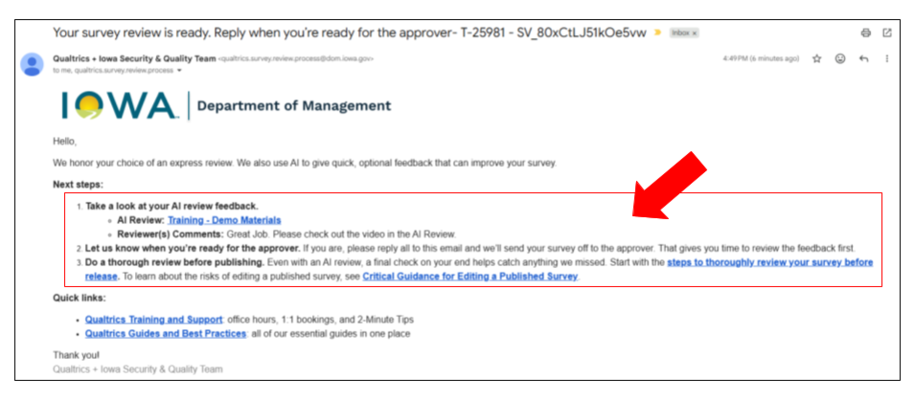
Reply all when you're ready to send your survey to the approver. That gives you time to review the feedback first. Even with an AI review, do one more thorough check yourself before publishing.
A few things that can happen during review:
04:28 - R/A Process - Status: Quality & Security
21:18 - R/A Process - Status: Testing, Denied, and Republish
57:25 - R/A Process: AI Review
1:16:00 - R/A Process - Service Account and Workflow Notification Email
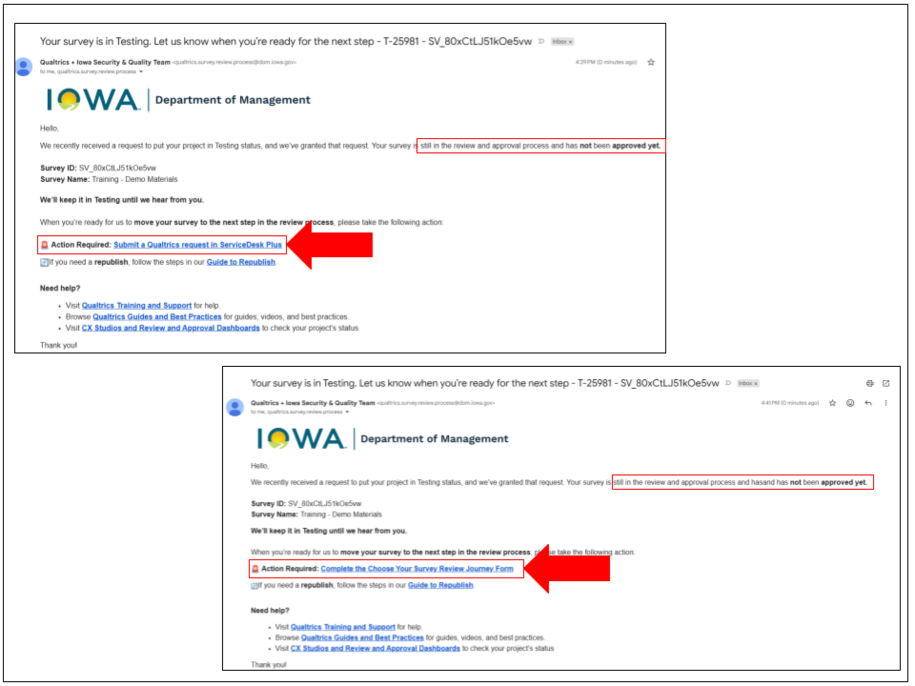
- Testing status: if you need more time to work on your project before it moves to approval, you can ask to put your survey in Testing. It's still unapproved while there, and it's up to you to let us know when you're ready to move forward. If you haven't completed the Choose Your Path form yet, doing so for the first time signals you're ready. If you've already completed it, submit a ServiceDesk Plus request instead.
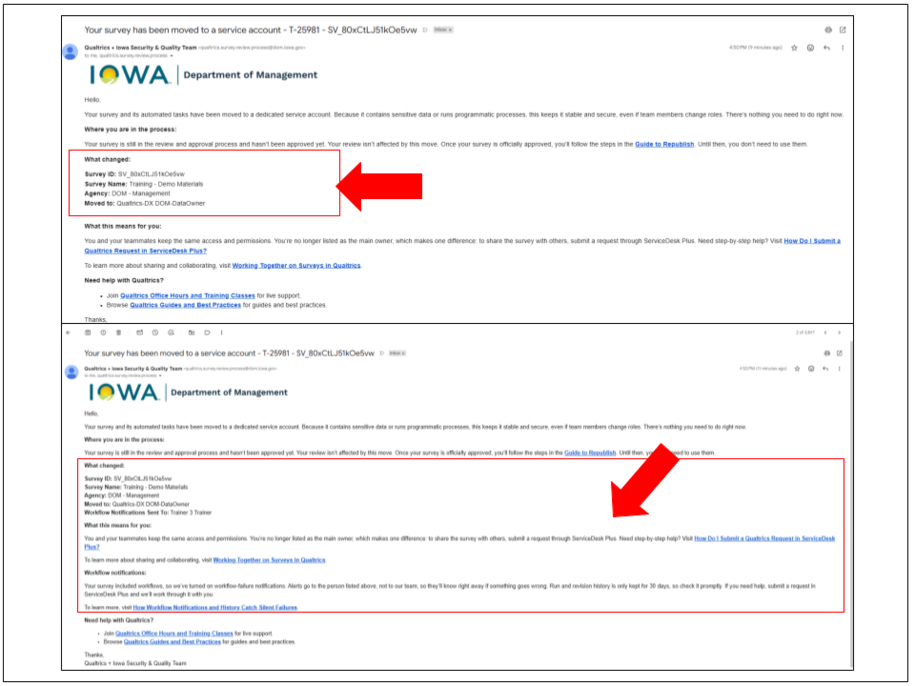
- Service account move: if your survey handles sensitive data or runs automated processes, it moves to a dedicated service account. You and your team keep the same access and permissions, but you're no longer listed as the main owner. Sharing the survey with someone new now goes through a ServiceDesk Plus request.
Step 5: Your Approver Reviews and Decides
19:22 - R/A Process - Status: Approver
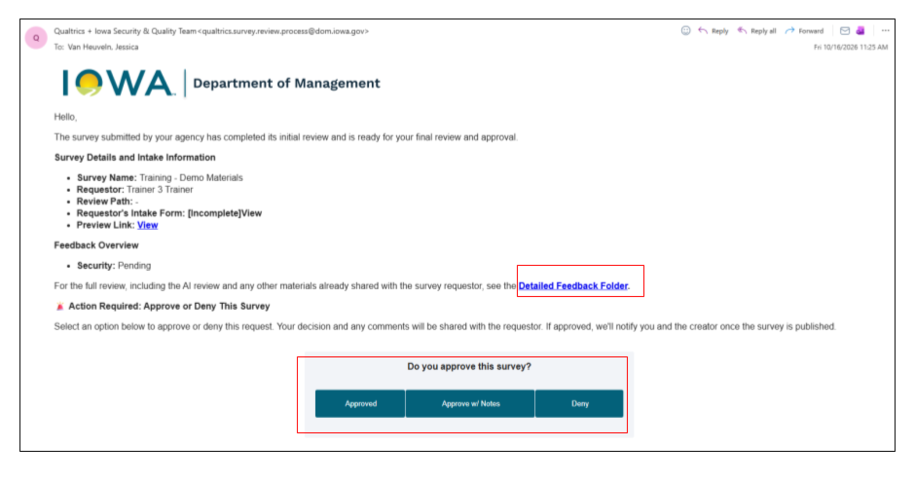
Your agency's designated approver gets everything you got. The survey name and requestor, the review path you chose, your Choose Your Path form answers, your AI review results, any personalized video you received, and the full review feedback, along with a preview link to the survey itself. Nothing is held back from them. They see the same full picture you did.
The preview link lets the approver walk through the survey itself, including a mobile view, and use an Ignore Validation option to skim required fields quickly.
The approver chooses Approve, Approve with notes, or Deny.
Step 6: You’re Notified Either Way
20:28 - R/A Process - Status: Closed
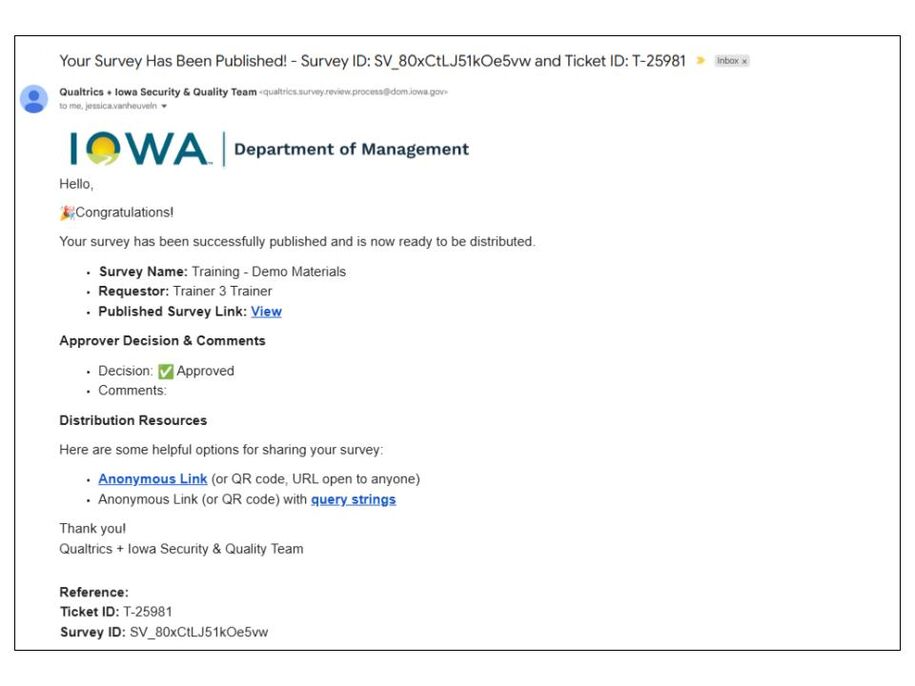
If your approver says yes, you and your approver both get a confirmation email once your survey is published, along with your distribution links: an anonymous link, and an anonymous link with query strings.
If the approver denies it, you’ll get an email explaining why.
Track Your Survey's Status
23:18 - Track Your Survey's Status Anytime
The review and approval process includes several dashboards that support different roles. They help you see publish requests, track progress, and understand what's needed to move a survey through approval efficiently.
- Review and Approval Dashboard: an overview of surveys currently in review, their status, and any actions still needed. Helps you track progress and keep things moving. View the dashboard. You must be logged in to Qualtrics. If you still can't access it, submit a ServiceDesk Plus request for assistance.
- Agency Approvers Dashboard: built for designated agency-level approvers, with access to surveys awaiting review so they can complete checks and move surveys forward. View the dashboard. You must be logged in to Qualtrics. If you still can't access it, submit a ServiceDesk Plus request for assistance.
Want to learn more about dashboards? Visit .
Back to topWhat Happens After You Submit
20:28 - R/A Process - Status: Closed
- If approved: you and your approver both get a confirmation email once your survey is published, along with your distribution links: anonymous link, and anonymous link with query strings.
- If denied: you'll get an email explaining why, so you can make changes and resubmit.
- Support is available throughout. Visit for office hours held twice a week, 1:1 bookings, and more if you hit a blocker or have questions.