On this page...
Heads Up
- Join us on October 27, 2026, for the full training where we’ll walk through this and other updates together.
Important Note
Once a redaction happens, it can't be undone. If you spot a risk, report it right away - the sooner we know, the sooner we can stop it before anything gets redacted.

If You Find It First
If you find red triangles like the ones in the screenshot above while reviewing your data analysis, and it hasn't already been added to the exception list:
- Open a ServiceDesk Plus request to report it.
- Our team reviews your report and schedules a short meeting with you to discuss next steps and outline an action plan.
If We Find It First
From time to time, our team runs a data steward audit across live surveys. If that audit flags sensitive data in your survey that hasn't been exempted:
- You'll get an email letting you know what was found and that it's been added to the exception list for now.
- Any new responses that fall into this category are no longer redacted while the exception is in place.
- You'll receive an invite to a short meeting (typically 15 minutes) with the Qualtrics team to go over what was found and agree on next steps.
Either way, you're covered. The exception list keeps things moving while we sort it out, and the follow-up meeting is just a conversation to figure out next steps, not a penalty.
Back to topWhat Happens After
The goal of these meetings is the same either way: understand why the data showed up, confirm whether it needs a permanent exception or needs to be removed, and make sure your survey stays compliant going forward.
Back to topWant to Learn More? Find Out What's Going On
Qualtrics Sensitive Data Policy Violations
Either you spot the red triangle yourself while reviewing your data, or it gets reported to you after our team finds it during a routine audit. Either way, the response has already been flagged, it just comes down to who notices it first.
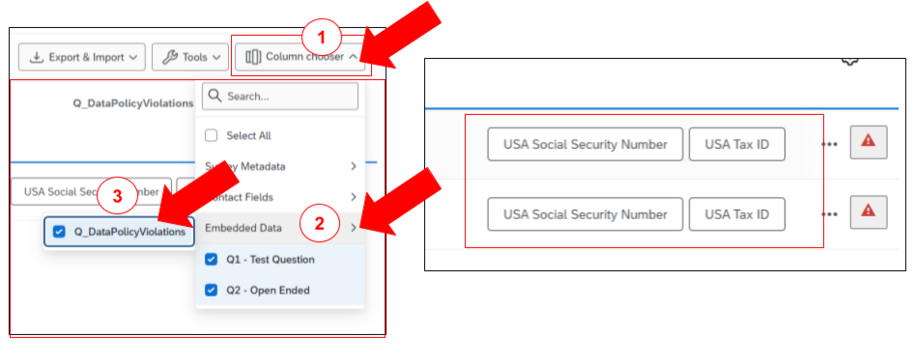
- In the Data & Analysis tab, click Column chooser.
- In the dropdown, go to Embedded Data.
- Check the box next to Q_DataPolicyViolations.
A new column appears in your data table showing the specific policy fields flagged for each response, for example USA Social Security Number or USA Tax ID, right next to the red warning triangle. This tells you precisely what tripped the alert, instead of just that something did.
Locating and Filtering Sensitive Data Violations
A flagged response looks like this: the response text itself, with a red warning triangle on the right. For example, someone might write Hello, I love the form, here's my real social security number: ********* right in an open text field. There are two ways to locate and filter for responses like this.
Option 1: Filter by sensitive data
- Click the Add Filter dropdown.
- Select ExpertReview: sensitive data from the list.
Option 2: Click the red triangle directly
- Click the red warning triangle icon next to a flagged response.
- In the Quality Issues popup, under Sensitive Data, click View All Sensitive Data Violations to see every flagged response at once.

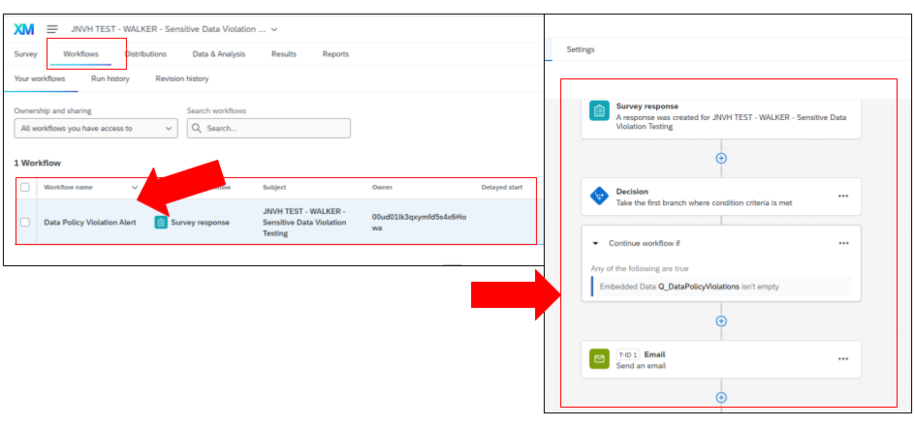
An Alert System Is on the Way
Still in scoping and building, not live yet. We're working on a new workflow that will alert you directly when red triangles like these show up in your survey, so you don't have to catch them yourself during a manual review.