
On this page...
Heads Up
- This procedure does not go live until November 4, 2026, at 8:00 a.m.
- This page is a work in progress and is subject to change before then.
- We held our launch training on October 27, 2026. All session resources are now available on Qualtrics On-Demand: Your Training, Your Time, under the Qualtrics CX Review, Approval and Republishing Training section.
Before You Start
When you edit a survey that’s already live, your changes don’t show up for respondents until you republish. In our process, you can’t just publish those changes yourself. You have to go through a republish request process, and depending on the changes you made and your agency’s approval step, that process may include an approval before your survey goes live.
Before you start, make sure you:
- Know what you changed in your survey and why.
- Have your full name and email ready.
- Know you’ll need to describe your changes. The more detail, the better.
Don’t Use the Publish Button
25:20 - Republish Steps
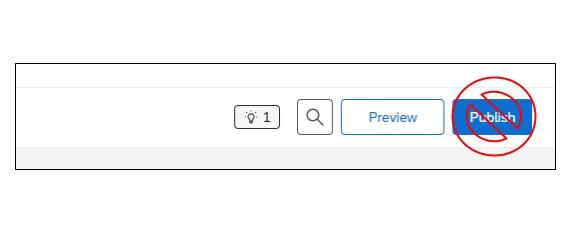
In the Survey Editor, there’s a Publish button in the top right corner. Do not use it to republish.
- That button is only for publishing a survey for the first time.
- If you use it to request a republish, we won’t accept it.
Find Your Survey’s Republish Link
27:18 - Republish: Finding Your Republish Link
Every survey has its own unique republish link. Here’s how to find it:
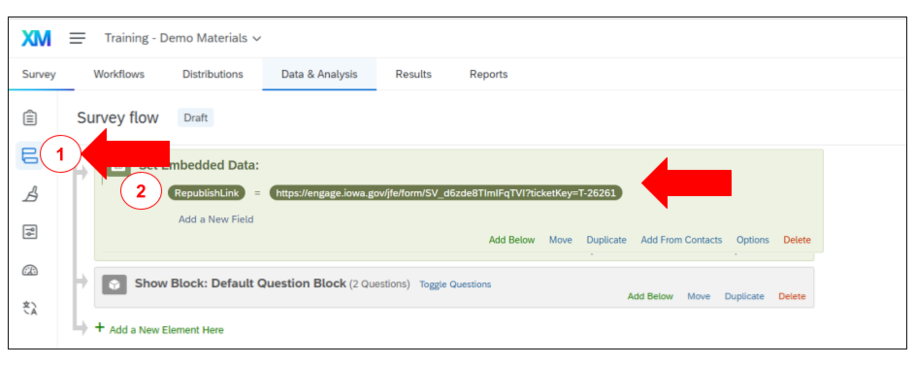
- Open your survey and click Survey Flow on the left side.
- Look for a field called RepublishLink. Don’t delete it.
- Copy the link next to it.
- Open that link in a new tab.
Important Notes:
- You may be prompted to sign in with SSO (Okta). This is Qualtrics’ Survey Authentication feature, which confirms the identity of who’s requesting the republish. If you can’t get in: submit a Qualtrics Request in ServiceDesk Plus for help.
- This Republish Link is tied to this specific survey. Please do not use a link from a different survey and request republishing. Each survey has its own unique republish link.
If You Can’t Republish Yet
When you open the link, we check your survey’s current status. If your survey is in one of these four statuses, you won’t be able to republish right away. Instead, you’ll see a message telling you to submit a help ticket.
Good to know: You can check your survey’s status anytime using the CX Studios and Review and Approval Dashboards.
Back to topHow to Request a Republish
25:20 - Republish Steps
If your survey passes the status check, here’s exactly what to do.
Step 1: Read the intro screen.
30:59 - Republish: Reading the Intro Screen
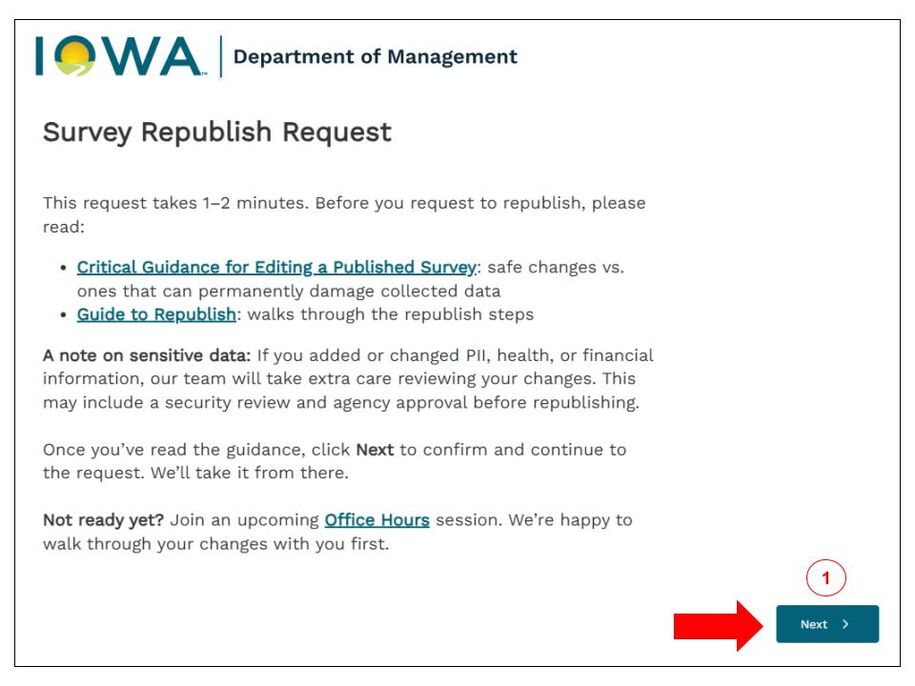
You’ll see a short welcome screen. It links to two things worth reading first: the Critical Guidance for Editing a Published Survey page and this guide. Click Next when you’re ready.
Step 2: Confirm it’s the right survey.
32:35 - Republish: Confirm It's the Right Survey
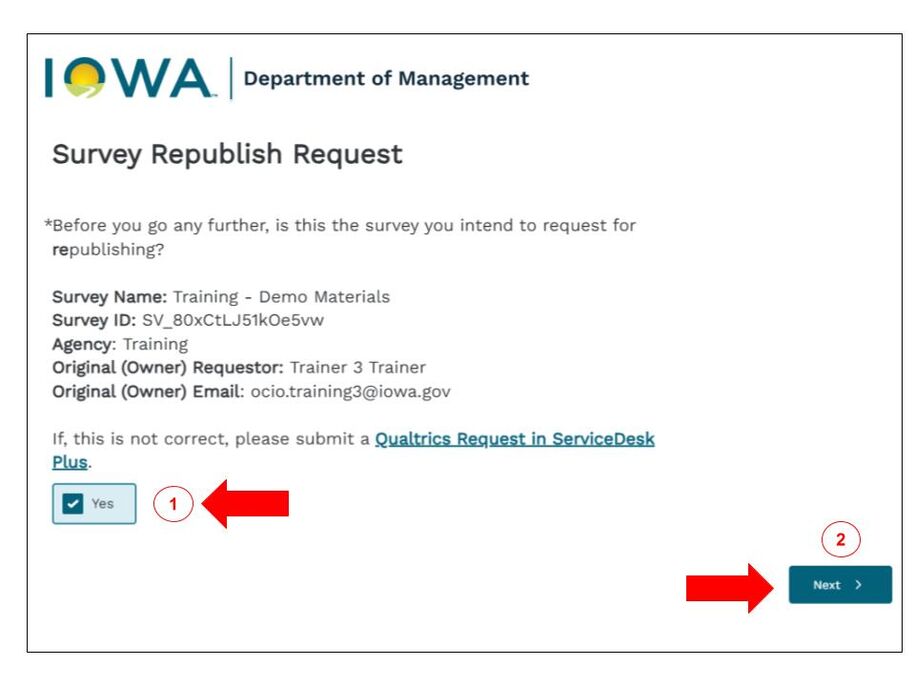
You’ll see your survey’s name, ID, and agency. Check it’s correct, select Yes, then click Next.
Step 3: Verify your name and email.
34:50 - Republish: Verify Your Name and Email
Verify your full name and email address. Then click Next.
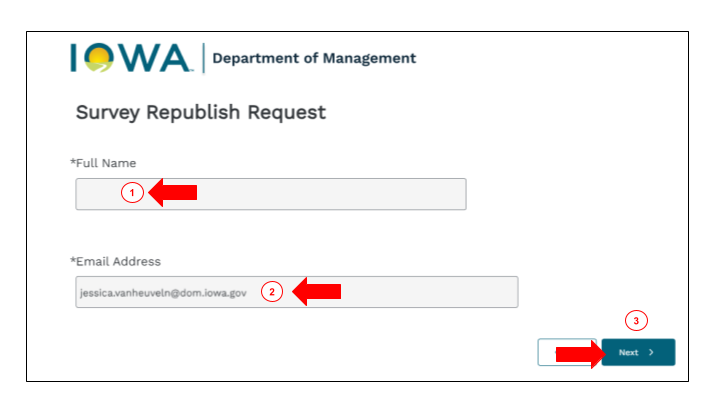
Step 4: Answer a few questions. What happens here depends on your survey’s status.
35:19 - Republish: Testing Status
36:50 - Republish: Closed Status
If you’re in Testing status, you’ll see one quick question confirming you understand your survey won’t go fully live until your agency approves it. Select Yes and hit Submit. You’re done.
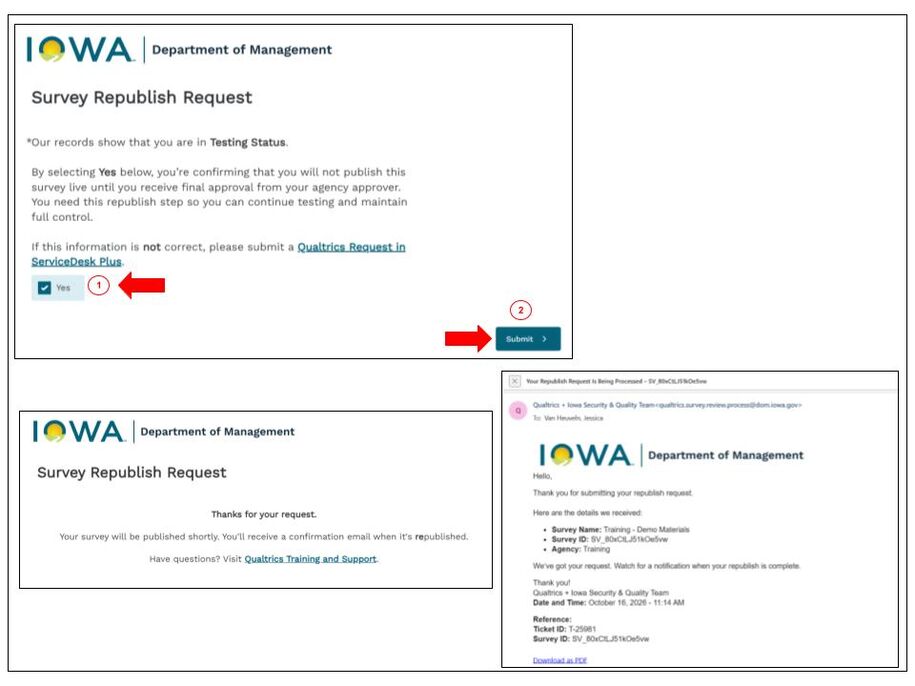
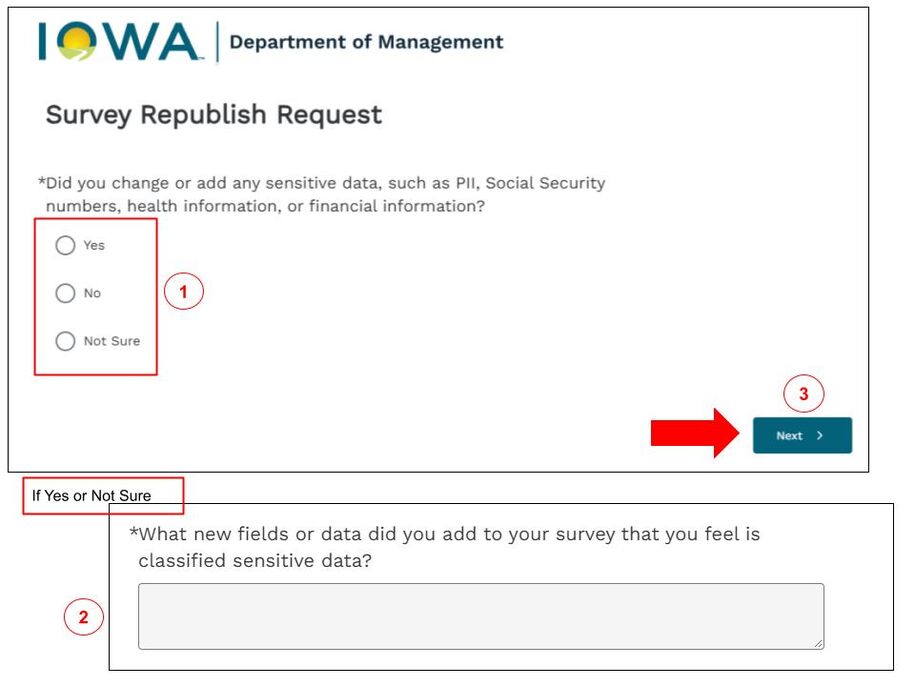
If you’re in Closed status, you’ll answer a few more questions:
Did you add or change any sensitive data? Think: Social Security numbers, health info, financial info.
- Choose Yes, No, or Not Sure.
- If you pick Yes or Not Sure, tell us exactly what you added.
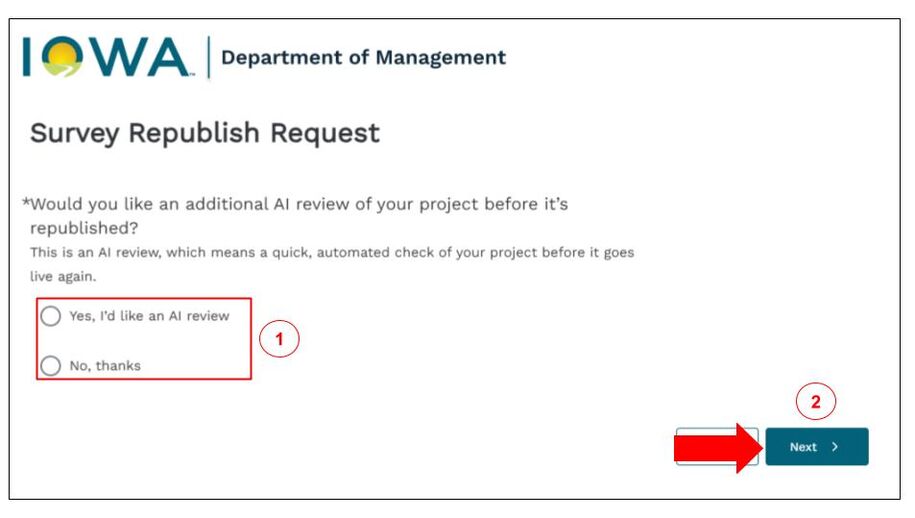
Want an AI review before you republish? This is a quick automated check of your survey.
- Choosing this adds a little time, since we wait on the AI review first.
- If you don’t need it, pick No, thanks.
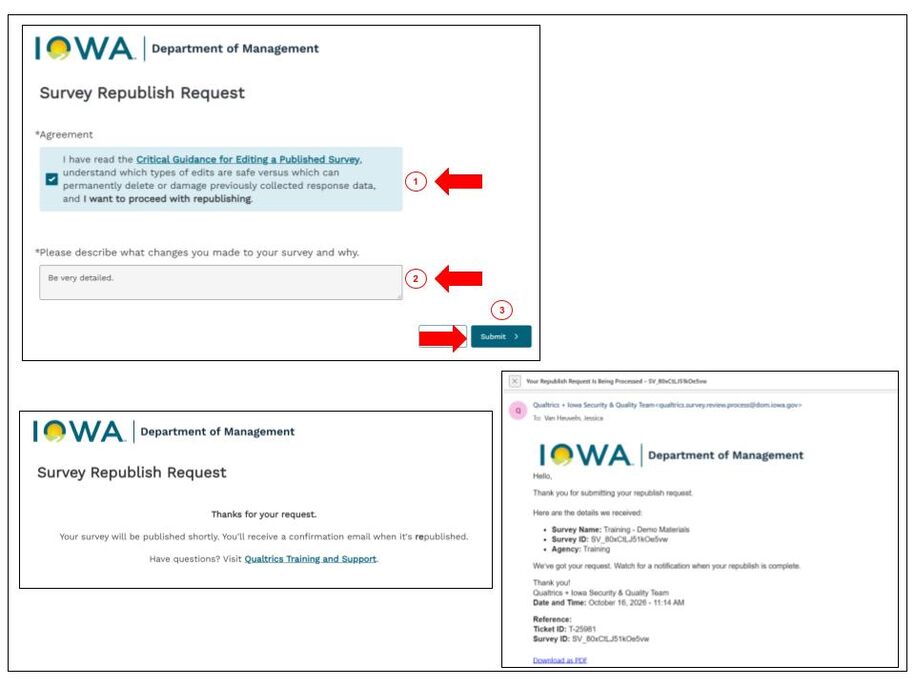
Confirm you’ve read the Critical Guidance and describe your changes.
- Check the box confirming you understand which edits are safe and which can damage your collected data.
- In the text box, describe what you changed and why. Be specific. For example, “I removed Question 4, a multiple-choice question” tells us a lot more than “I made some edits.”
- Click Submit.
What Happens After You Submit
39:06 - Republish: Processing the Request
39:56 - Republish: What Happens Once You Go Live Again
- You’ll see a thank-you screen on your browser.
- You’ll get an email confirming we received your request.
- Once your survey is republished, you’ll get a congrats email. It includes the exact date and time your survey went live.
- Important: We always republish your most recent version, not the version you had when you first asked. If you keep editing after you submit, those later changes are what go live.
- Before reporting a display issue, the congrats email asks you to:
- Check your Version History to confirm the latest version is the one published.
- Clear your browser cache and cookies.
- Refresh the page.
- Check your Distribution link.