Purpose
Funnels allow you to track a user’s journey throughout your site and gain valuable insight on user behavior.
By default, you can define steps within these user sessions via single URLs, URL criteria, or custom events. However, you can now define steps of your Funnels using page tags, which have already been defined within your intercept.
Note: This feature is only available to Agency Managers.
How to Create a Funnel
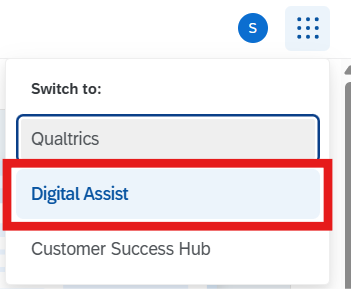
Navigate to Qualtrics Digital Assist to locate the Funnel tool.
- You can either select the Digital Assist when you go to Engage.iowa.gov
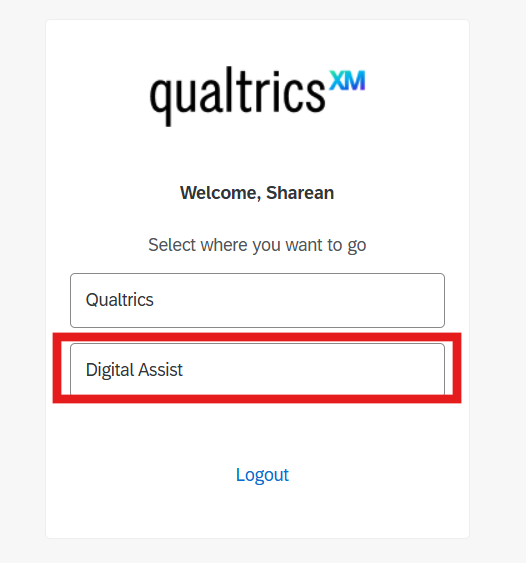
- Or if you are already in your Qualtrics account, you can click on the waffle menu at the top right of the page and select Digital Assist from the dropdown menu.
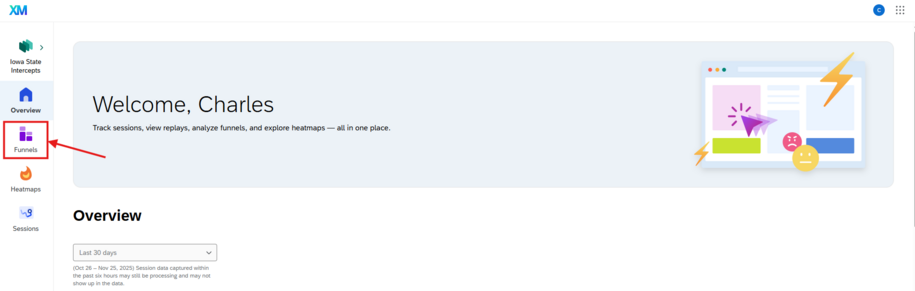
- Select Funnels in the left sidebar menu.
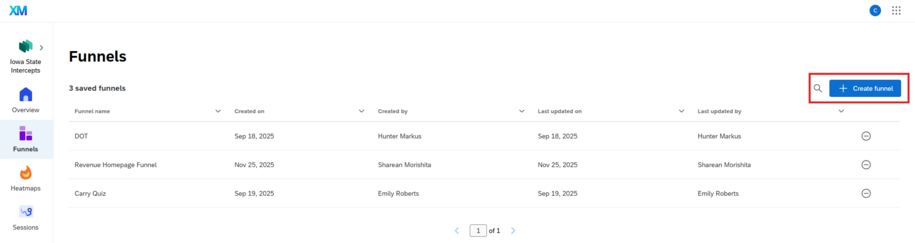
- Select Create funnel on the right side of the Funnels page:
- On the new funnel page, click Add step, which gives you the following options:
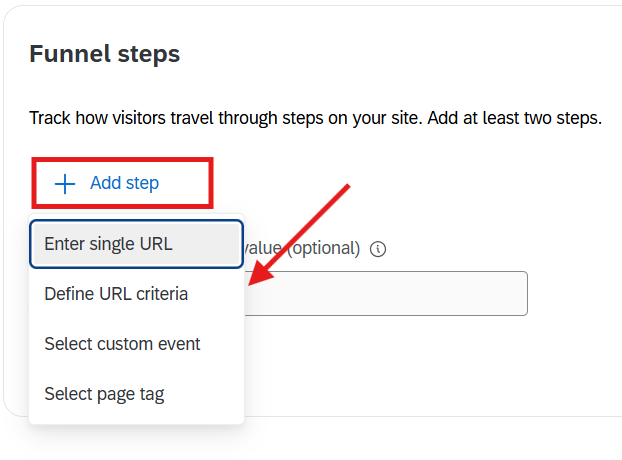
- Enter a single URL: Such as your agency’s homepage. Start typing and/or select from the dropdown of suggested URLs.
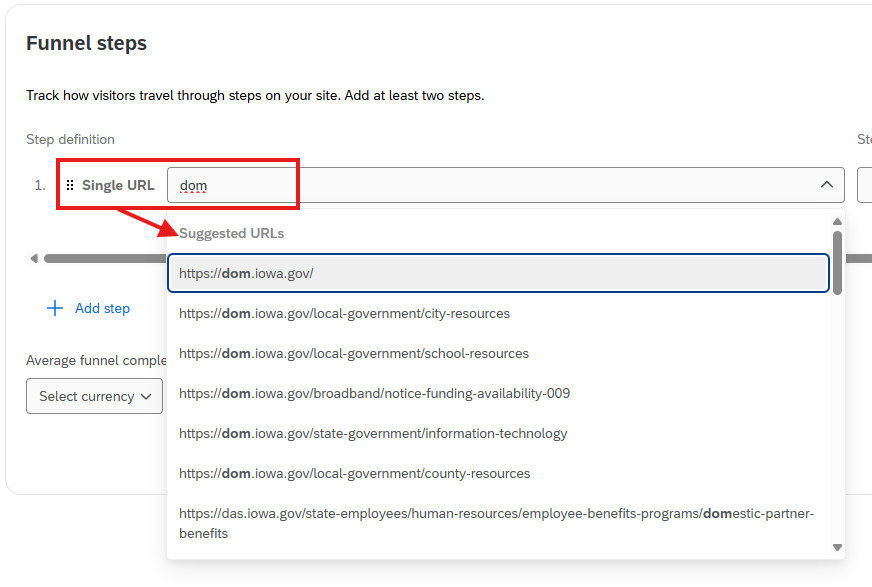
- Define URL criteria: A combination of multiple pages, using a URL filter.
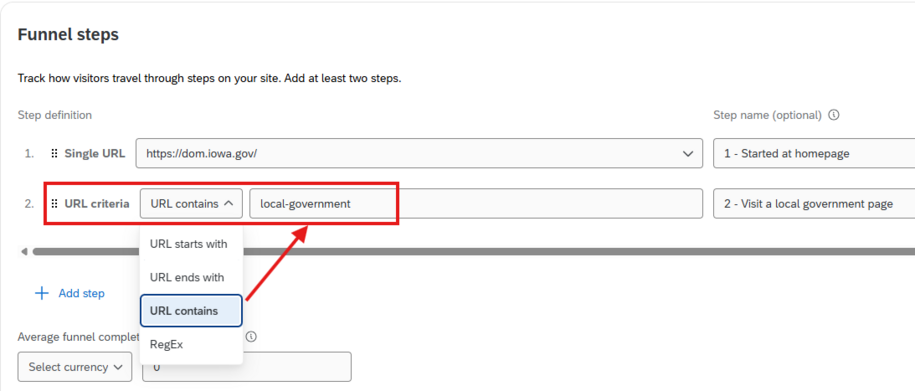
- Select custom event: When a Google Tag is loaded or when a user clicks any element or just clicks a URL.
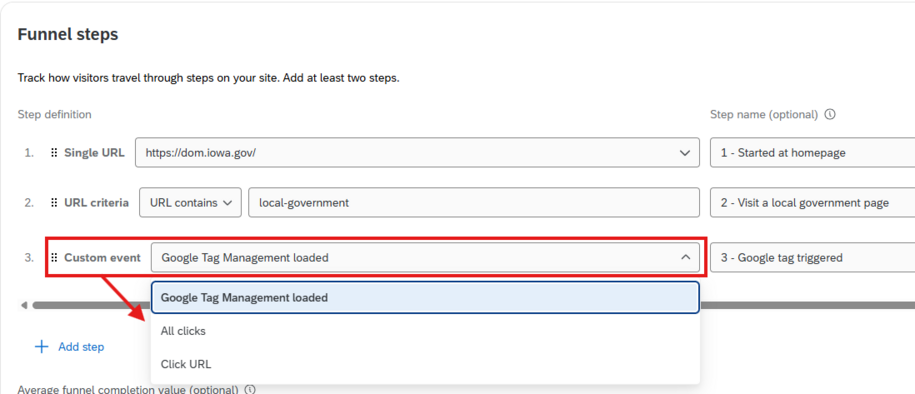
- Select page tag: Defined in a DXA project. Each agency has a main page tag, although agencies have the option to create additional ones.
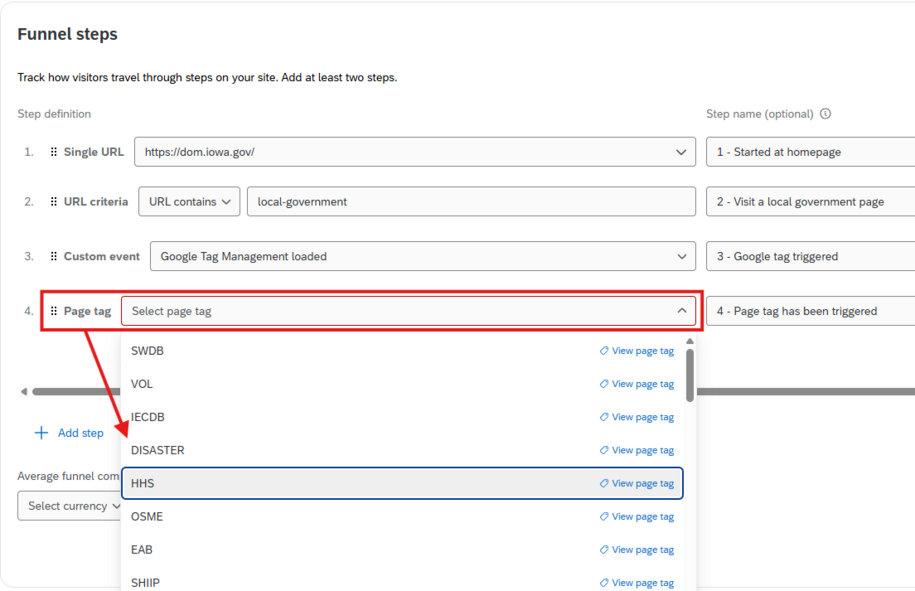
These steps can be in any order that makes sense for tracking user journeys throughout your site. They can also be reordered using the drag-and-drop dots on the left of each created step.
Important: At least two steps are required in order to create a funnel.
- Once you are satisfied with your steps, click Create funnel to create your funnel.
How to Locate Saved Funnels
You can use the search field in the far right of the Funnel dashboard to see your previously saved funnels.
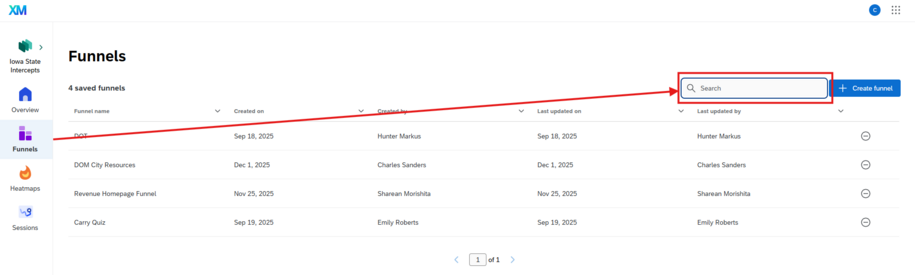
You can search by the name you created when you saved the funnel. It will appear in the table below. From there you can select that row to see that funnel.

If you ever need to rename a previously saved funnel or want to delete a funnel, do that by selecting the three dots on the right of the blue Save button.

How to Use Funnels
Once you create a Funnel, you will be taken to it. Alternatively, on the Funnels page, you will see your saved Funnels. Select one to begin viewing the data.
On the creation of a new Funnel or when updating an existing one, it can take up to five minutes for the session data to load. You can save your Funnel and come back later or wait.
Viewing the Data
Once the data has updated, you will see it displayed visually, highlighting the number of sessions started and number and percentage of sessions reached for each step of the Funnel.
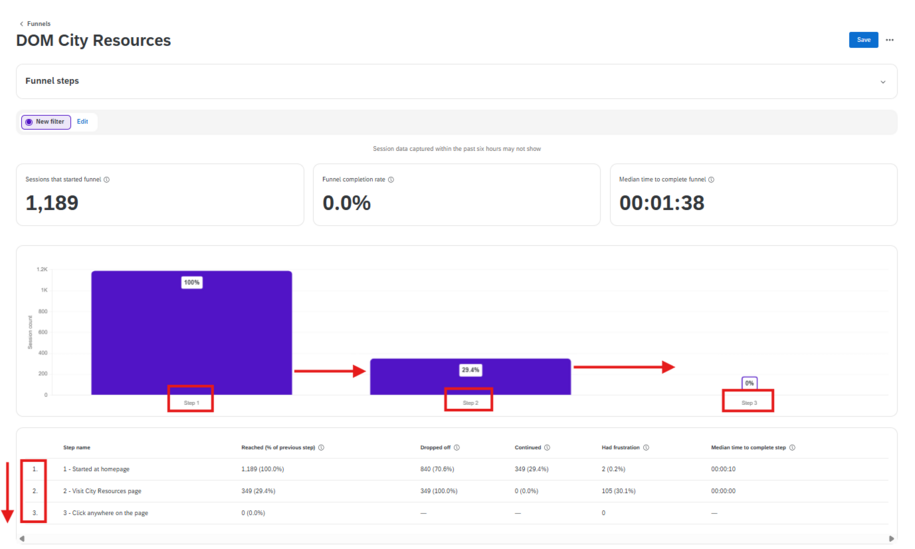
There are also metrics to capture if users had frustrations and at what step frustrations occurred. The metrics will indicate how much time was spent within each step. To summarize, the data section includes:
- Basic metrics that include the number of users who began their session at step one, the rate of Funnel completion, and the average time it took.

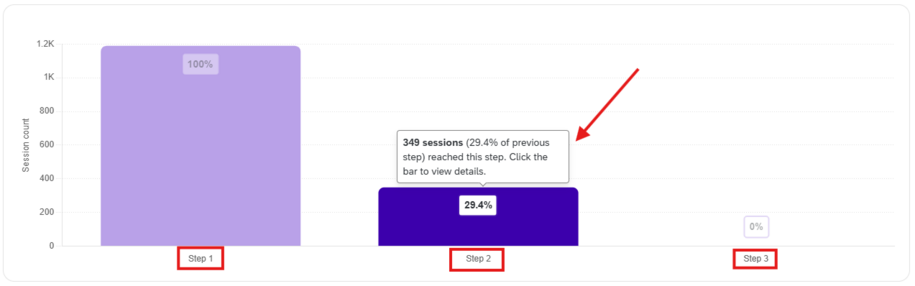
- Bar chart that highlights how many users, and at what rate, moved on to the next step.
- Table that lists out the Funnel steps and includes metrics for how many users dropped off, continued, and had frustrations for each step.

If you want more information on each step, you can click on either the corresponding bar in the bar chart or row in the table to bring up an in-depth left side section:
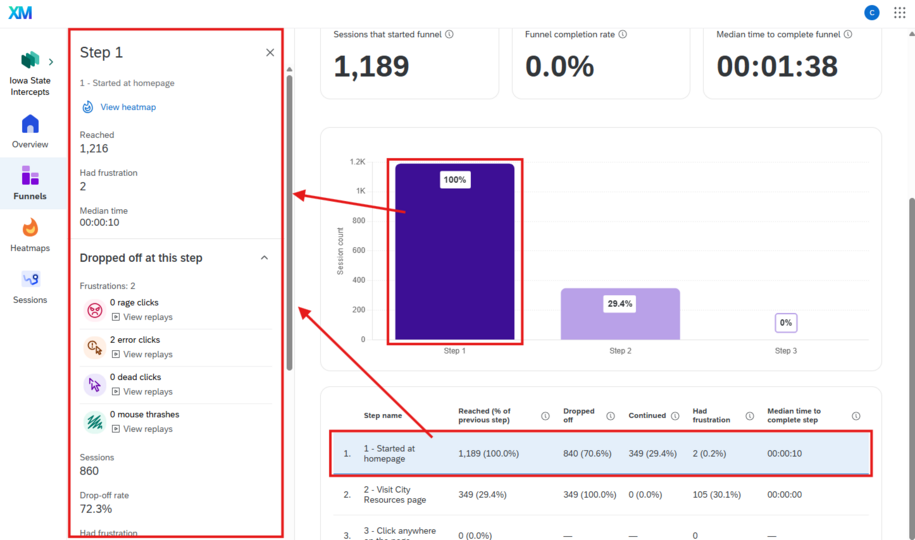
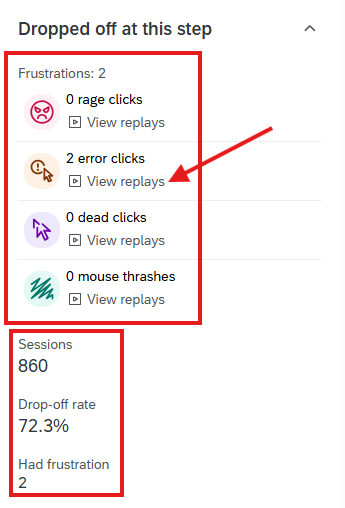
This section provides even more useful highlights of the user data within that step. You can click View heatmap toward the top of the section, allowing you to dig further into the data. Visit Understanding Heatmaps on the DX Training site to learn more about this feature and how to use it.
The section also lets you know if users who Dropped off at this step or Continued to the next step experienced frustration signals like error clicks, rage clicks, or dead clicks. You can even View replays of these sessions to get more insight into those frustrations.
Viewing and Editing Funnel Steps
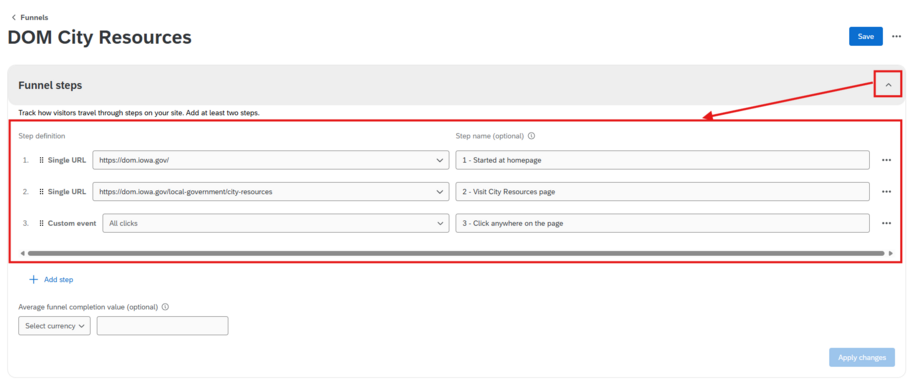
You can view the Funnel steps and make changes to them by clicking on the Funnel steps dropdown to expand that section.
From there, you can reorder existing steps, rename, redefine, and delete steps. Once you are done editing, select Save changes. Each time you update and save your Funnel, it takes up to five minutes to refresh and view the new data.
Filtering
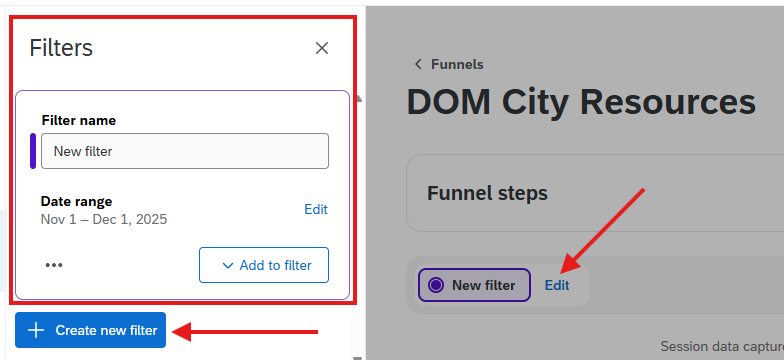
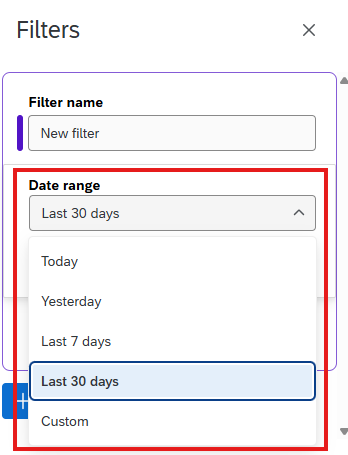
Funnels are first set to display data over the last seven days. However, you can click New filter: Edit to update this to other preset date ranges, including custom.
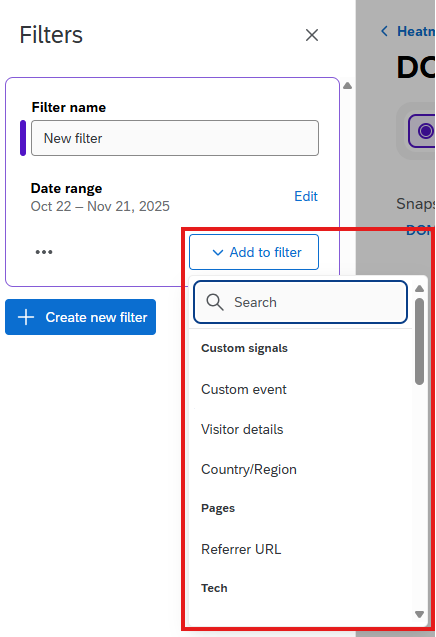
There is also a wide range of filter options, including Visitor Details, Country/Region, Browser and Screen Resolution, frustration signals like rage clicks and dead clicks.