
Except for Drupal website reports, these settings are rarely used. Typically, these are set up once and do not need to be changed.
The Site Settings tab is for Agency Managers only. It lets them set important agency-wide options, such as:
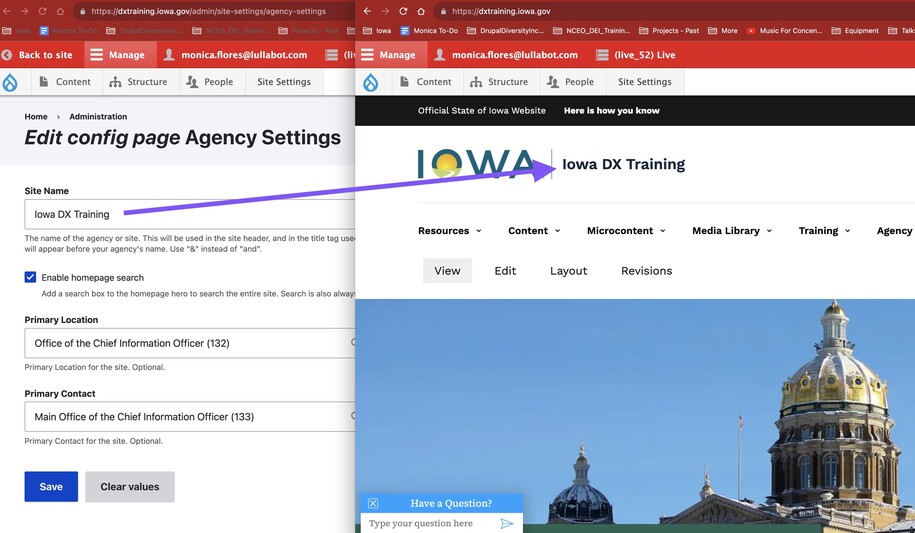
- Site name
- Google Programmable Search Engine ID
- Google Tag Manager code
- Qualtrics Project ID
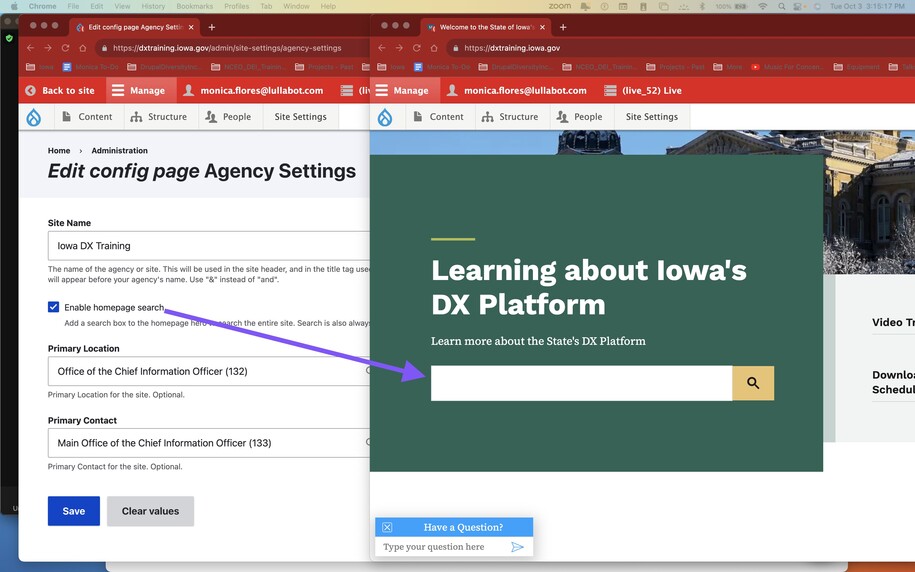
The homepage uses a Google Search Console variable. The checkbox below decides if the search box appears on the homepage Hero. A search box is always available in the header at the top of every page.
Login to your site
Make sure you are logged on to the VPN first.
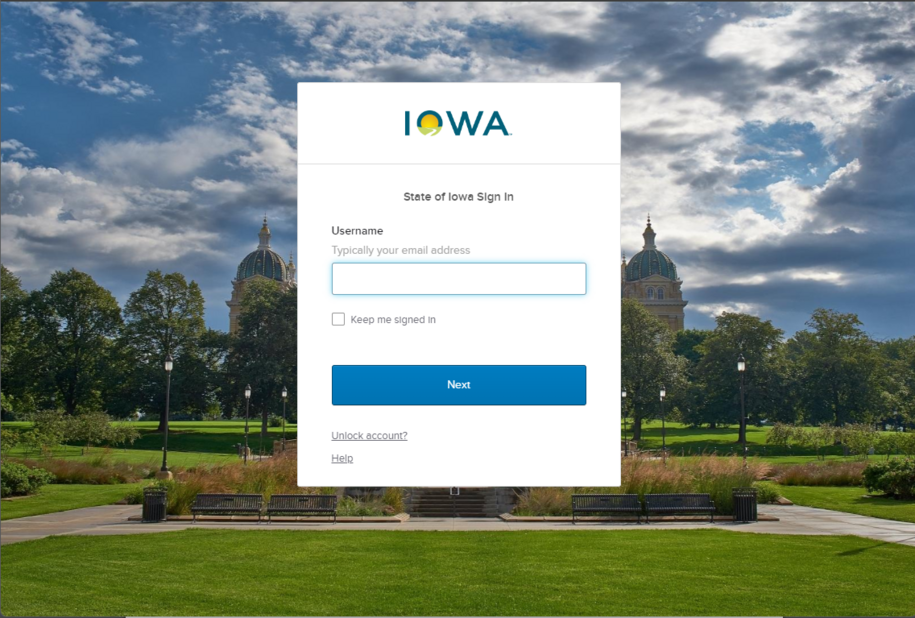
You can login to your site from your Okta tile or login.iowa.gov.
Each person on your agency team has a specific user role for the website. These roles set permissions. They control who can write, edit, review, or publish content. You can ask for a role change or remove a role.
Submit a ServiceDesk Plus support ticket if you need help.
Navigate to Site Settings
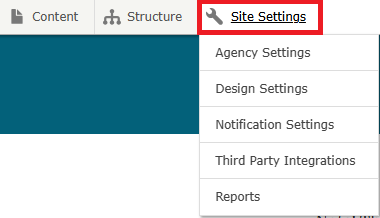
On the top menu is the Site Settings tab.
Click here to view these options:
- Agency Settings
- Design Settings
- Notification Settings
- Third Party Integrations
- Reports
Site Settings
Agency settings
- Site Name is the overall name of the agency, such as Iowa Department of ________.
- The checkbox to Enable homepage search turns on a Hero search box on your Landing page.
- Primary Location - Create a Location content type first, then start typing the name of that location within the Primary Location field. When you see the correct location, choose it to populate your Primary Location field.
- Primary Contact - Create a Contact content type first for your primary contact, then start typing the name of that contact within the Primary Contact field. When you see the correct contact, choose it to populate your Primary Contact field.
- Accessibility Contact Information - This field will populate your agency's accessibility contact information on your Archived Documents page if you have one. Suggested text for this field is If you require an accessible copy of any of these documents or if you encounter accessibility barriers on our website, please contact [email protected] with your request.
Design Settings
- This is where the color palette for your website is chosen.
Notification Settings
- You can check the box to enable notifications to send to Agency Managers when a page is ready for review or when publishing a draft. This requires a SendGrid key to enable. Contact Cloud Services to acquire this key.
Third Party Integrations
- This is where you'll find your Google Programmable Search Engine ID, your Google Tag Manager code, and your Qualtrics Project ID.
Reports
- This is where you'll find all your available Drupal website reports.
Confirm your changes in an incognito window
To check your changes, we recommend opening a page in an incognito window. An incognito window shows what the general public sees. This includes users who are not logged in or using Drupal.
Chrome: Open an Incognito Window
To open an Incognito window, use Ctrl-Shift-N on Windows or Command-Shift-N on macOS.
Click the menu in the upper right, marked by three vertical dots. Then, choose New Incognito Window from the list.
Edge: Open an Incognito Window
At the keyboard, the combination of Ctrl-Shift-N (Windows) or Command-Shift-N for macOS opens an InPrivate window.
Another way to get there is to click the menu at the upper right - three dots arranged horizontally - and choose New InPrivate Window from the menu.
FireFox: Open an Incognito Window
To start a private browsing session, press Ctrl-Shift-P on Windows or Command-Shift-P on macOS.
You can also open a private window by clicking the menu in the upper right of Firefox. Look for three short horizontal lines and select New private window.