Purpose
The Basic page Table of Contents feature creates a navigation list. Table of Contents are a great option to use if the content of your page has more than 4 headers or pages that have a couple of different topics that is being covered. This can help users to better navigate through the information on that page and to get to the topic they are looking for.
When to use the Basic page Table of Contents
This feature is beneficial for:
- Long pages: Helps users easily jump to specific sections within a lengthy page that has multiple topics or four or more headings.
- Better navigation: The table of contents gives users a quick look at the page structure. It also lets them jump straight to the sections they need.
- Improved accessibility: Screen reader users and keyboard navigators can easily reach different sections.
- Complex content: It helps organize content. This way, users can easily find specific information on the page.
Elements
- H2 headings: Apply the H2 style to your headings within the page body. These headings will become part of the automatic Table of Contents.
- On this page functionality: Enable the On this page checkbox for H2 headings. This activates the Table of Contents generation.

- Automatic TOC: The Table of Contents is created at the top of the page, listing your H2 headings as clickable links.
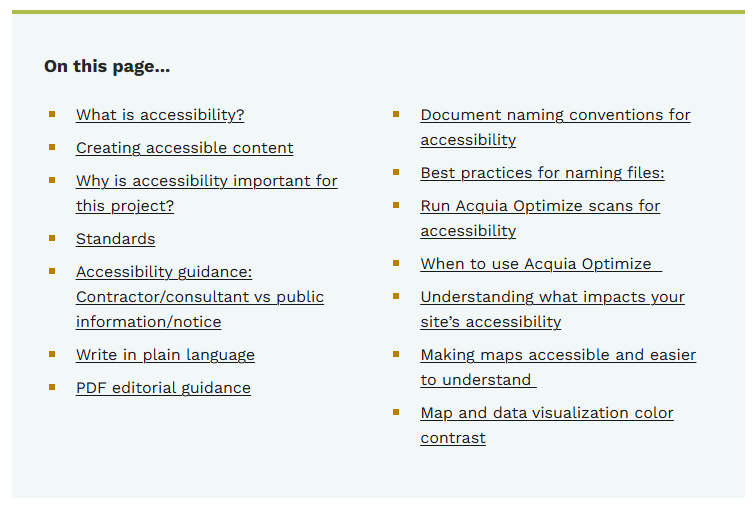
- Anchor links: Clicking on a Table of Contents link takes the user directly to the corresponding heading within the page content.
Reasons to avoid creating manual anchor links
- Broken links: Links made by hand may break if the heading changes or moves.
- Accessibility issues: Screen readers may misinterpret manual links.
- Content organization: Overreliance on manual links indicates a lack of structure in the content. The table of contents encourages a more organized approach with clear headings.

Create a Basic page content type
Create a new Basic page by navigating to Content in the top upper left navigation. Then navigate to Add Content.
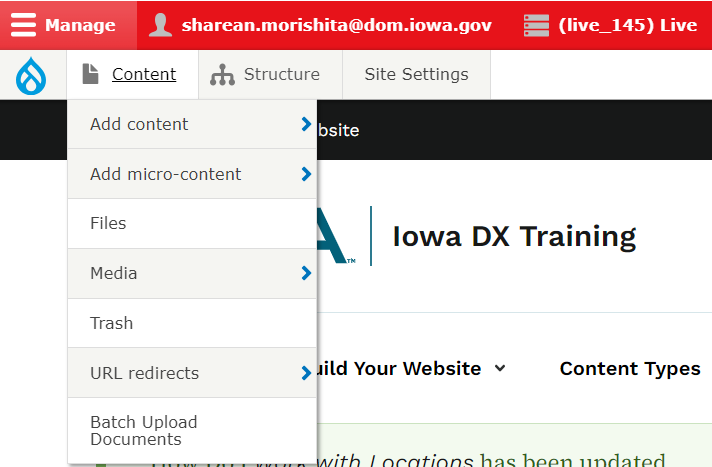
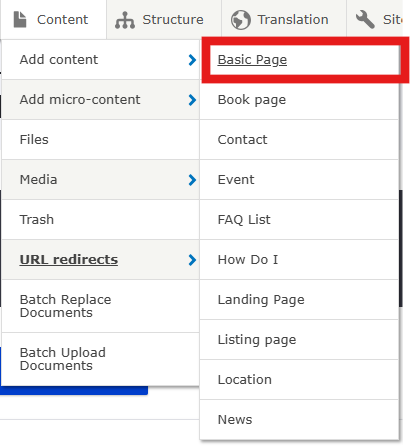
A pop out menu will appear with all the types of content available to add. Select Basic Page.
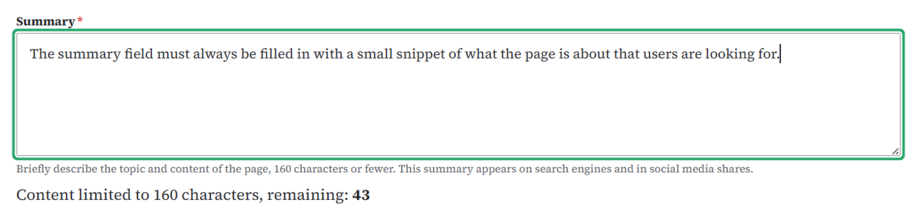
When creating a Basic page, make sure to add all required fields like the summary field. If you need help, refer to what to include in your summary.
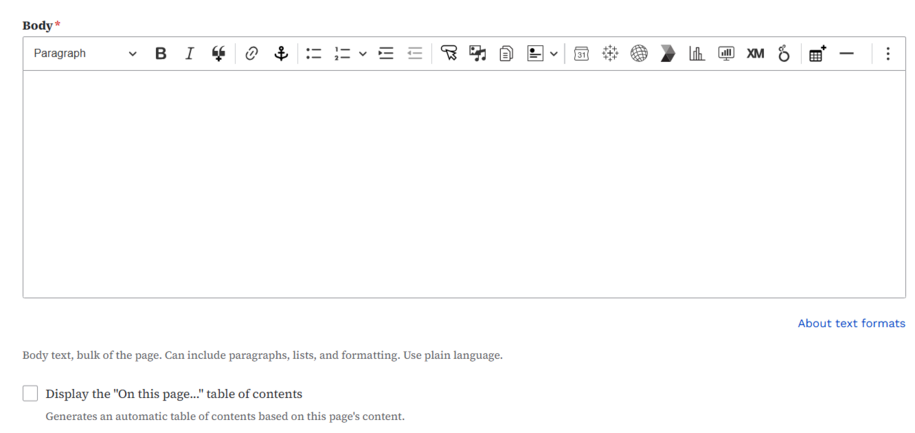
After that you can add your text manually or you can paste text from a word document or PDF file into the Body field.
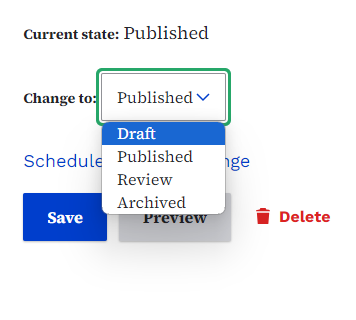
You can save the page as a Draft if you want to save your edits without the public seeing it, or you can save as review if another team member needs to review the page before publishing it.
If you are ready to make the page live for the public to see you can save it as Published. If you want to unpublish it, you can do so by saving it as Archived.
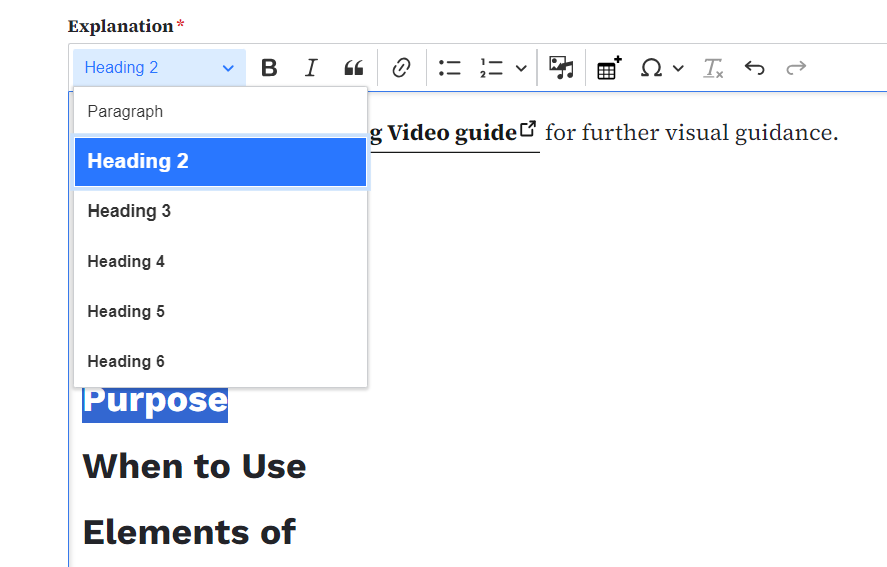
Assign H2
For each heading you want to turn into an anchor link, highlight the text and choose H2 Heading from the style dropdown box.
Example of how to create an anchor link:
Turn on the On this page checkbox under the body
When you choose the On this page functionality, an automatic Table of Contents-style section is created at the top of your page.
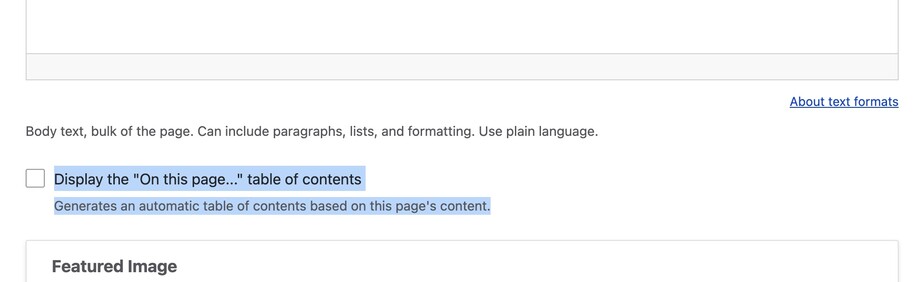
This toggle will automatically collect any text with an "H2 Heading" and create an anchor link at the top of the page.